
Pavilion
A Hamlet building
Restaurant software that runs the whole place.
The till, the kitchen, the online store, the couriers, the TVs on the wall and the music in the dining room. Pavilion is one app you host yourself, so it replaces the stack of subscriptions a small restaurant usually pays for, and your orders and customers stay yours.
- Free and open source
- Self-hosted
- Built for touch screens
- Live on every screen
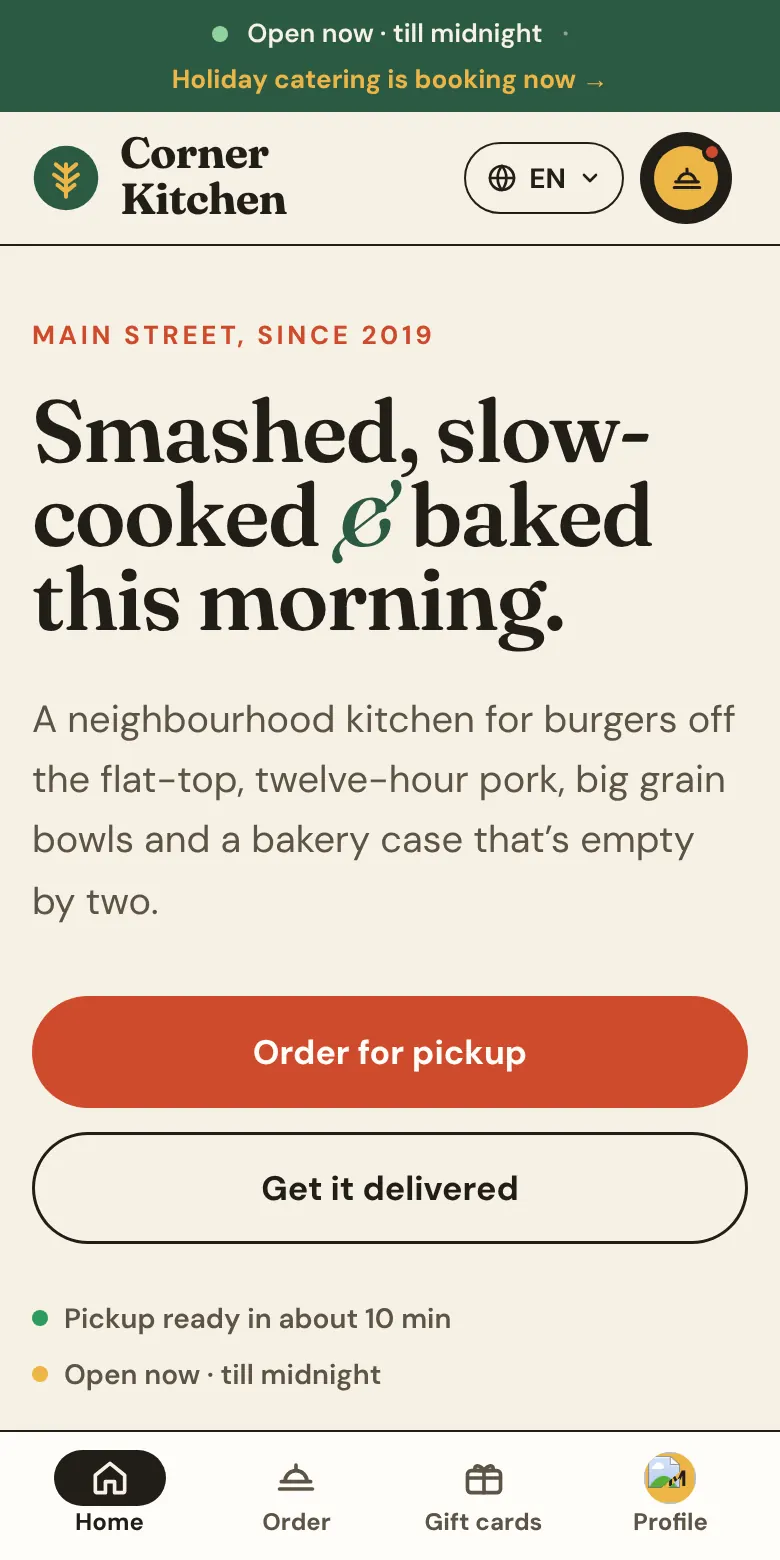
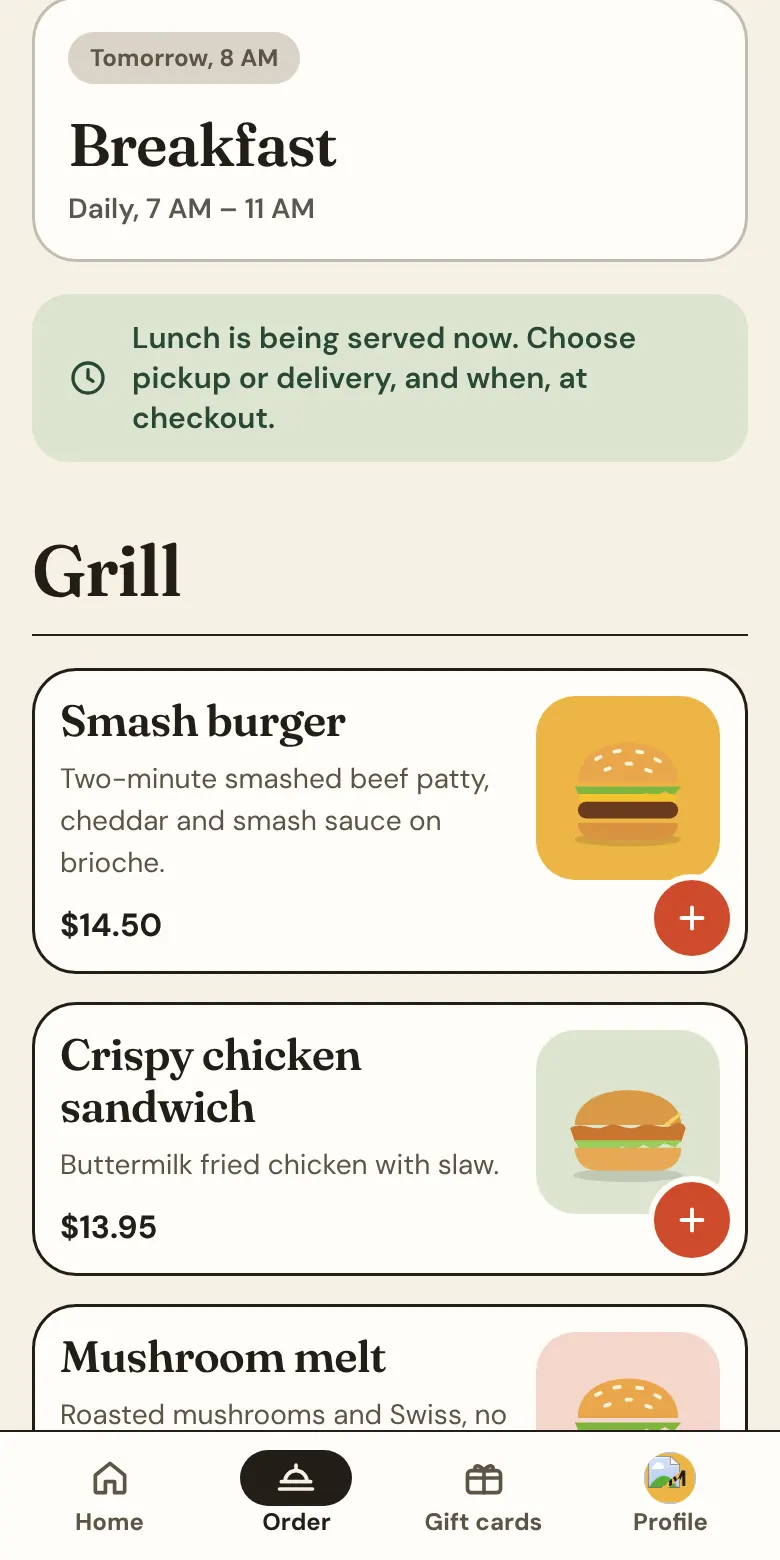
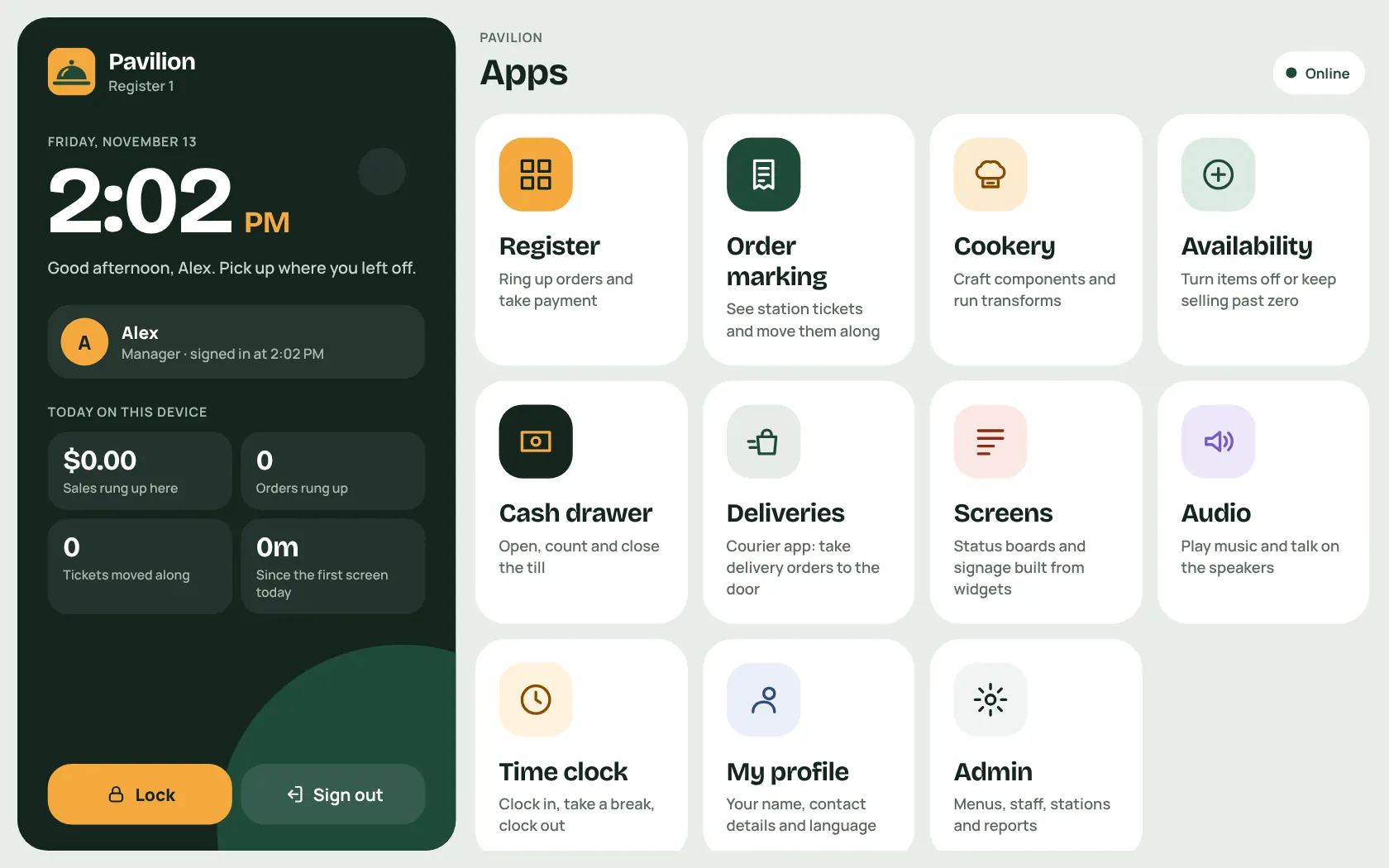
The screenshots on this page show the demo restaurant that ships with Pavilion, Corner Kitchen.
The till
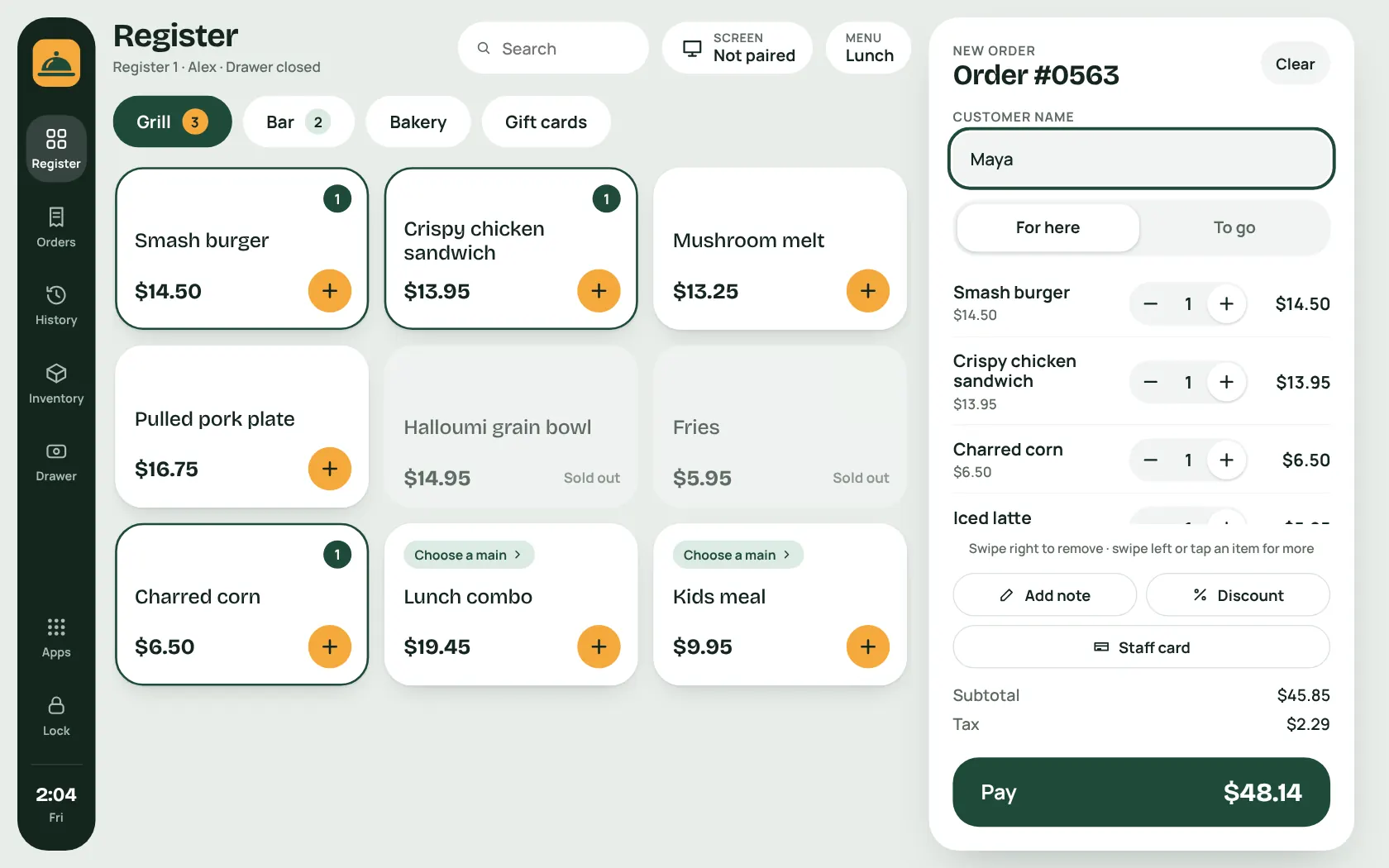
A real point of sale for the counter, built for fingers and busy hands.
Register 1 · what it does
Touch-first register
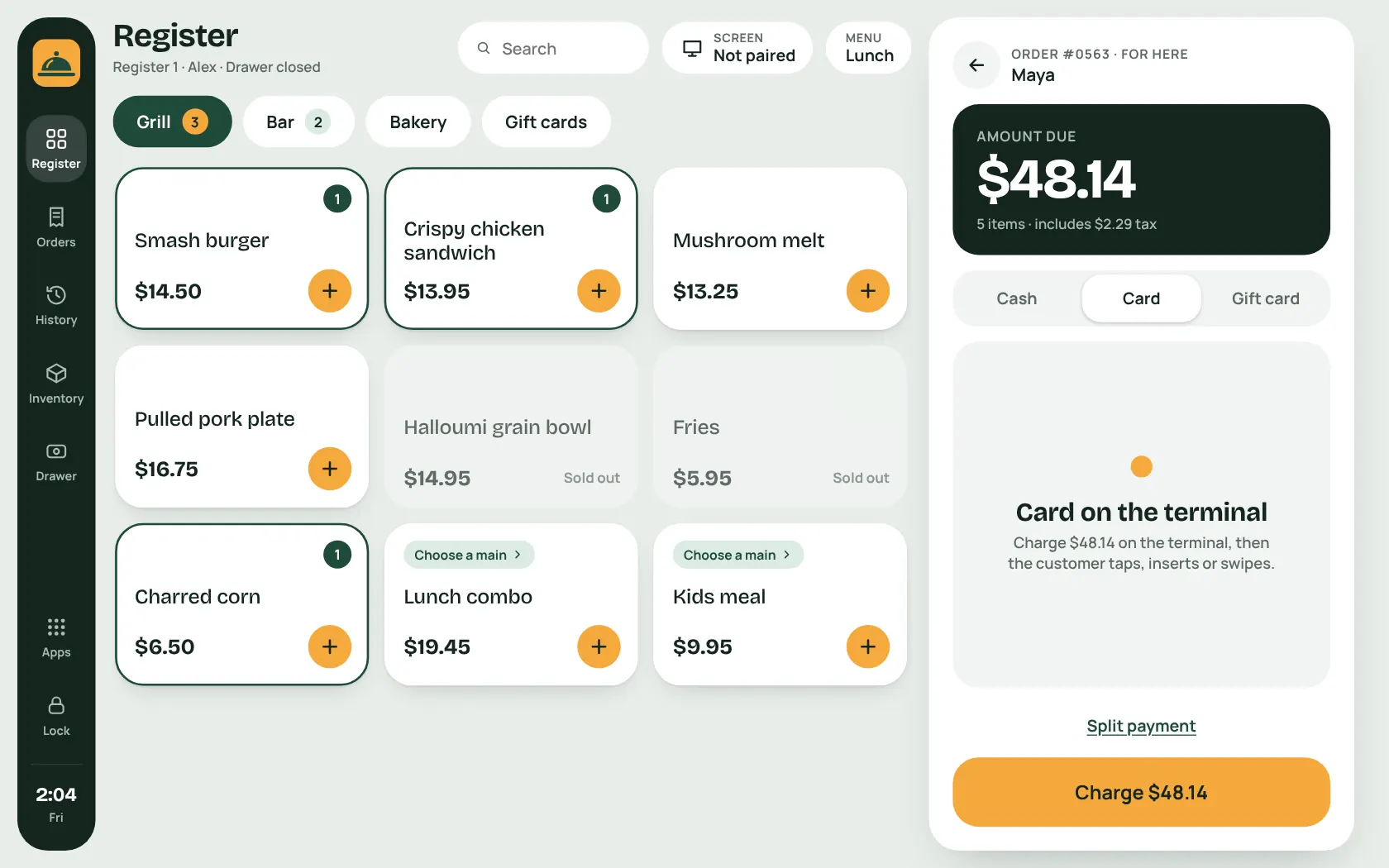
Sections follow your stations. Tap a dish to add it, swipe a line to discount, customize or remove it.
Combos and modifiers
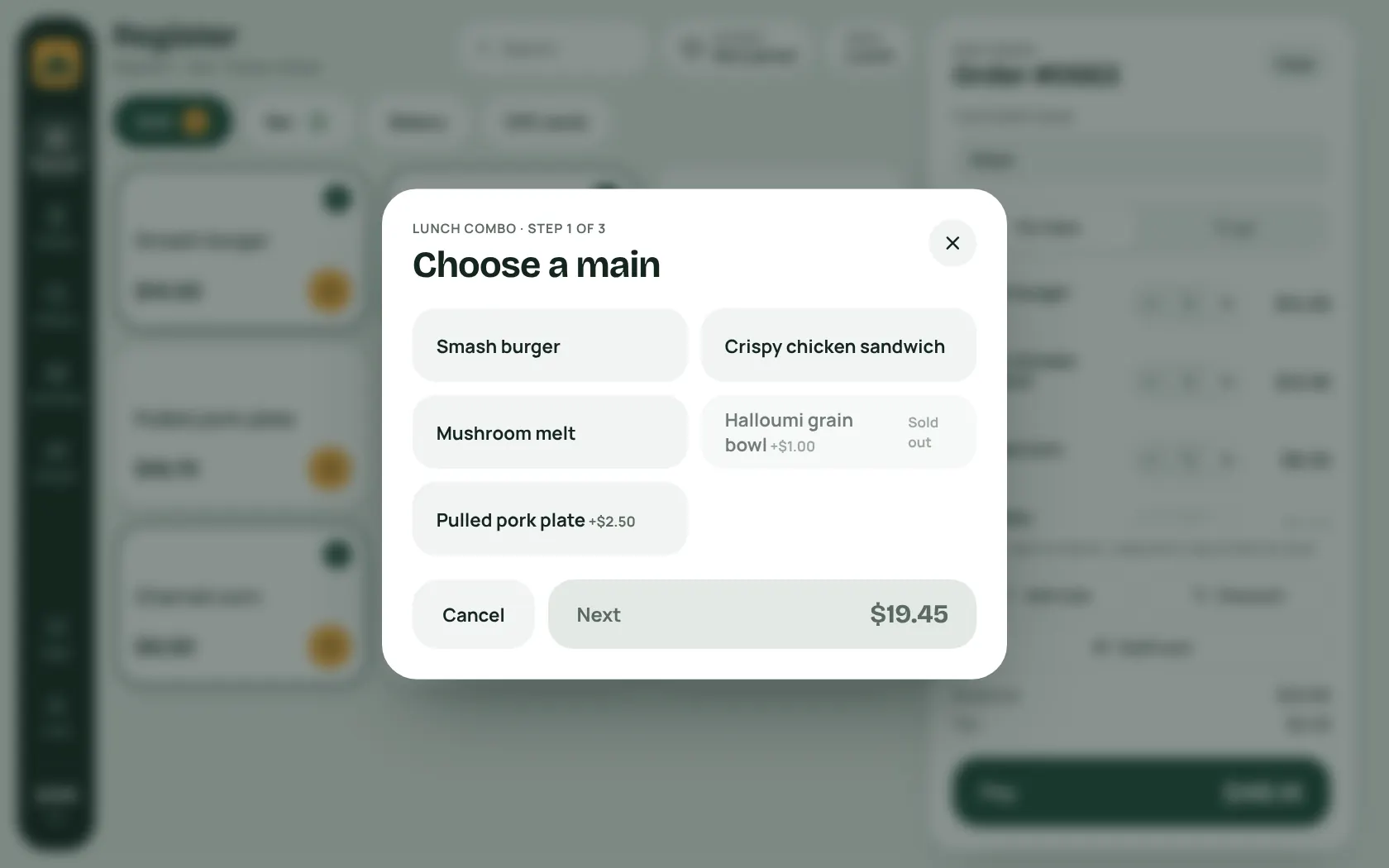
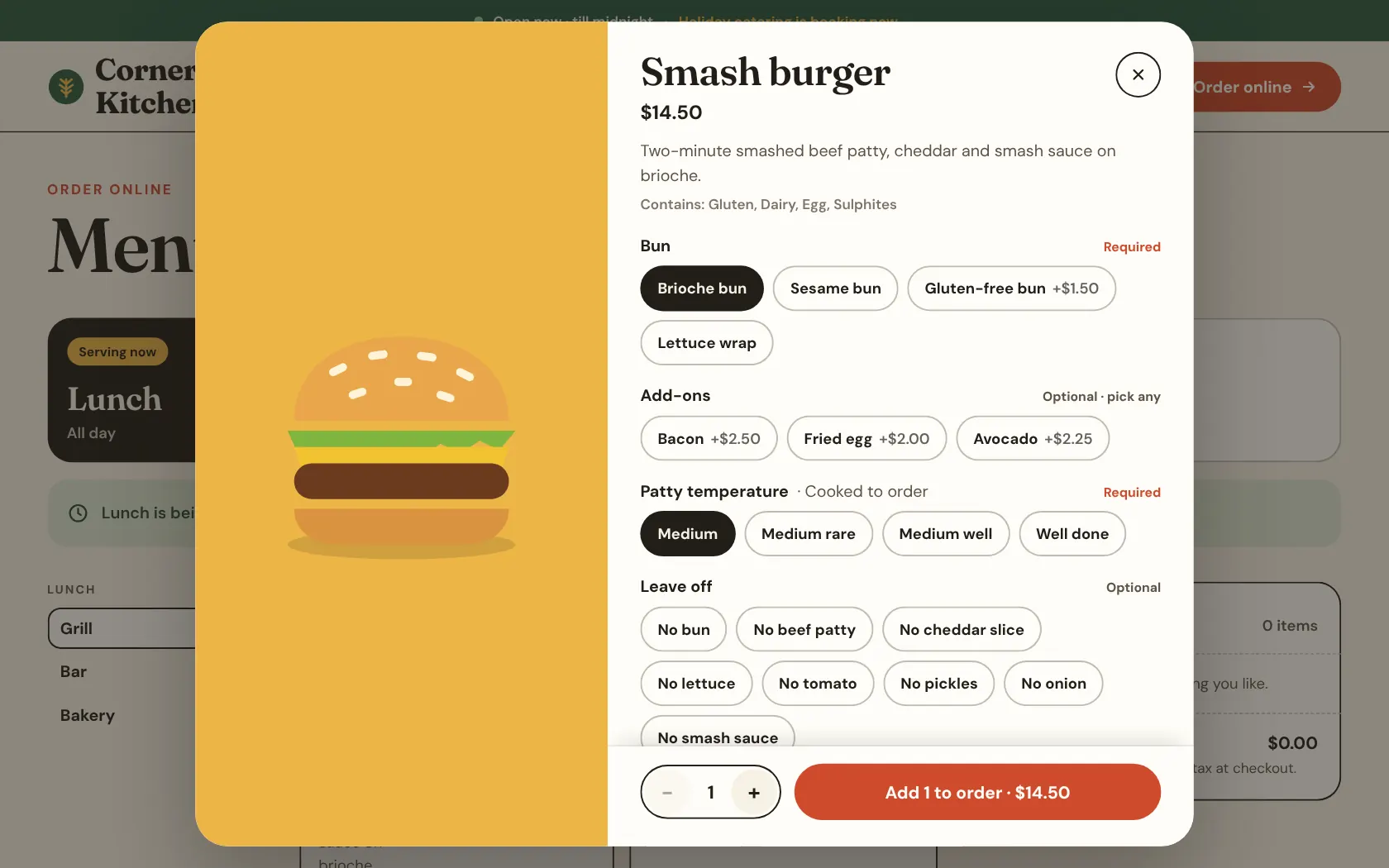
Combos walk the cashier through each choice. Dishes take options, add-ons, substitutions and things to leave off.
PIN sign-in
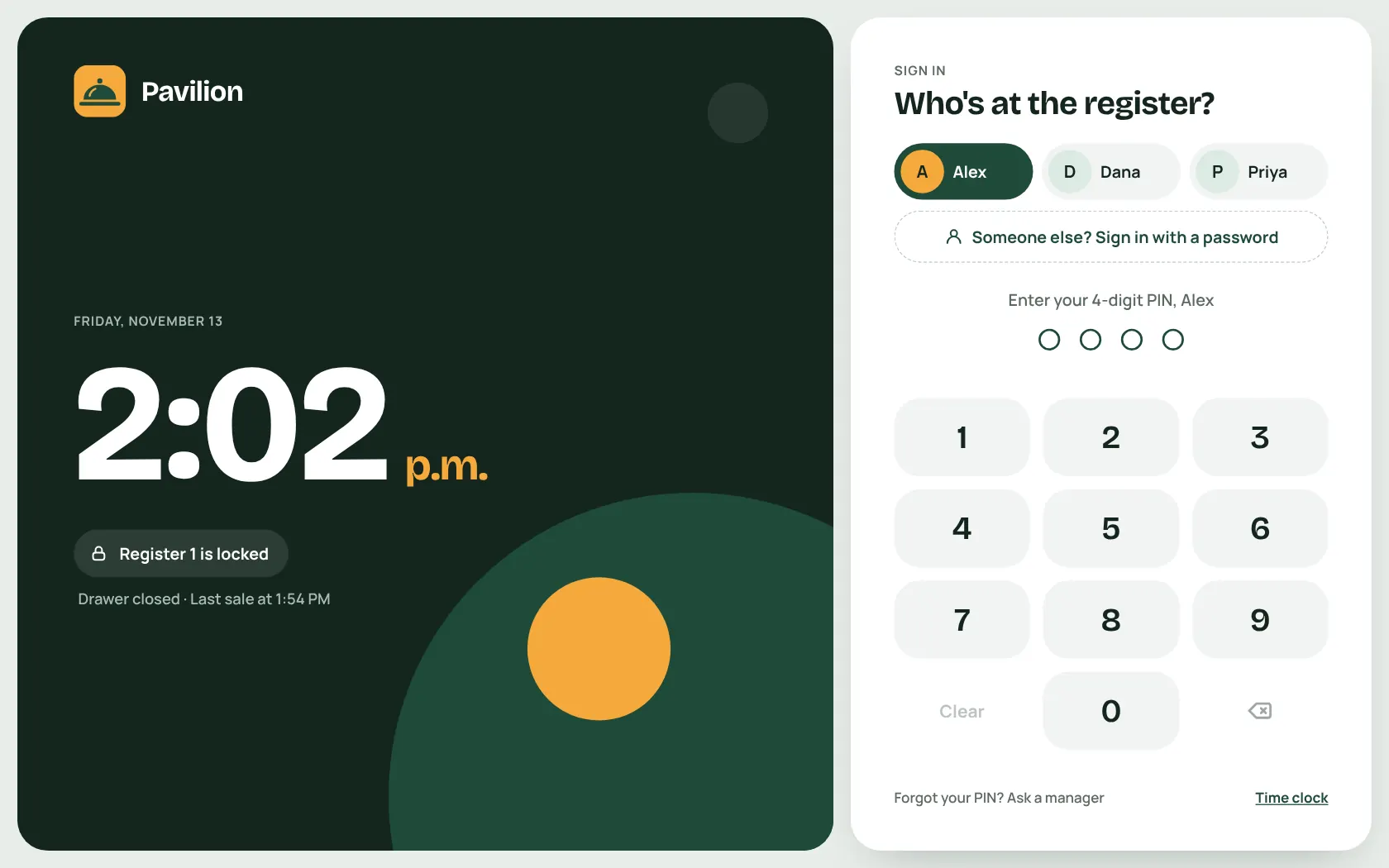
Staff pick their name and type a 4-digit PIN. Five wrong tries locks that person out for a minute.
Card on a Square Terminal
Each register pairs its own Terminal. No Terminal? The register shows a QR code and the customer pays on their own phone.
Cash, gift cards, split payments
Take part of a bill one way and the rest another. Gift cards scan by camera or reader.
A proper cash drawer
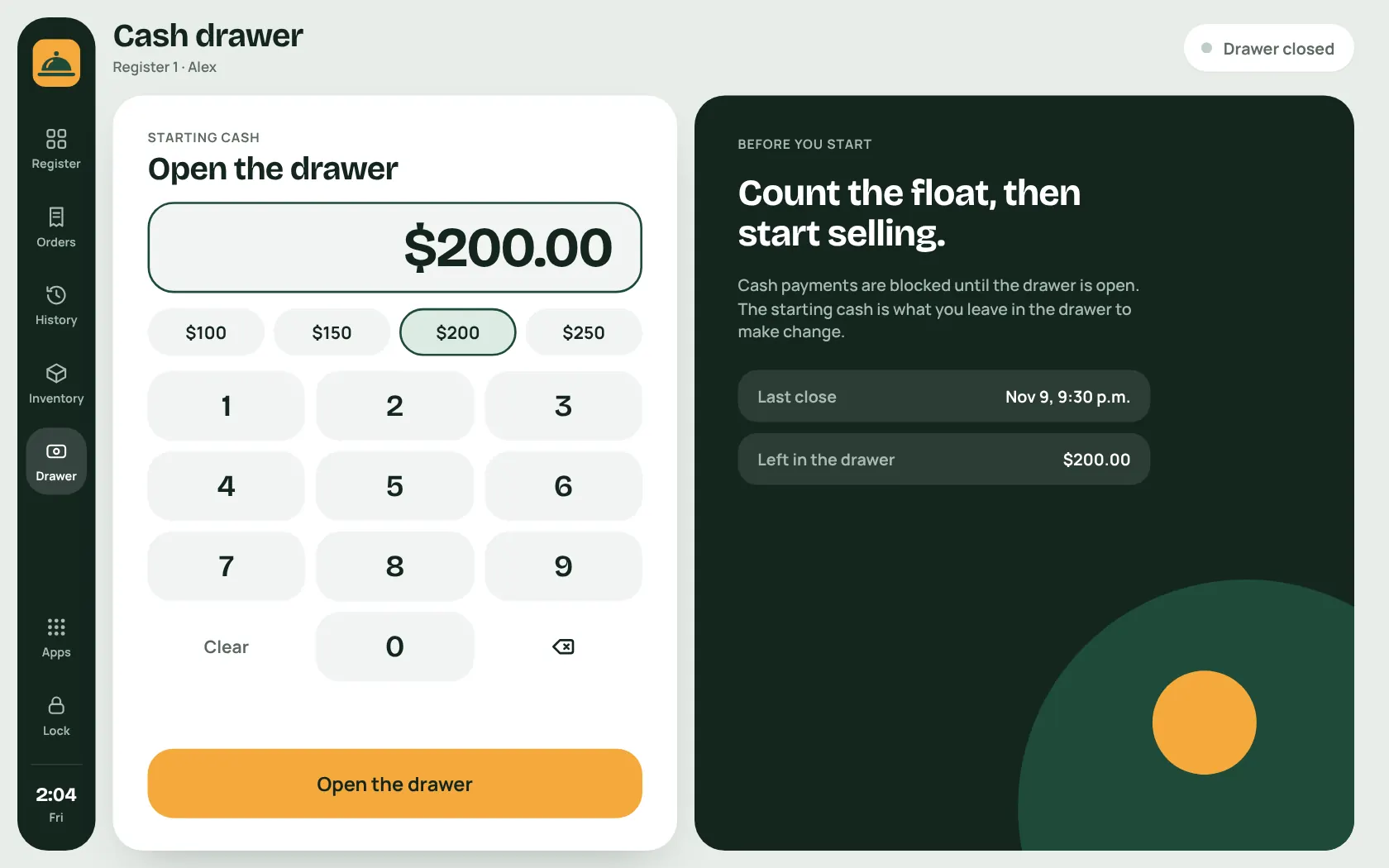
Open with a float, record paid in and out, and close by counting. The expected amount stays hidden until you have counted.
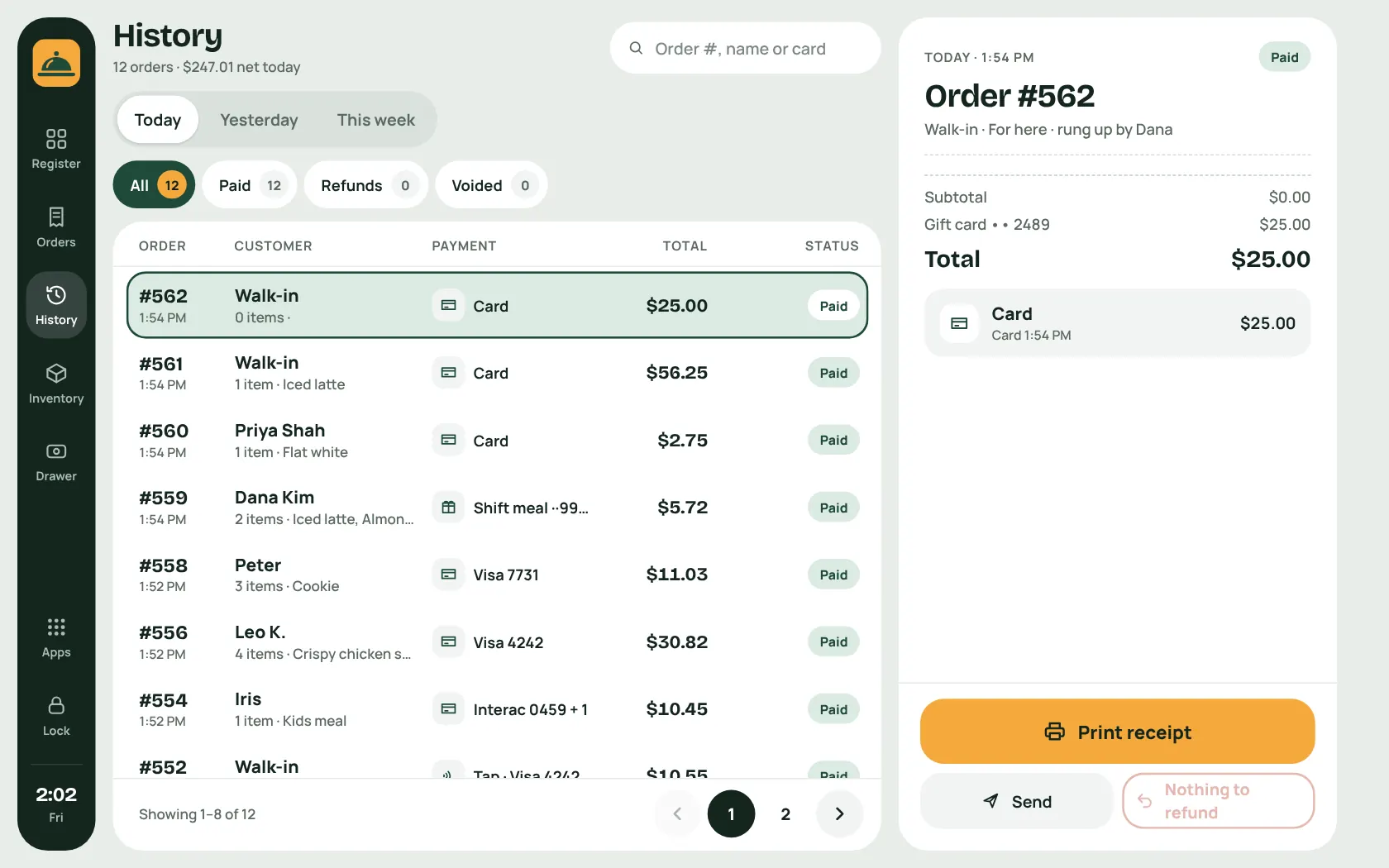
History, receipts and refunds
Find any order, reprint or send its receipt, and refund the whole order or picked items.
Discounts need a manager
Typed-in discounts need a manager's PIN. Cashiers can ask for one without leaving the order.
The pass
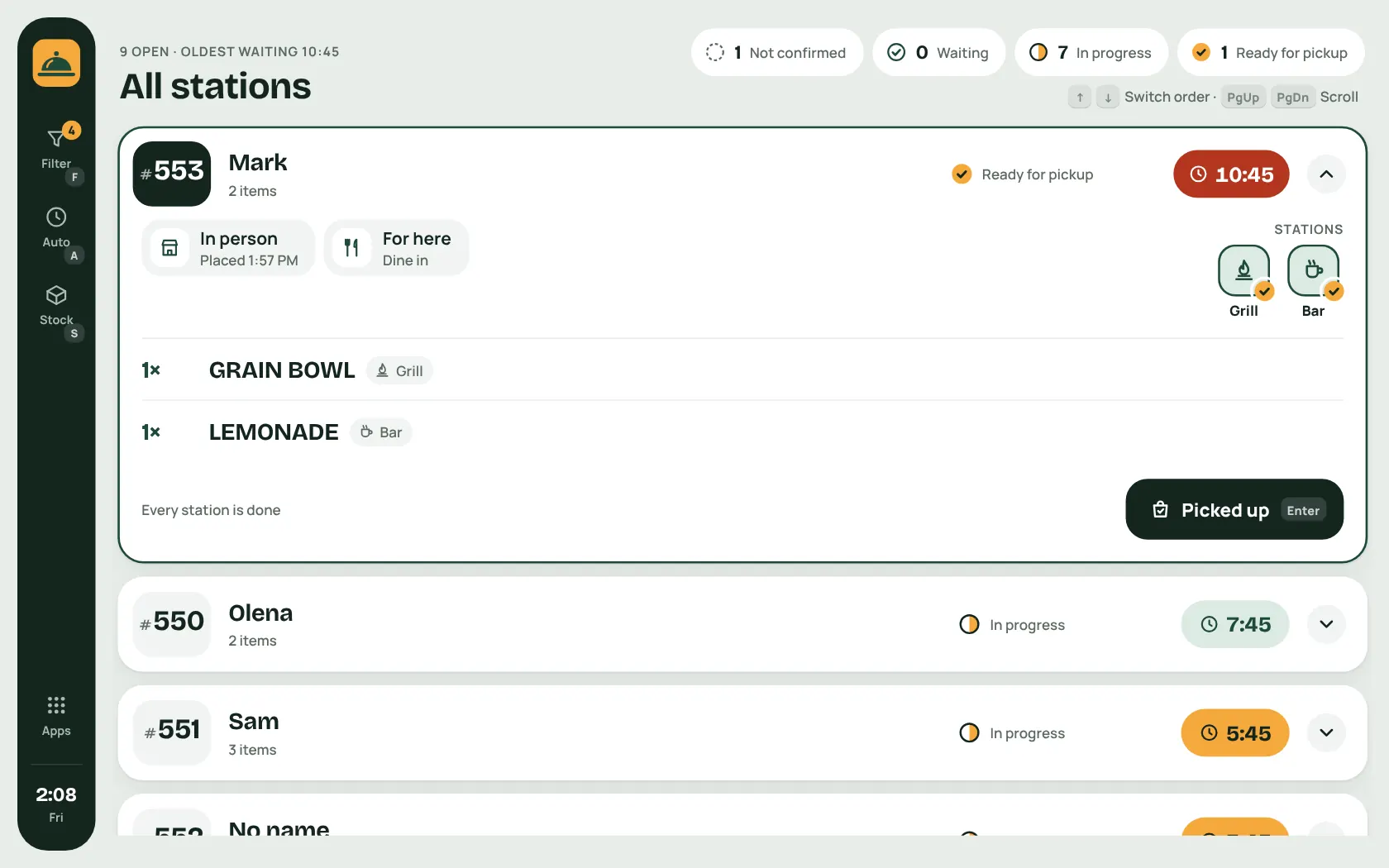
The kitchen display. Tickets hang here until the food goes out.
One screen per station
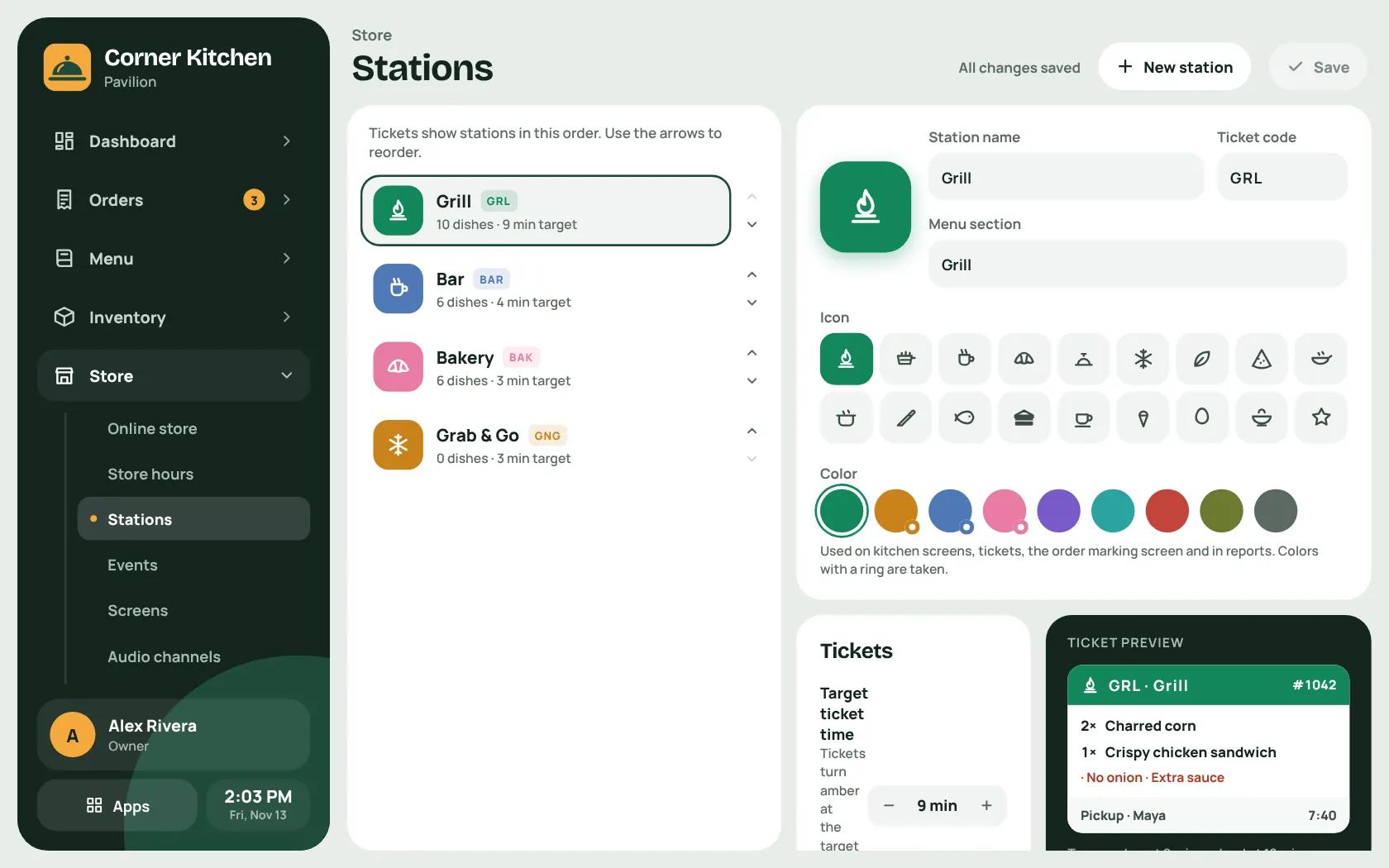
Every dish goes to the station that makes it: grill, bar, pastry, whatever you set up. Each screen shows only its own part of an order.
Green, amber, red
Tickets change colour as they run past the station's target time, so the late ones stand out from across the kitchen.
Touch, mouse or keyboard
Tap a ticket, click it, or run the whole screen from a keyboard alone. Every action shows its shortcut, and it works on a TV mounted in portrait.
Confirm, ready, handed out
Each station confirms and marks its part ready. When every station is done the order is ready for pickup.
Reject with a reason
Rejecting an online order voids or refunds the payment and tells the customer why.
Allergies stand out
Allergy notes show as red flags with a banner on the ticket. Modifiers are coloured by kind: left out, extra, option.
The pantry
Real inventory and costing, from the delivery door to the plate.
-
Ingredients, components, dishes
Buy ingredients, cook them into components, and build dishes from components. Everything downstream follows from that chain.
-
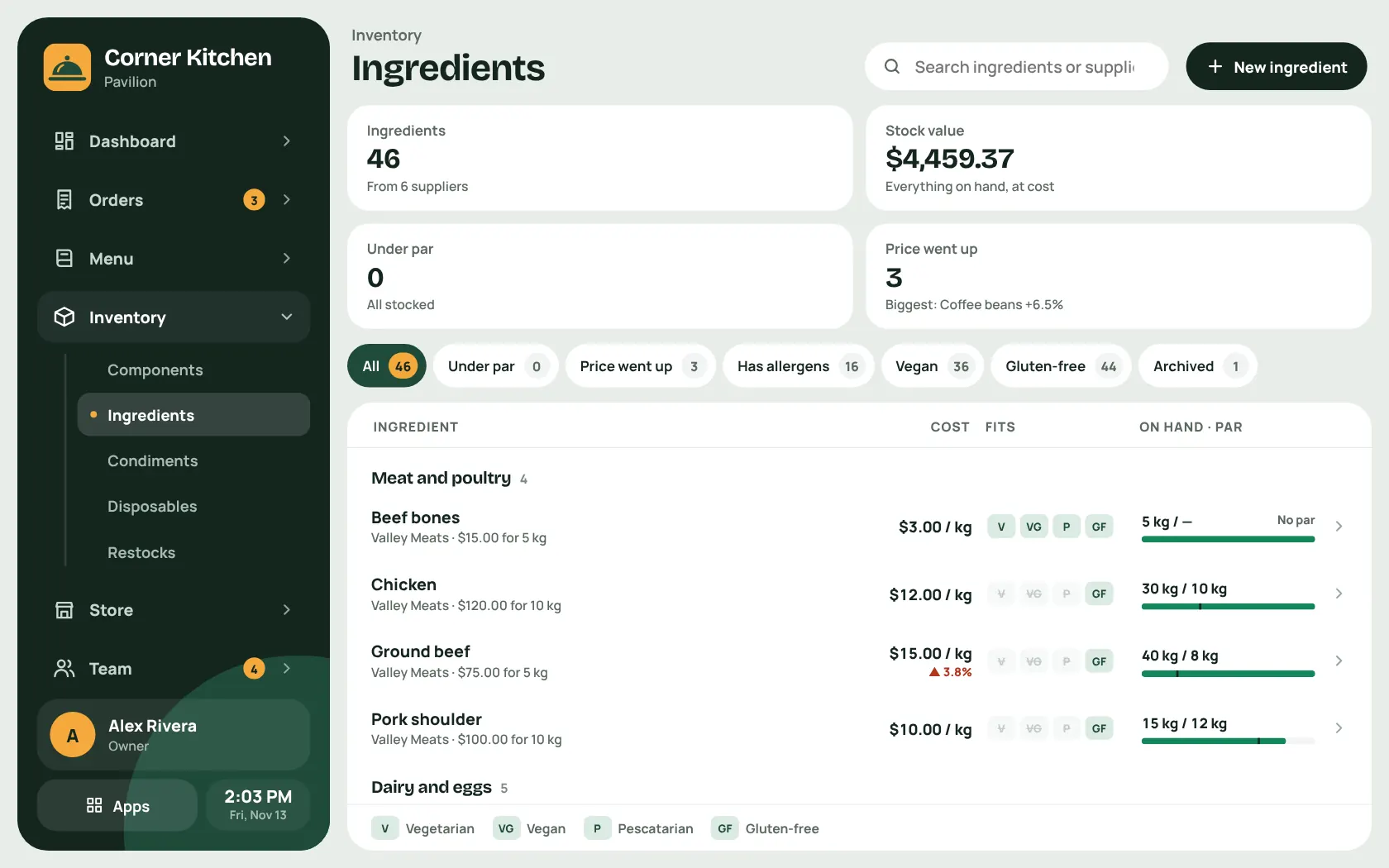
Costs and allergens work themselves out
Food cost, allergens and diet flags come from the ingredients you buy. Nobody types them in by hand.
-
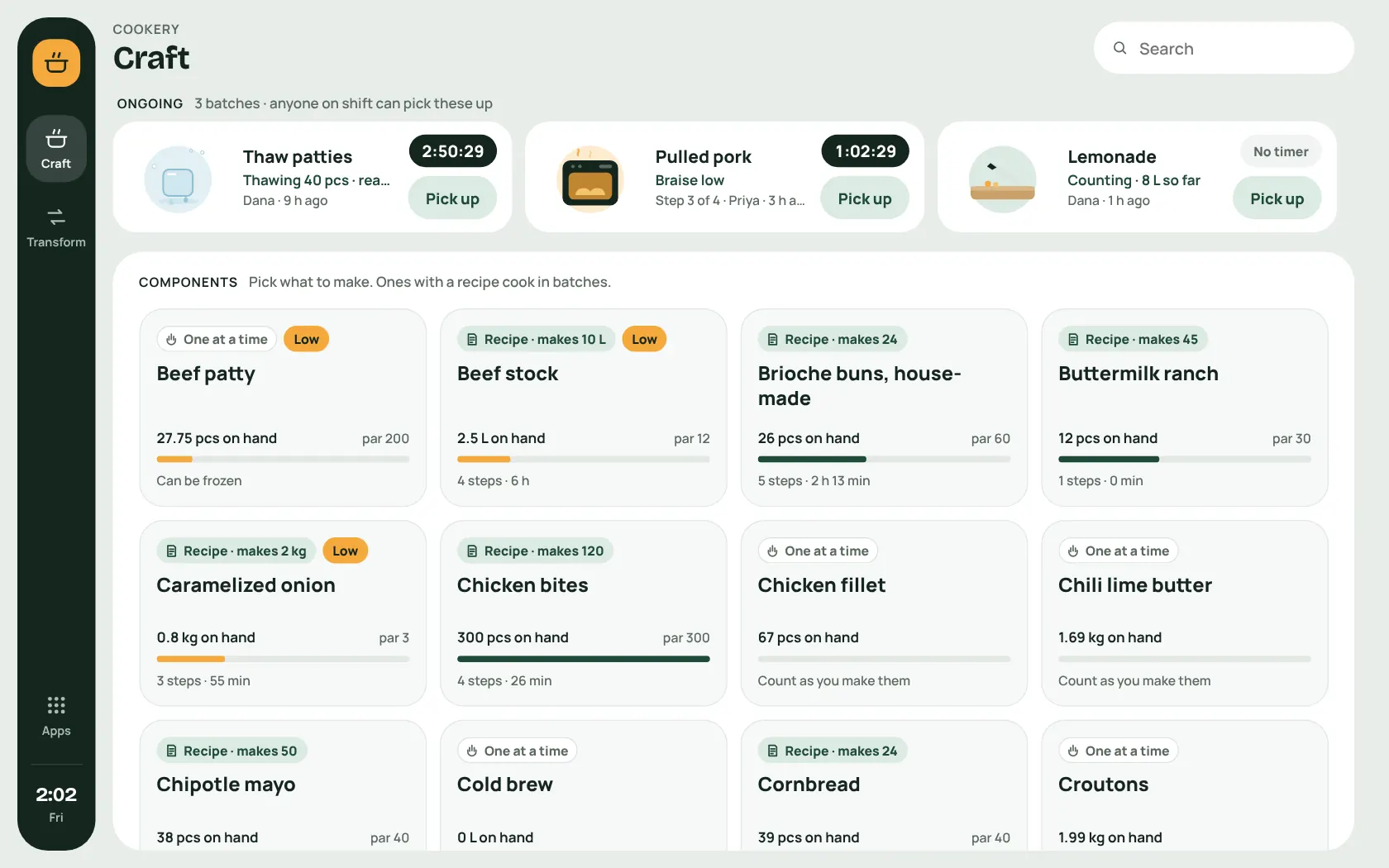
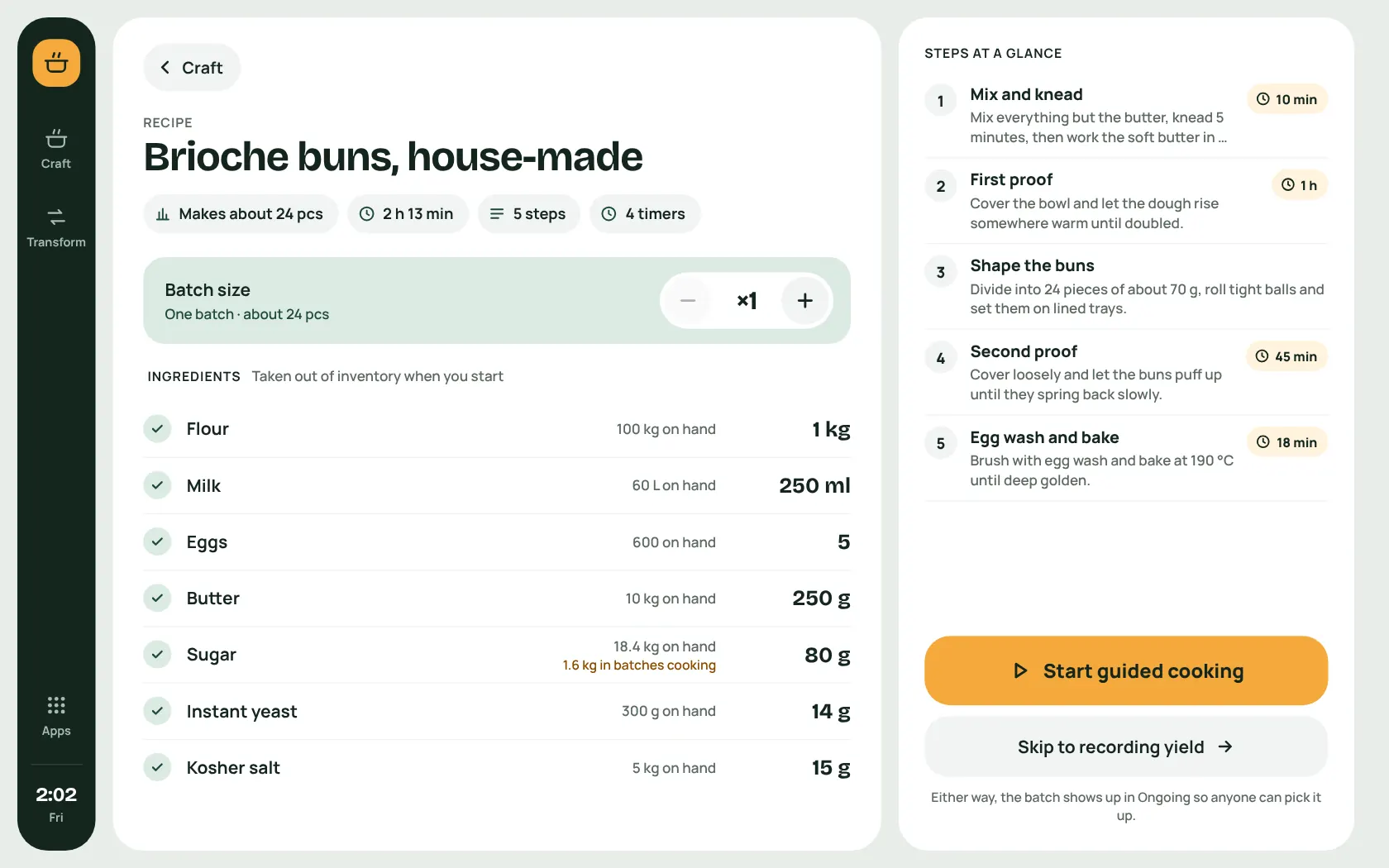
Cookery
Cooks follow a recipe step by step with timers, scale the batch, and record what it made. Batches in progress show for the whole shift.
-
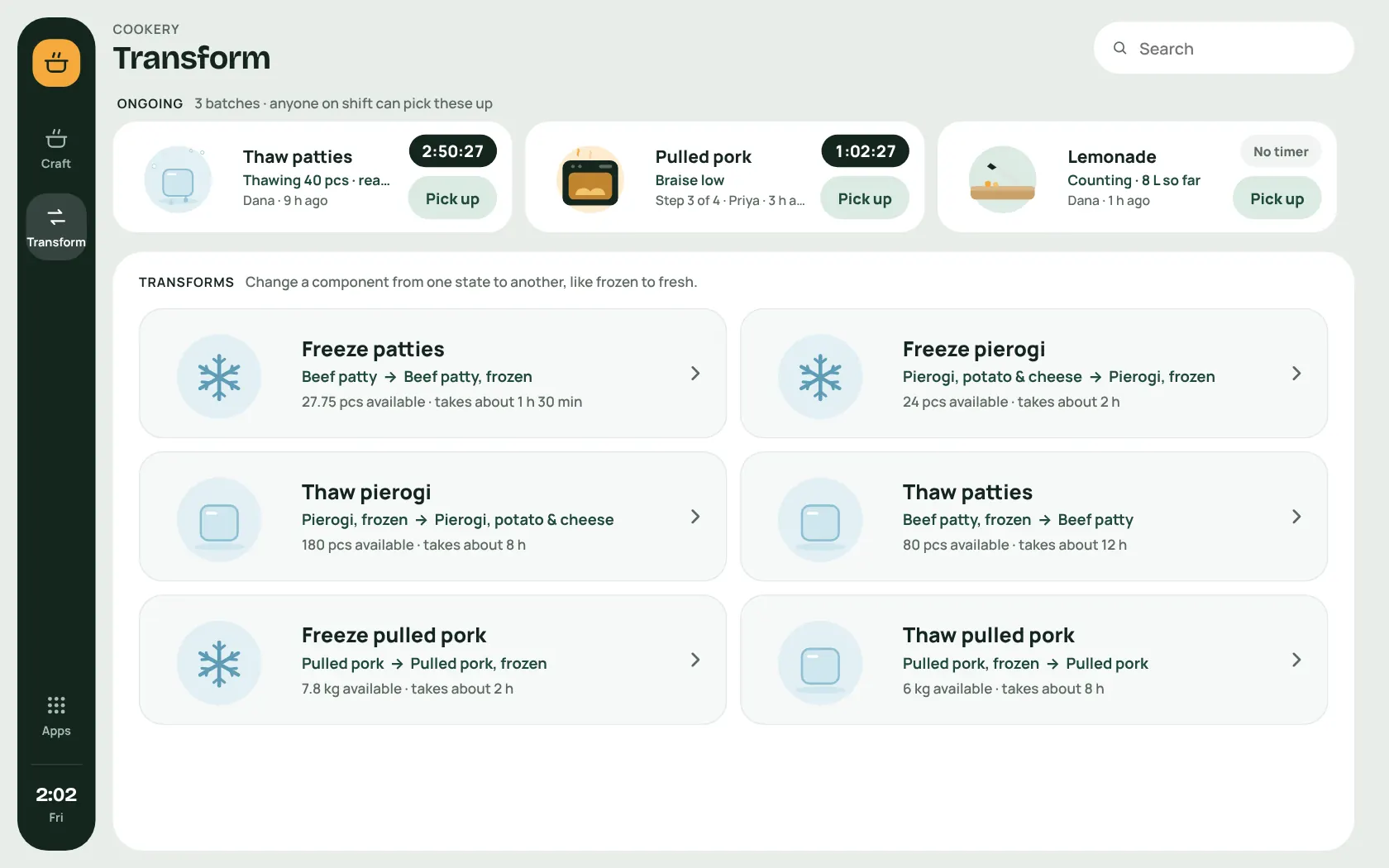
Freeze and thaw
Transforms move a component from one state to another, like fresh patties to frozen and back.
-
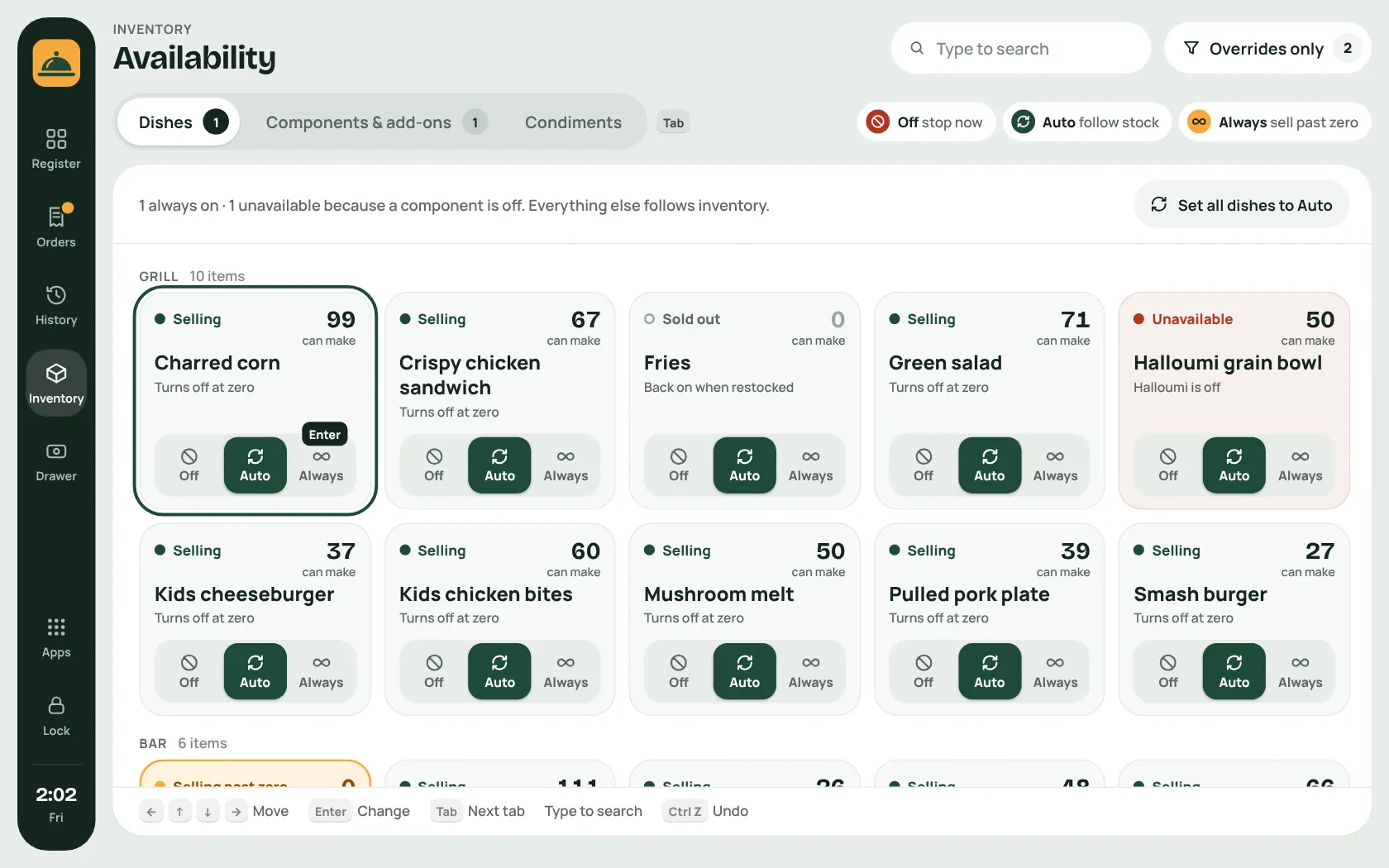
Run out, and it comes off the menu
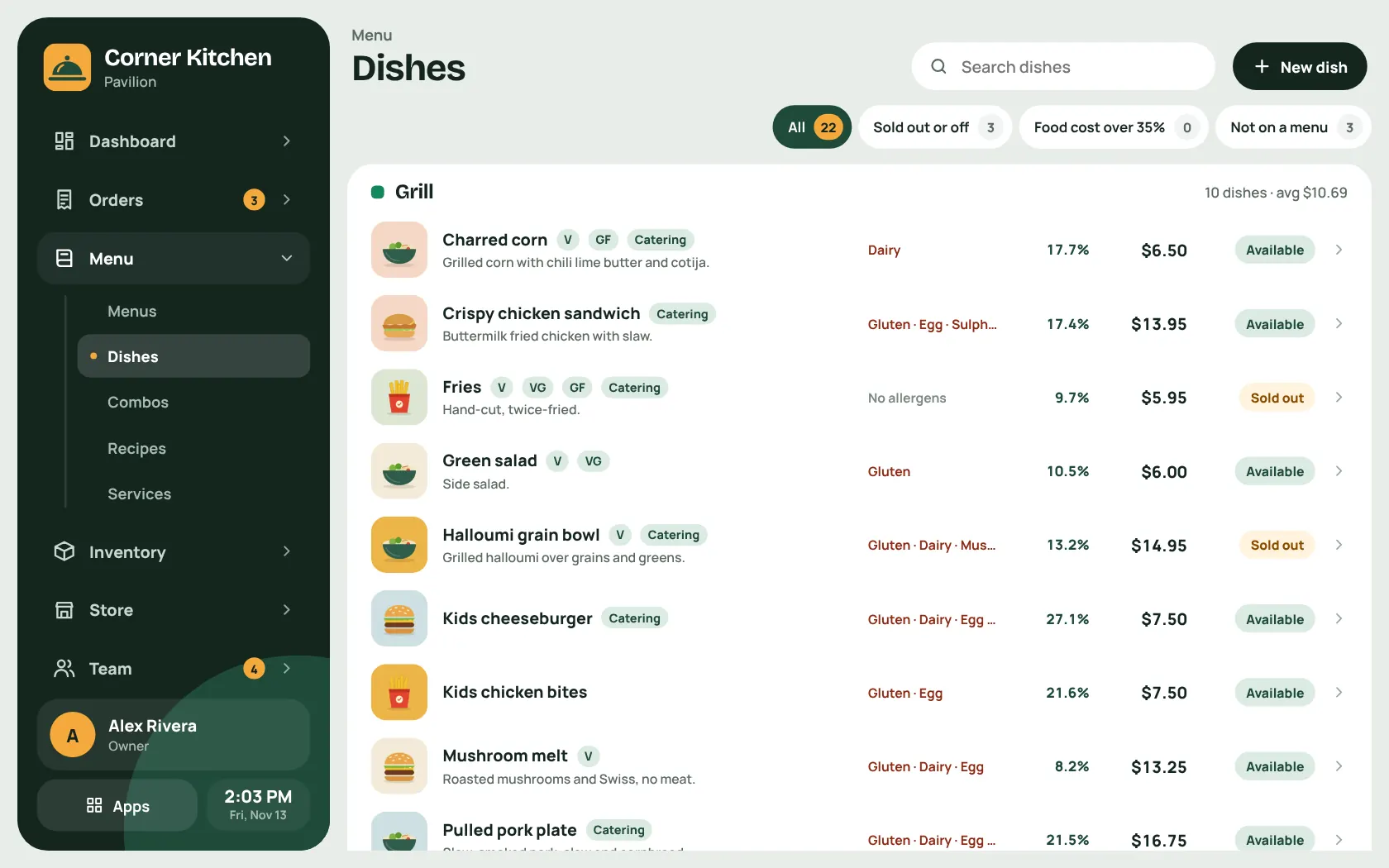
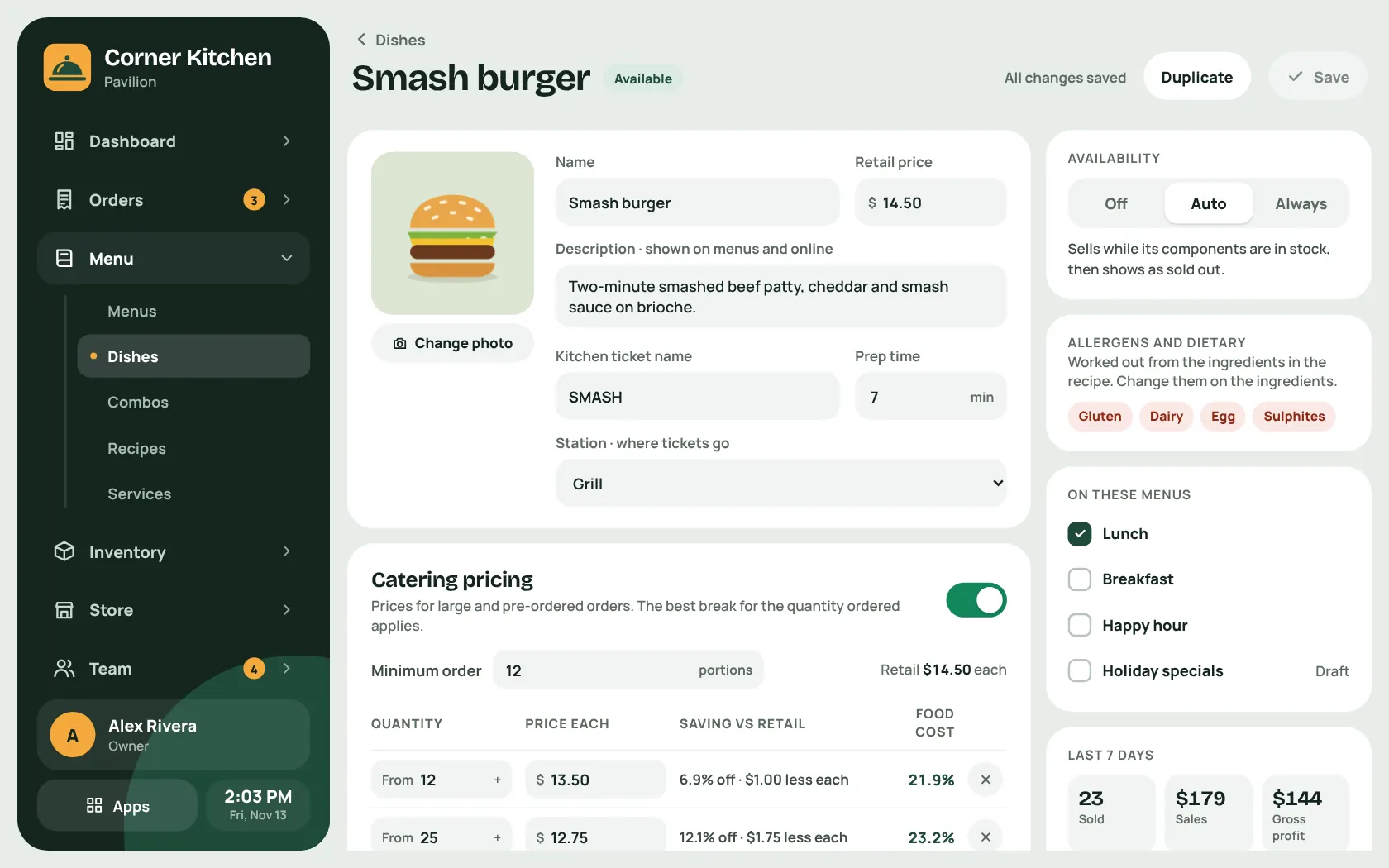
When a part runs out the dish shows as sold out on the register, the online store and the menu boards. Set any item to Off, Auto or Always.
-
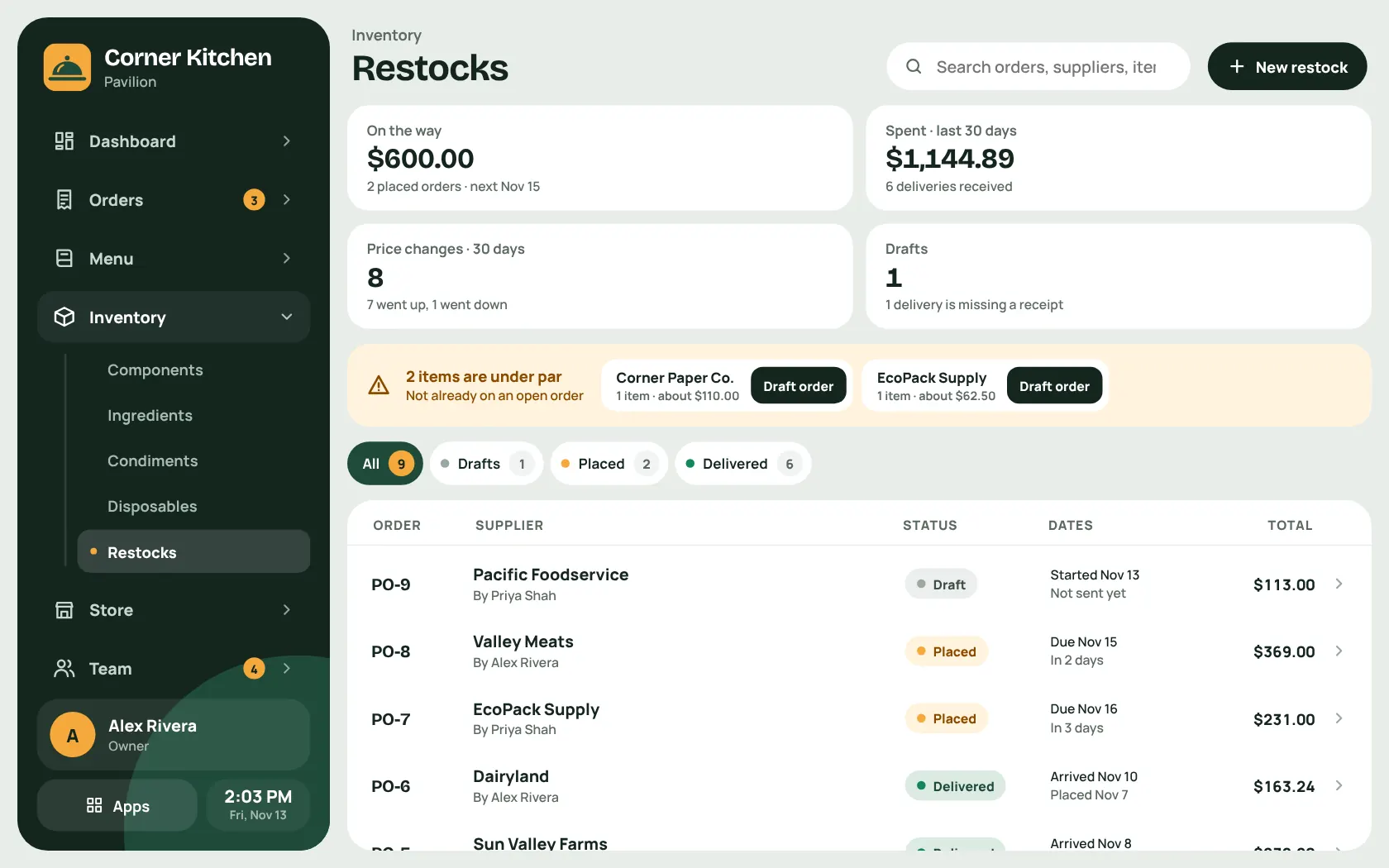
Restocks and suppliers
Draft purchase orders when stock drops under par, log deliveries with their receipts, and see which prices went up.
The front window
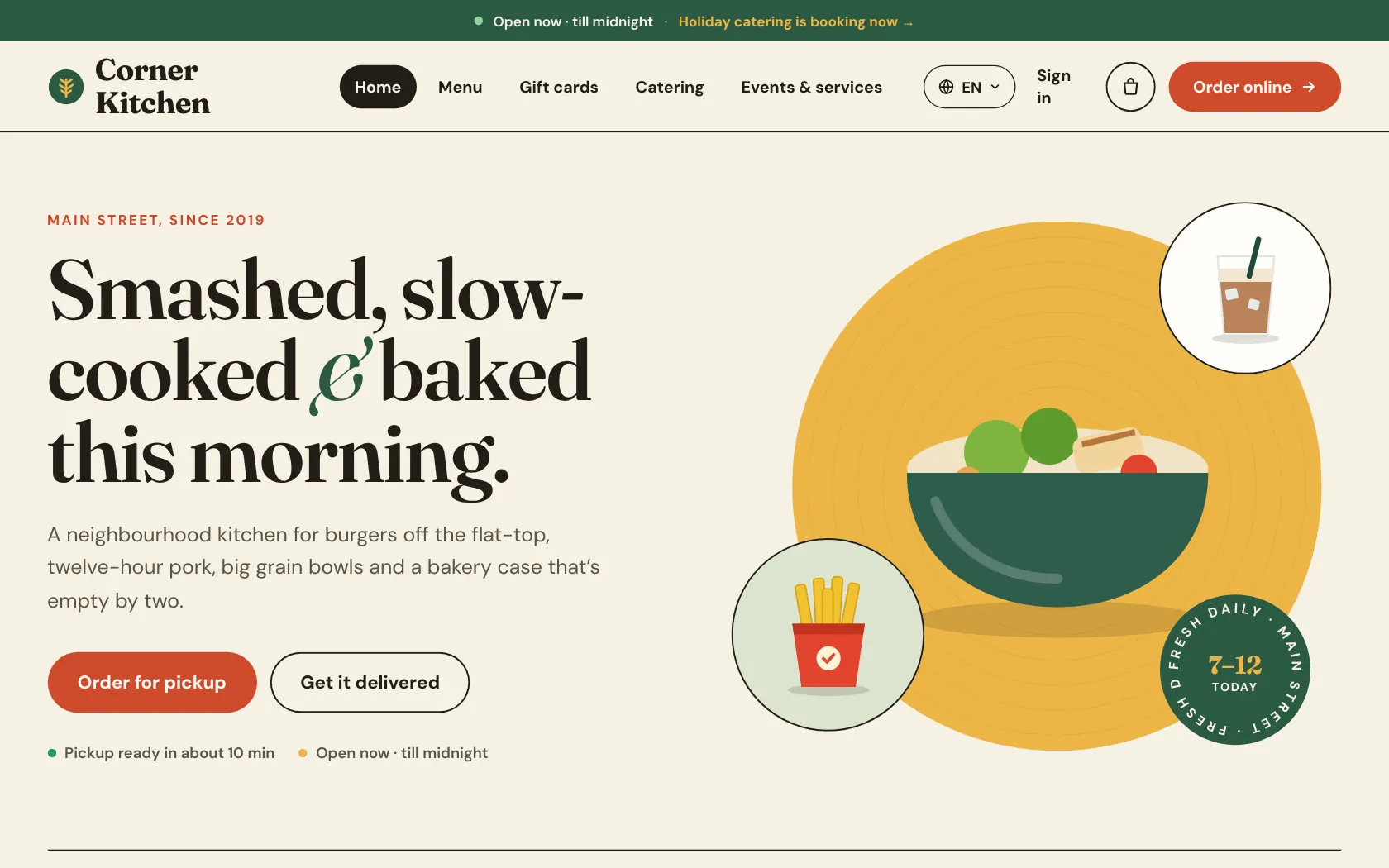
Your own online store. No marketplace, and no cut of every sale.
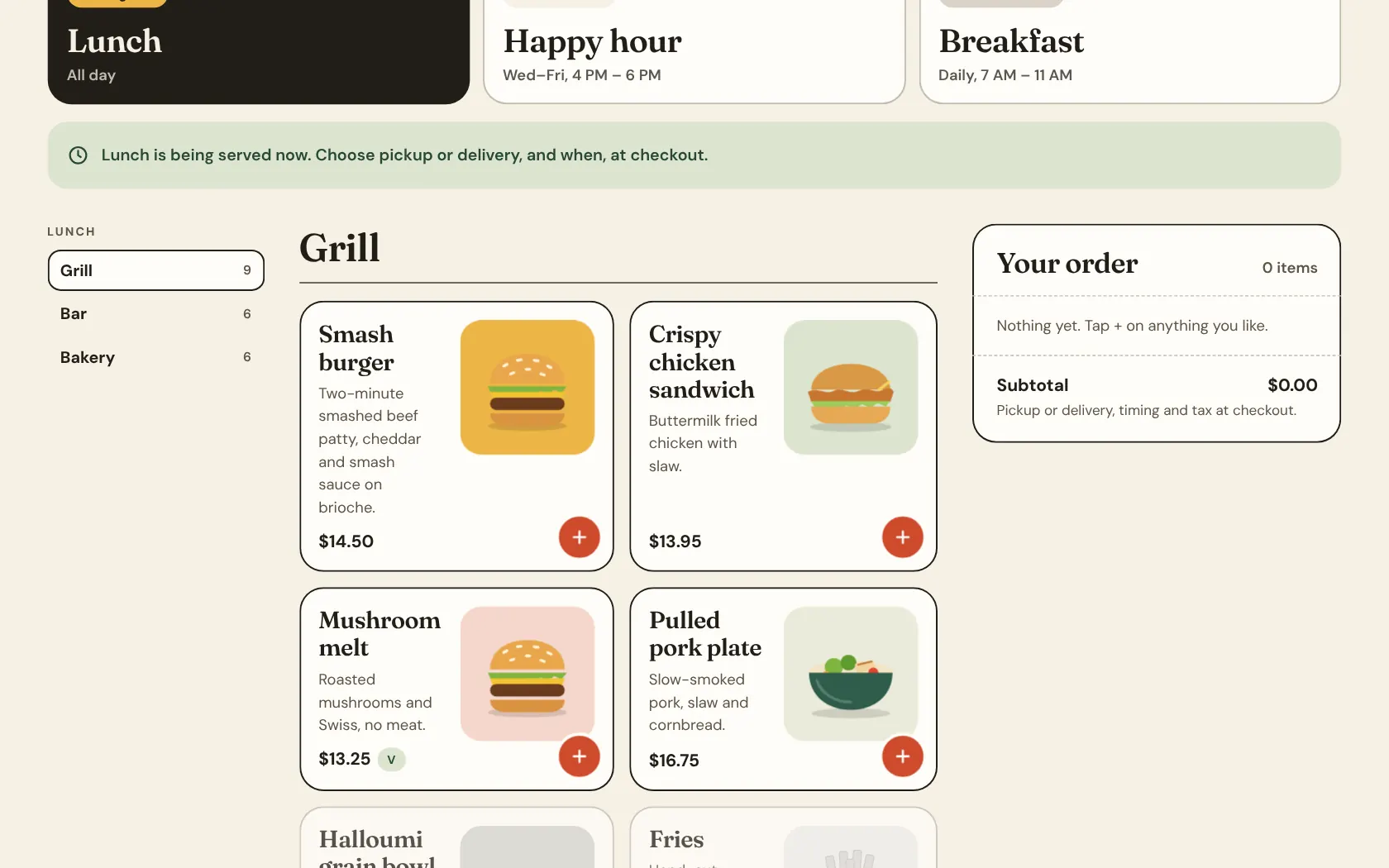
Pickup and delivery
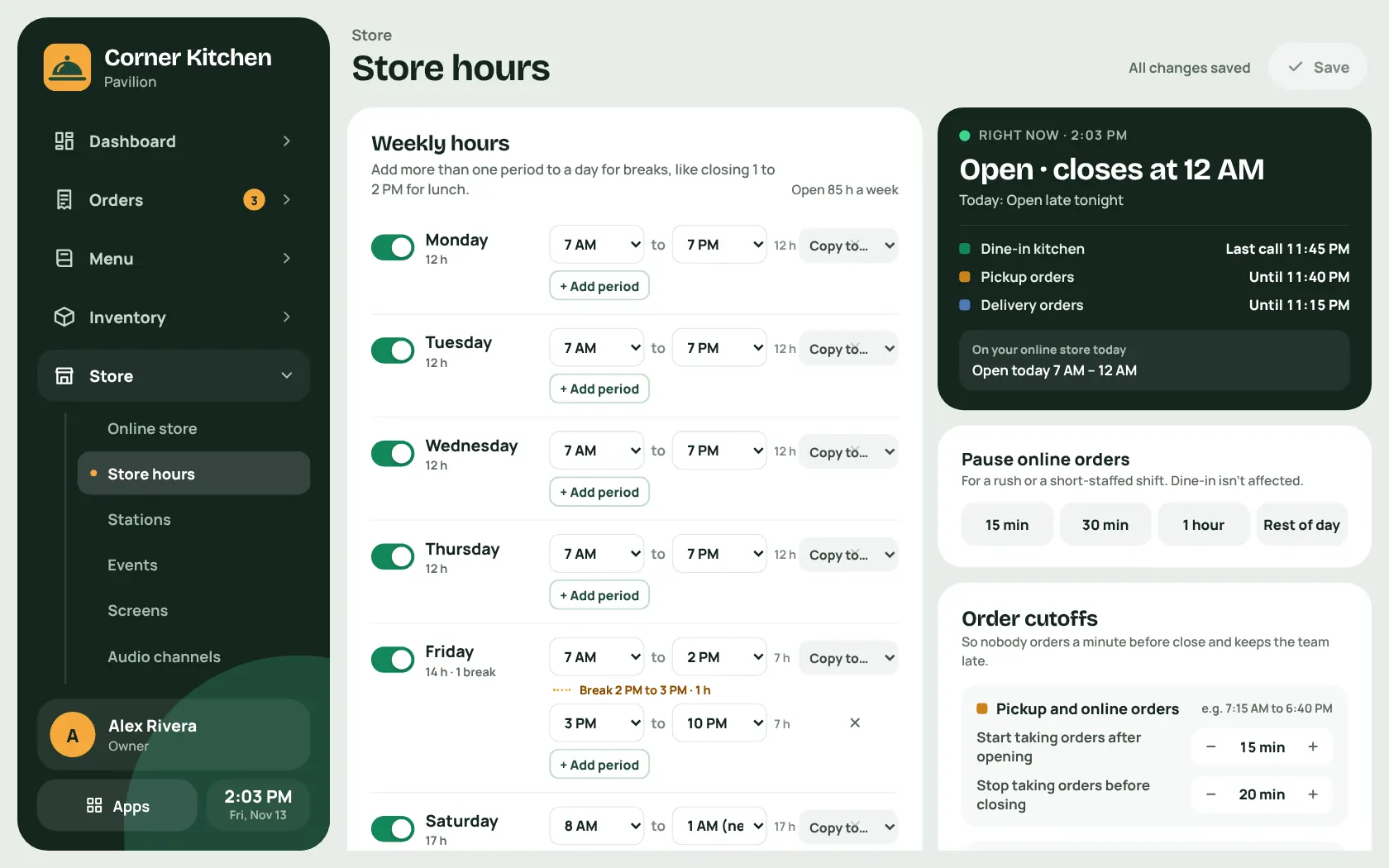
Customers order from your menus, pick a time, and pay by card. Hours, cutoffs and a pause button are enforced on the server.
It installs as an app
The store is a PWA. Customers add it to their home screen and get push notifications as their order moves along.
Accounts worth having
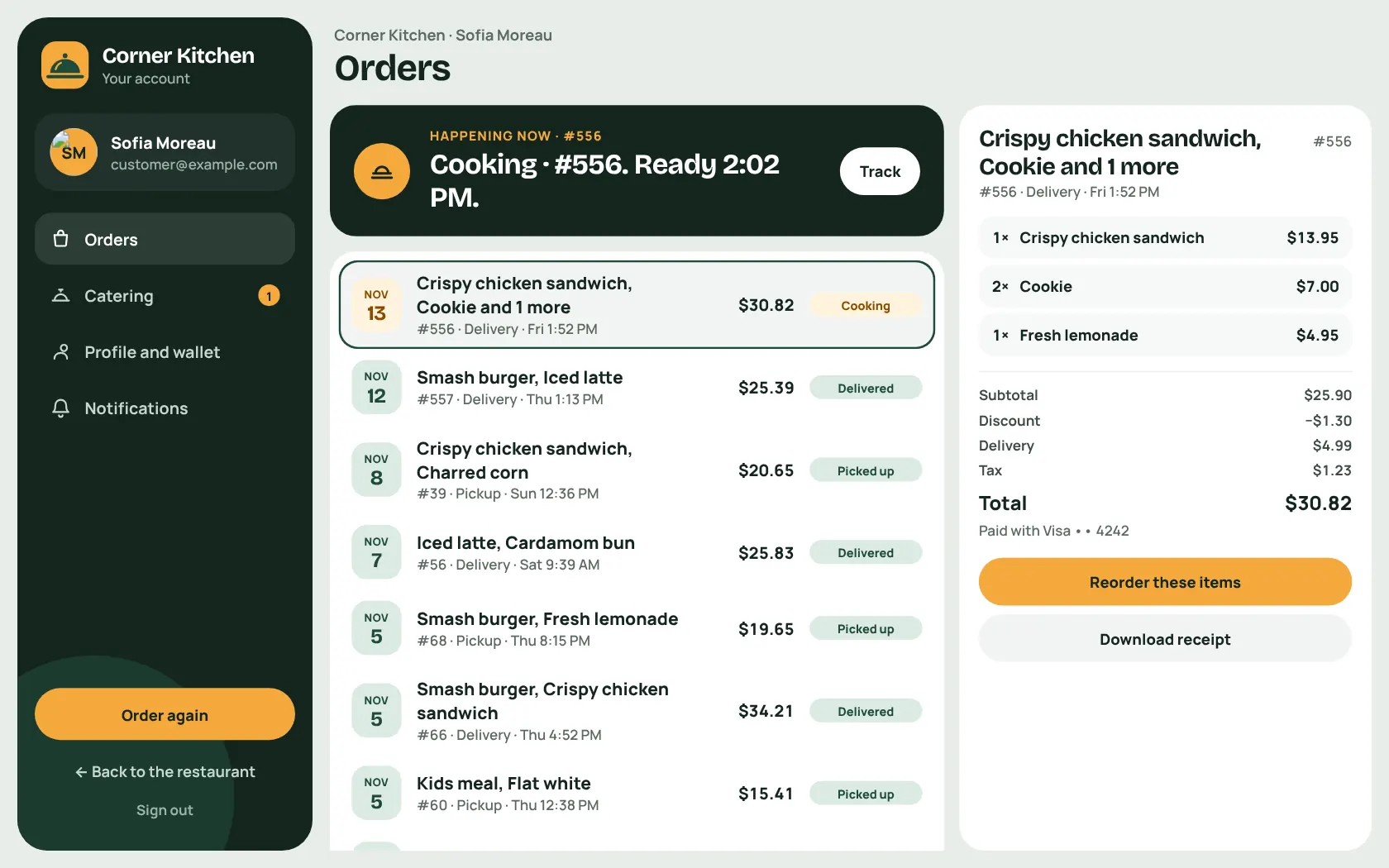
Order history, one-tap reorder, receipts, saved cards and addresses.
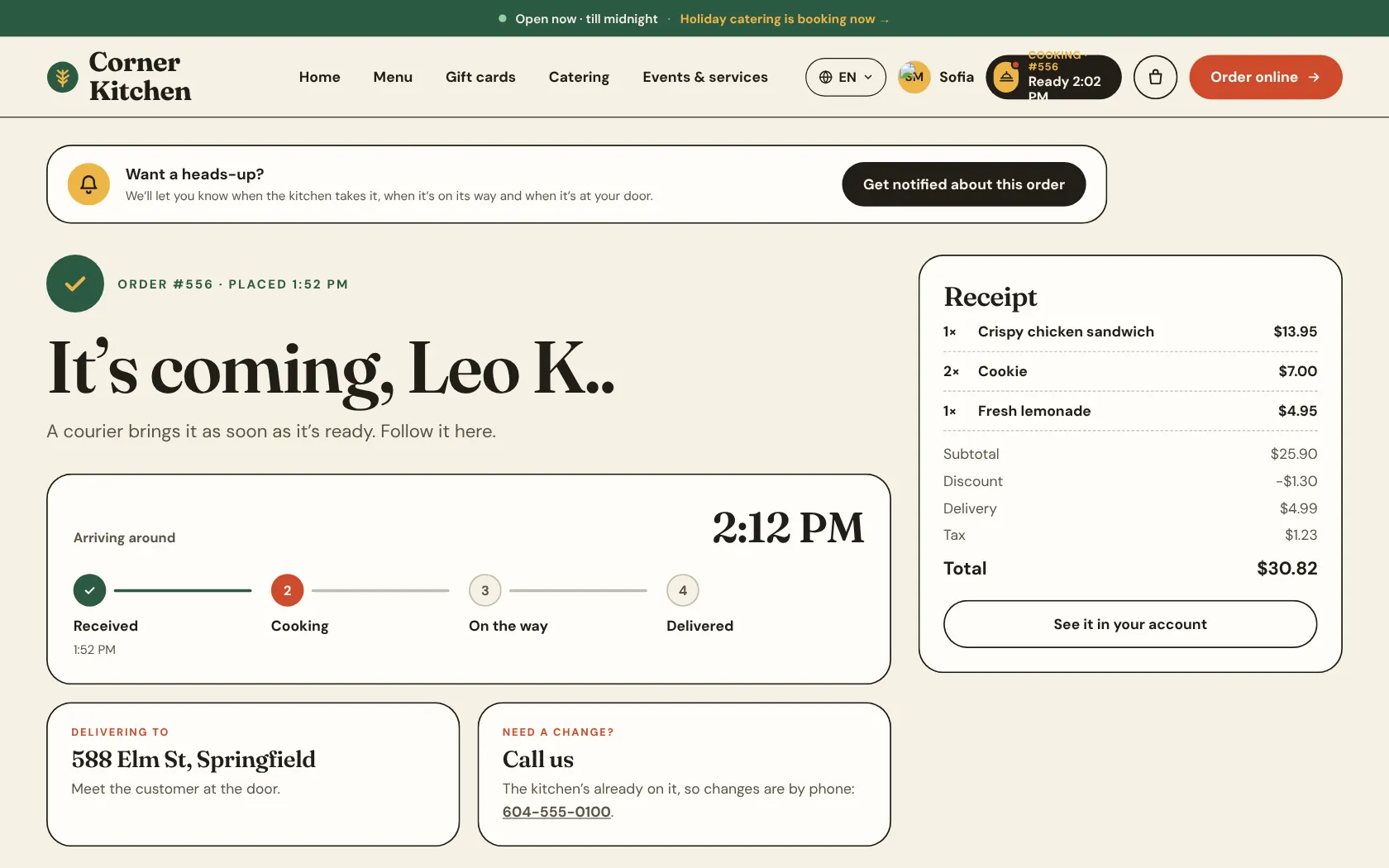
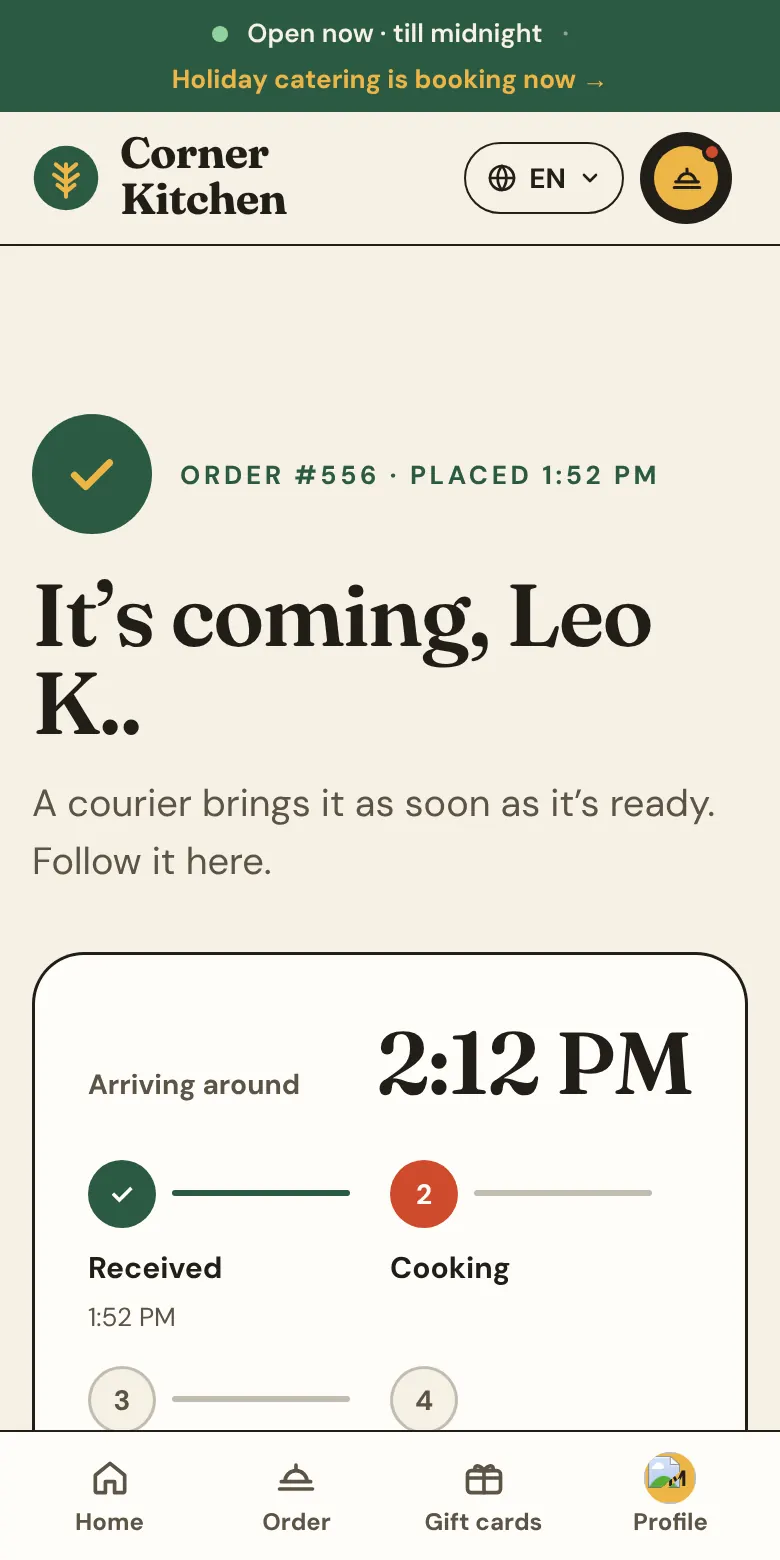
Follow the order
A live tracking page shows received, cooking, on the way and delivered, with an arrival time.
Your colours, your words
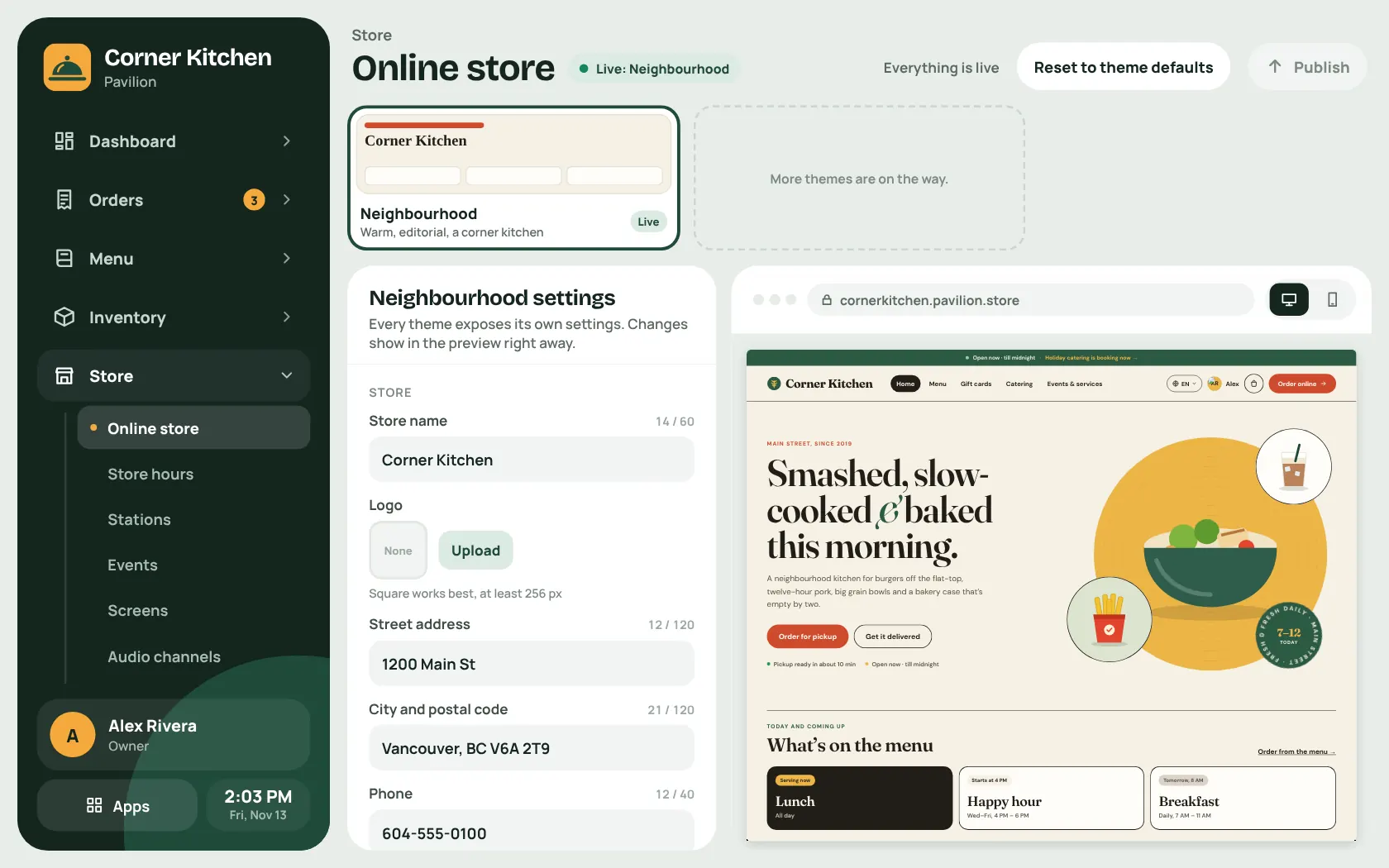
Every page is drawn by a theme. Edit colours, fonts, images and sections in the admin and preview before you publish.
More than the menu
Gift cards, catering quotes, events, and services like rooms and staff sit alongside the food.
Store themes
Work in progressToday there is one built-in theme, Neighbourhood. The plan is for designers to publish themes that any store can install. Sharing and installing themes is still being built.
The back door
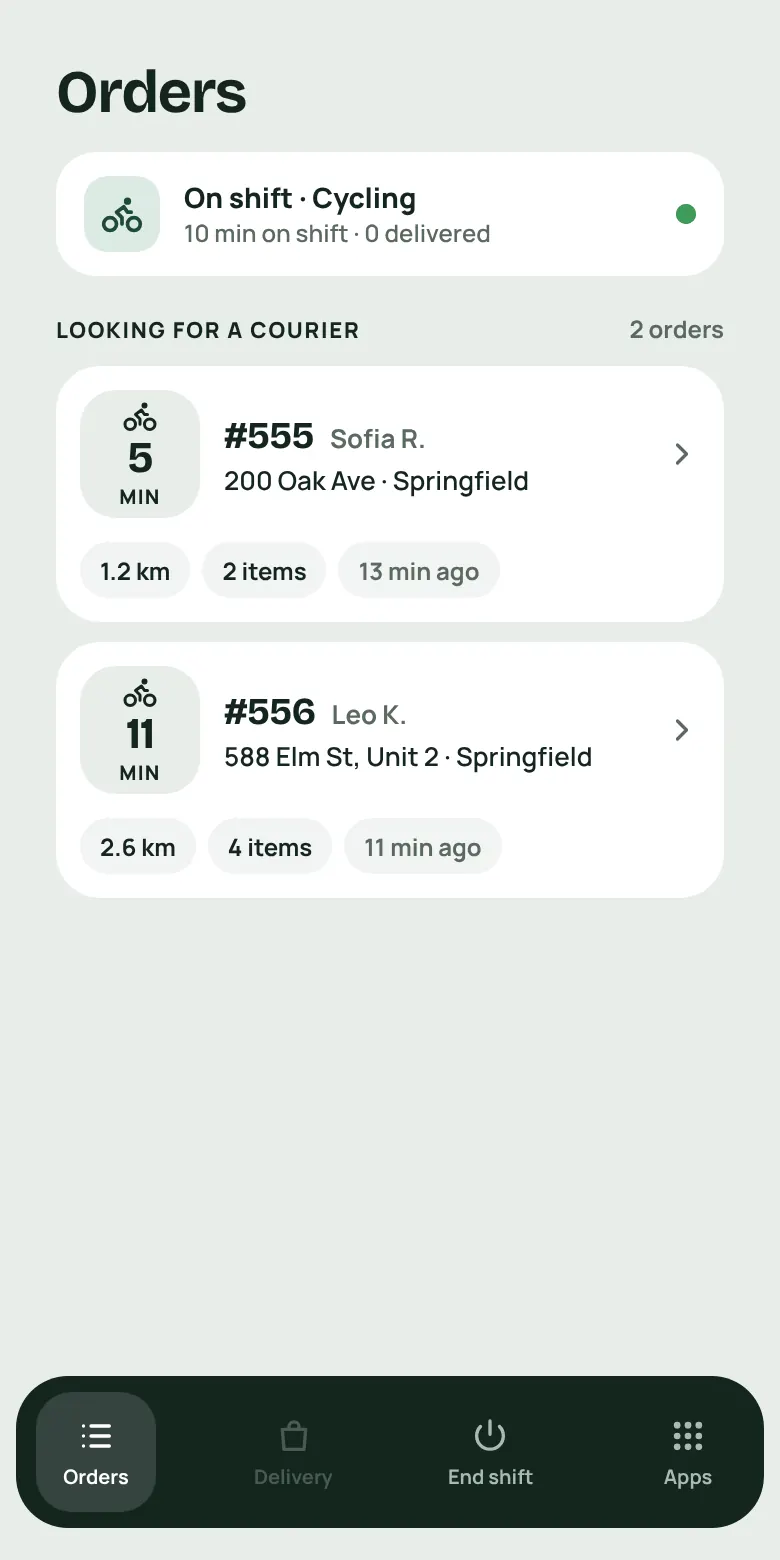
A courier app for your own drivers.
-
Start a shift
Couriers sign in on their phone and say how they are travelling: on foot, by bike or by car.
-
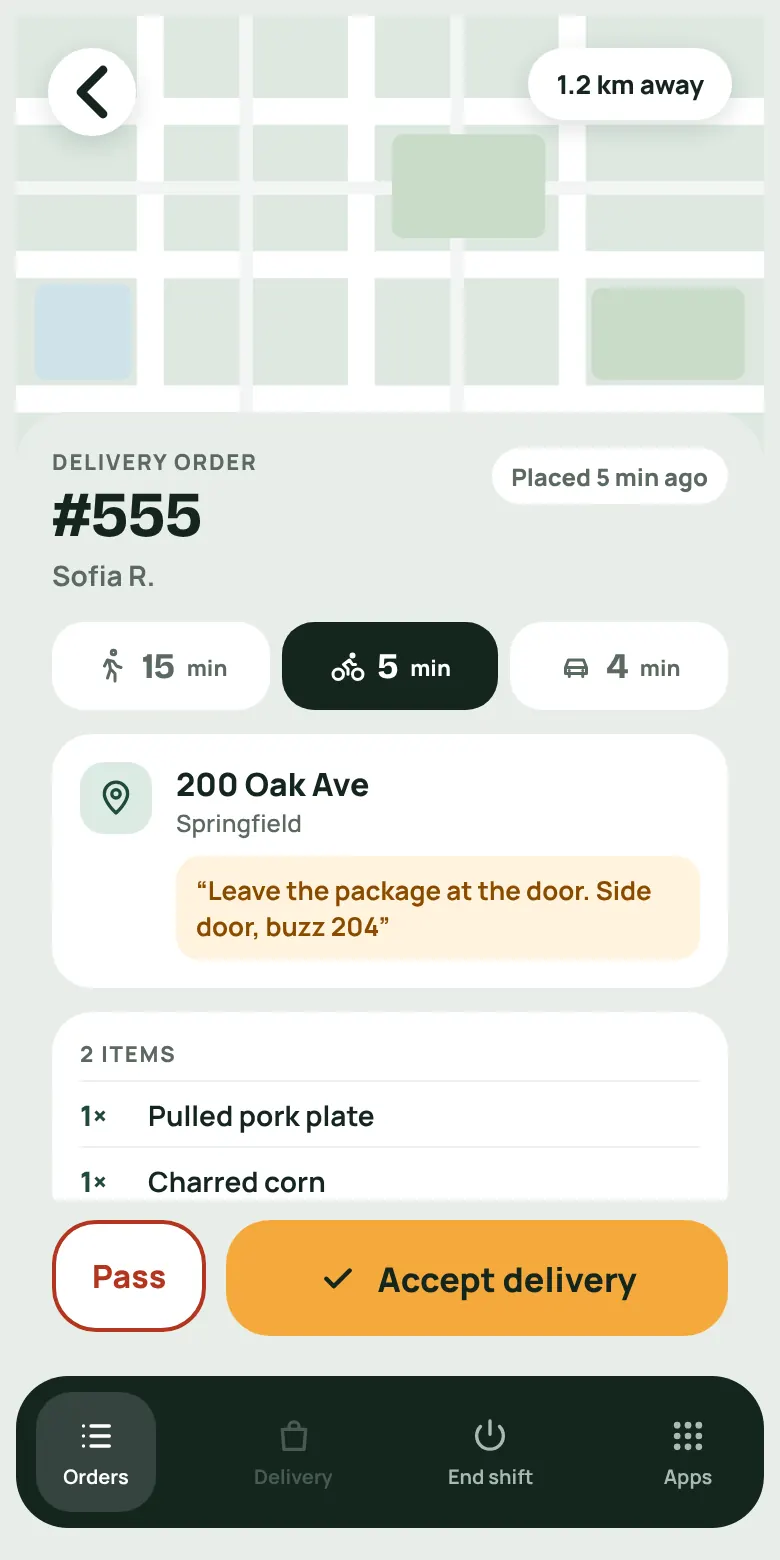
Accept or pass
New deliveries go to couriers first. The kitchen only sees a delivery order once someone has taken it.
-
Follow the steps
Pick up, head out, arrive. Each step updates the customer's tracking page.
-
Snap a proof photo
A photo at the door closes the delivery.
Travel times come from your own OpenStreetMap routing, using Valhalla and Nominatim, so there is no maps bill. The courier app installs on a phone and uses web push for new deliveries.
The walls
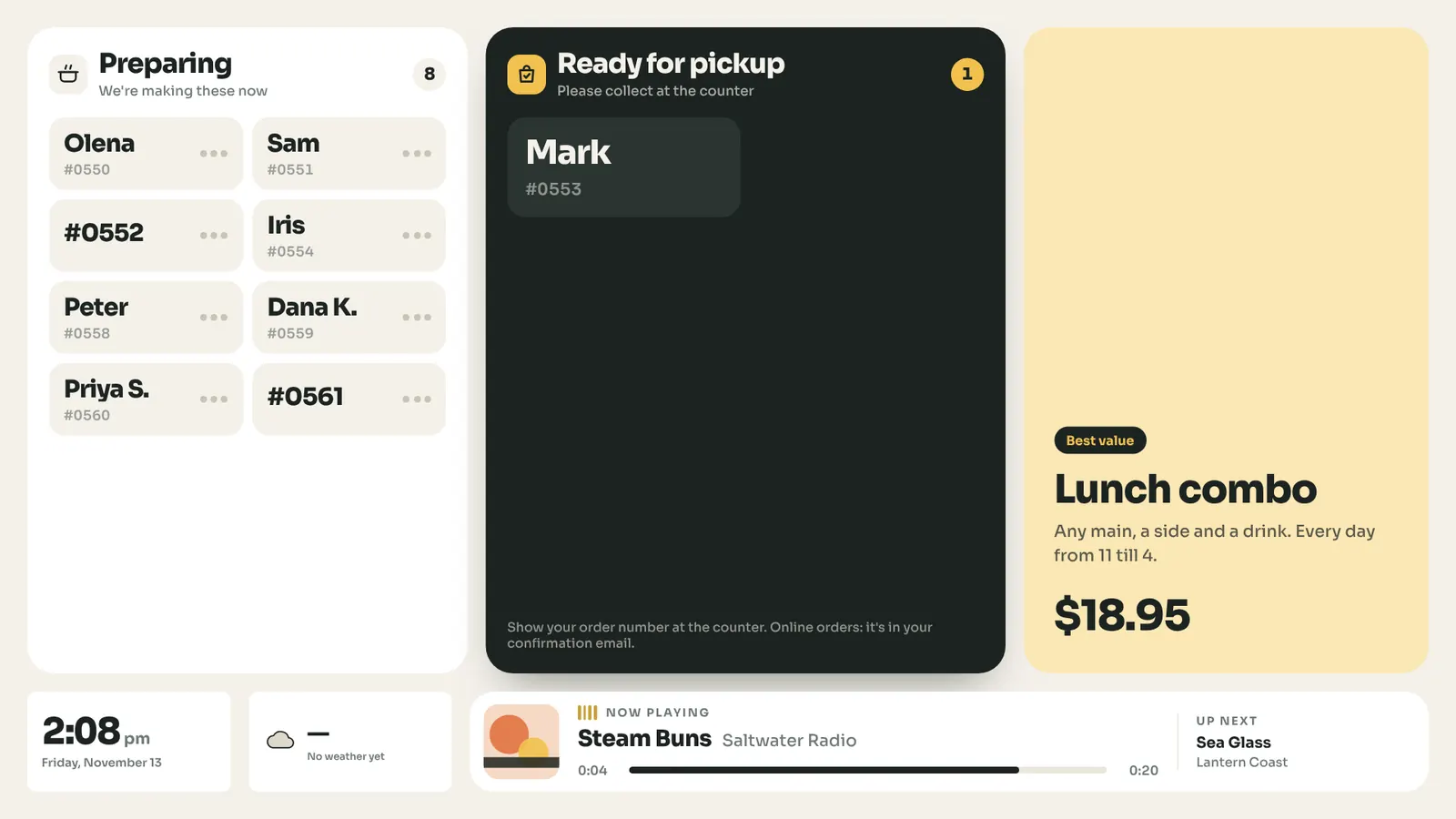
Every TV in the building, laid out by you.
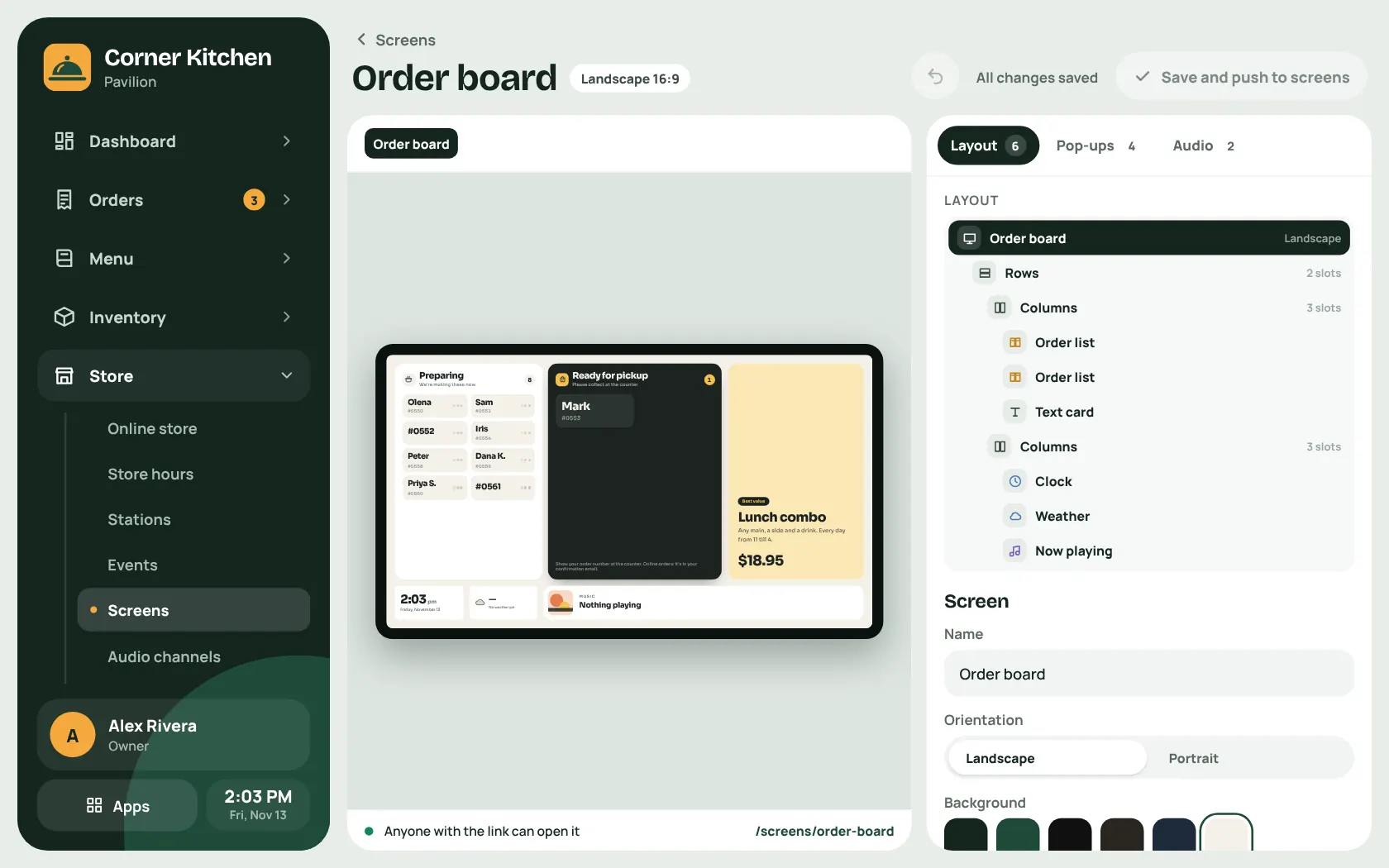
A screen builder
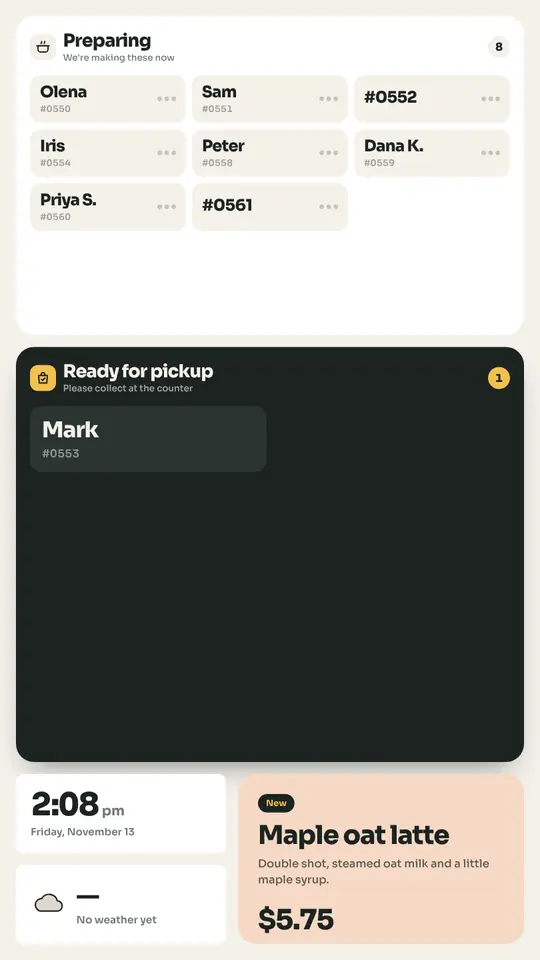
Lay widgets out on a grid: order lists, weather, clocks, QR codes, promo slides, the song that is playing, and an order-ready pop-up.
Ten menu-board templates
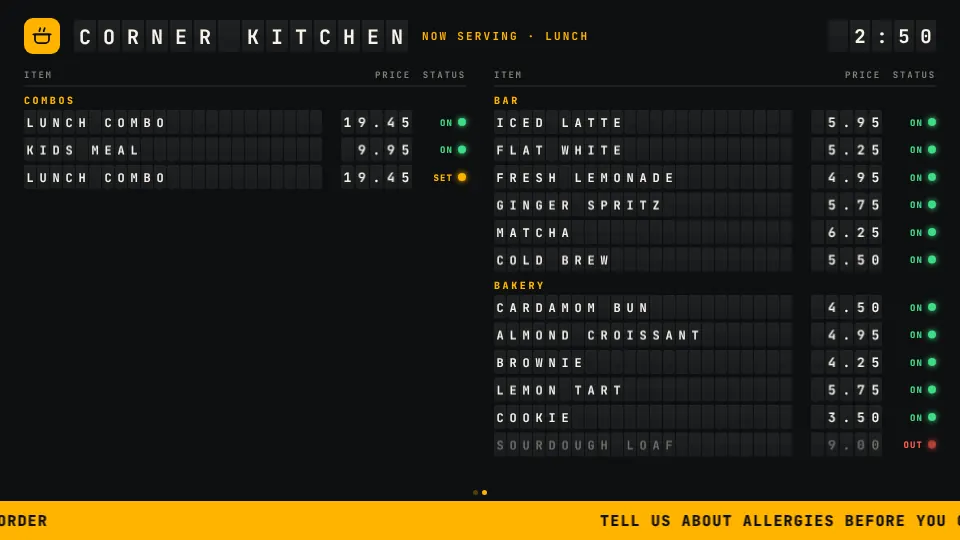
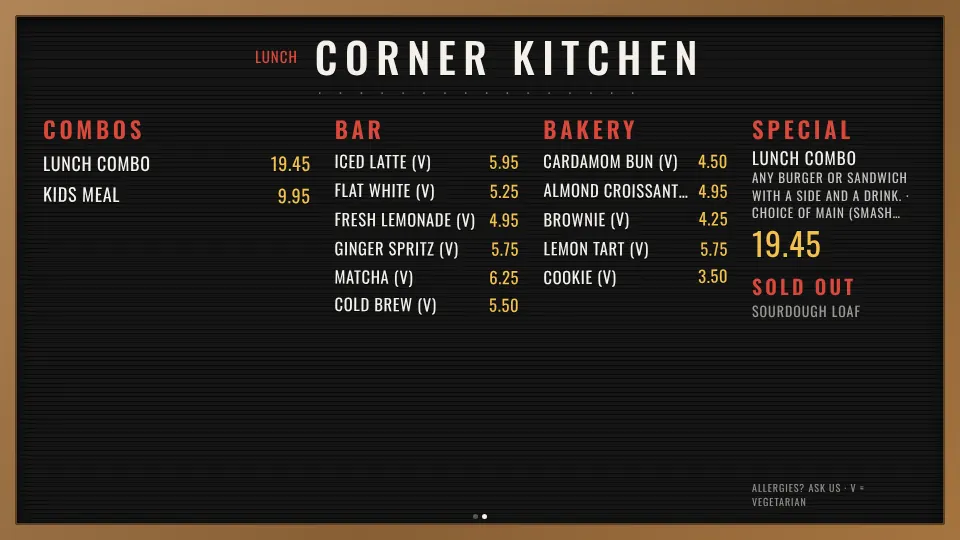
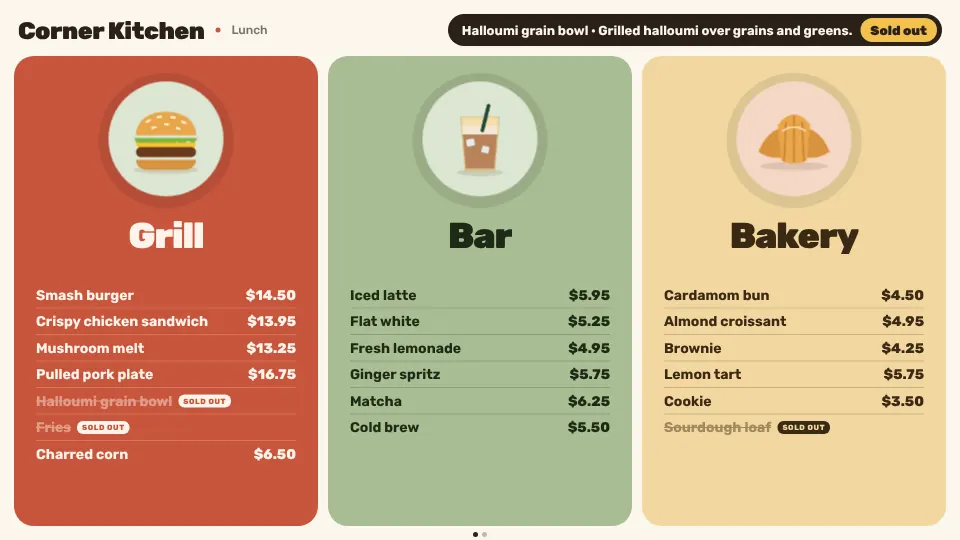
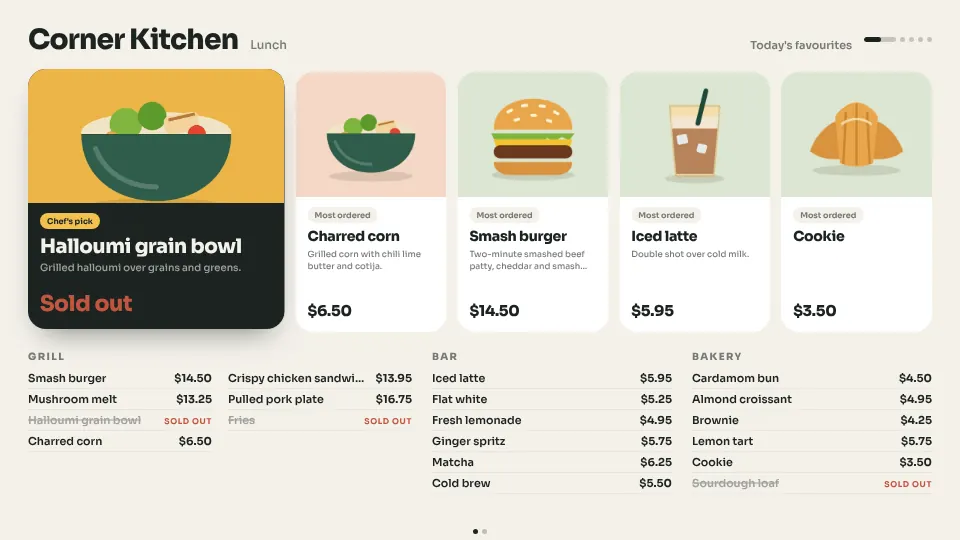
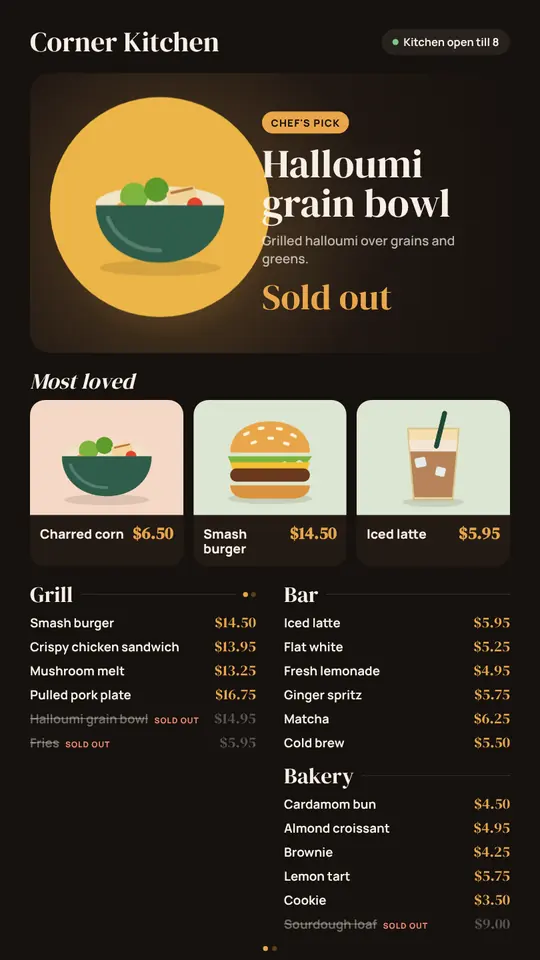
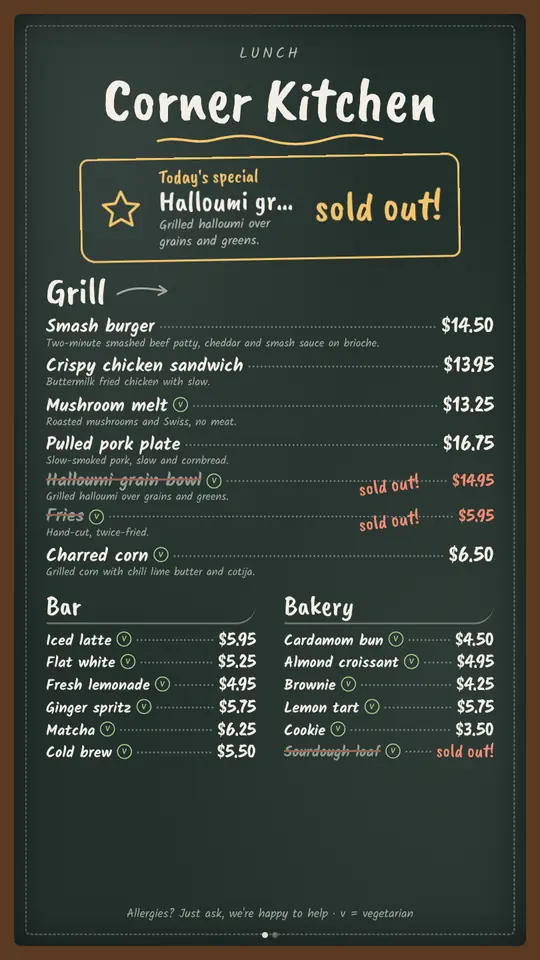
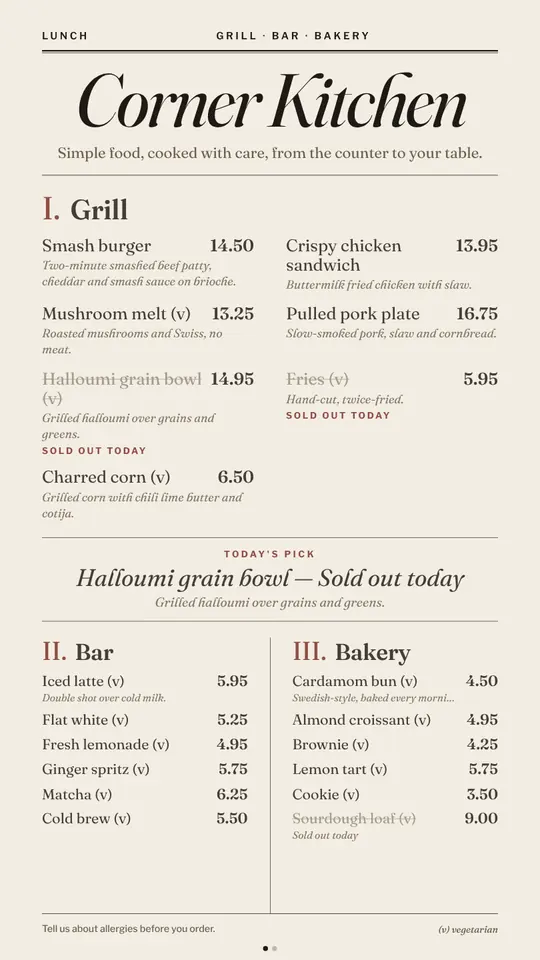
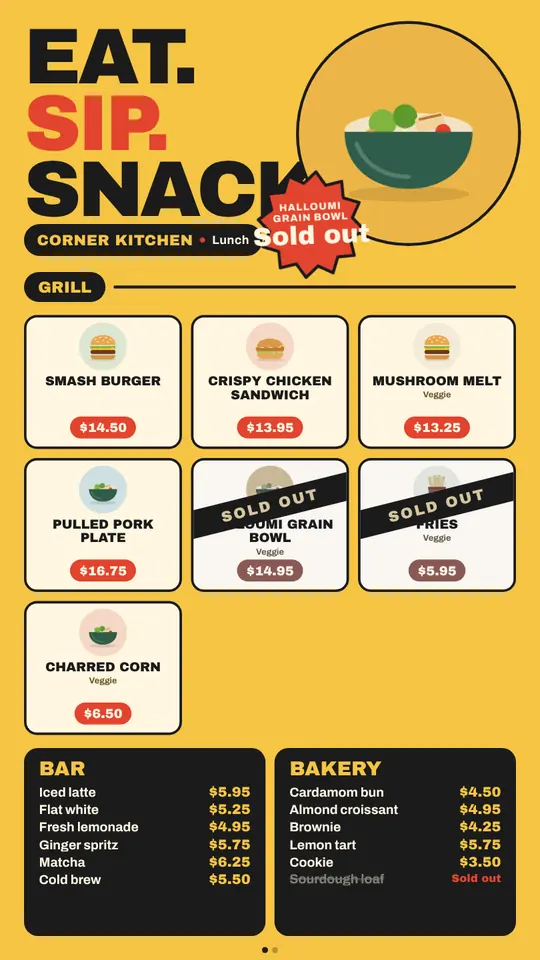
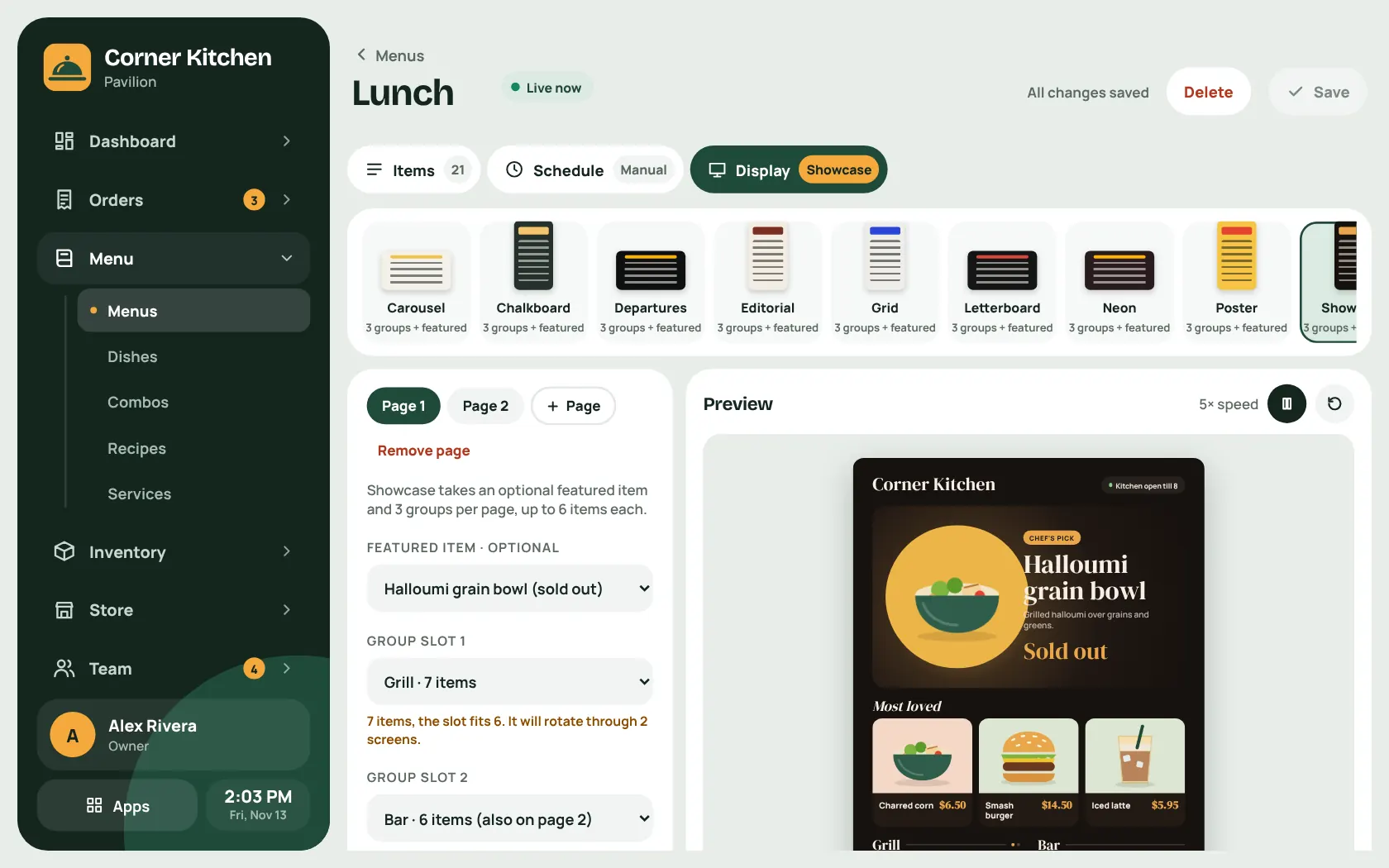
Five for landscape TVs and five for portrait. Pick a menu, pick a template, and choose what to feature. Sold-out dishes update on the board by themselves.
Plug in a Raspberry Pi
A small computer behind the TV pairs with a six-digit code and shows whichever screen you pick from the admin.
Landscape or portrait
Every screen is built for one or the other, and staff screens work both ways.
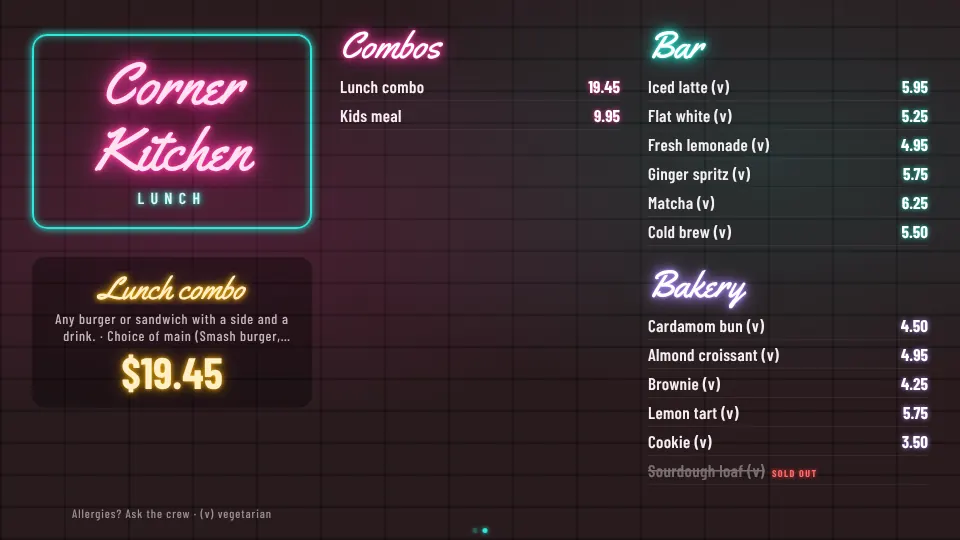
Ten menu boards, one menu
The same lunch menu in every template. Five are made for a TV on its side and five for a TV hung upright. Change the menu once and every board follows.
For landscape TVs
- Neon
- Departures
- Letterboard
- Triptych
- Carousel
For portrait TVs
- Showcase
- Chalkboard
- Editorial
- Grid
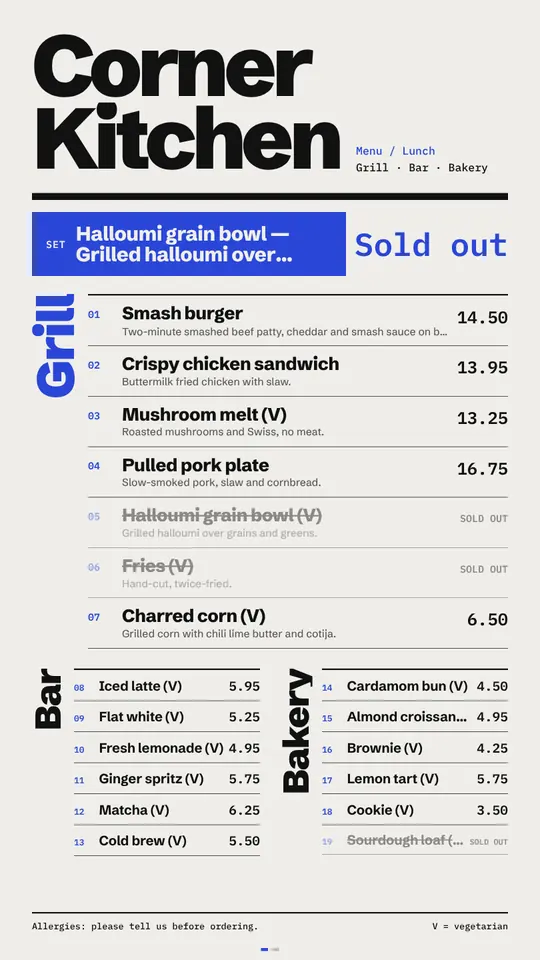
- Poster
The jukebox
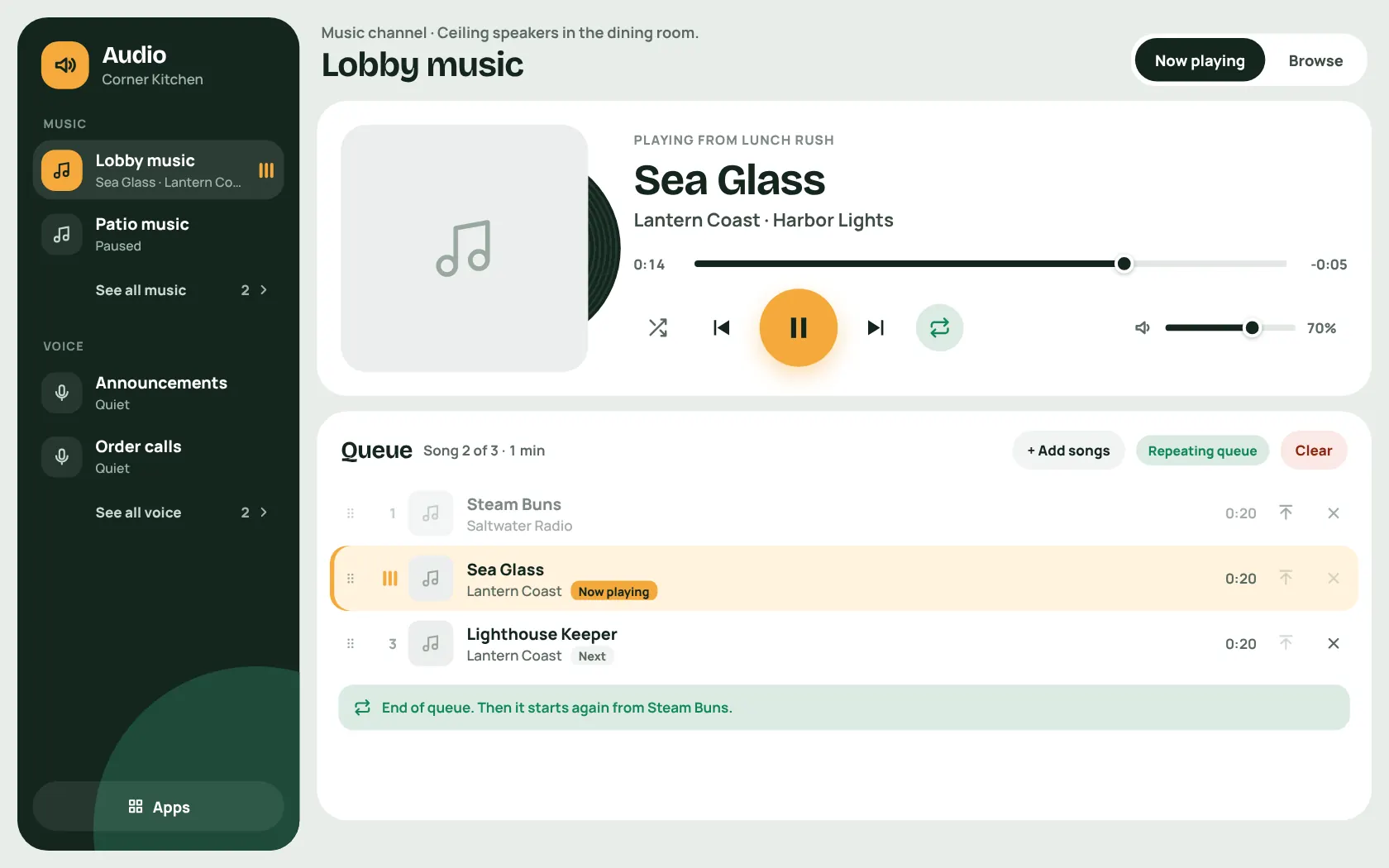
Music for the room, and a way to talk across it.
-
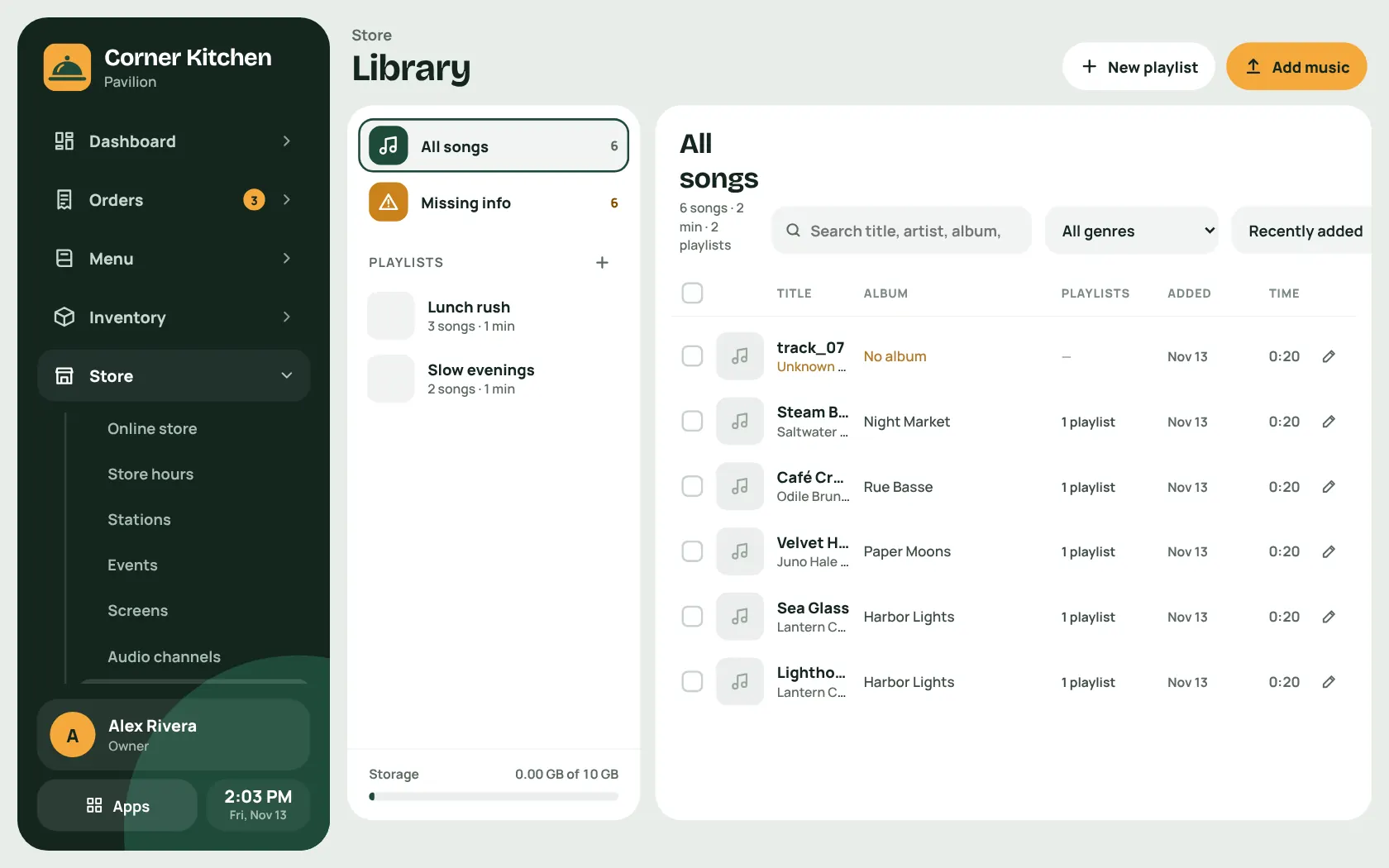
Your own music library
Upload songs, sort them into playlists, and see what is missing tags.
-
Radio-style channels
Every screen on a channel plays the same song at the same moment, so the dining room and the patio stay in step or play different things.
-
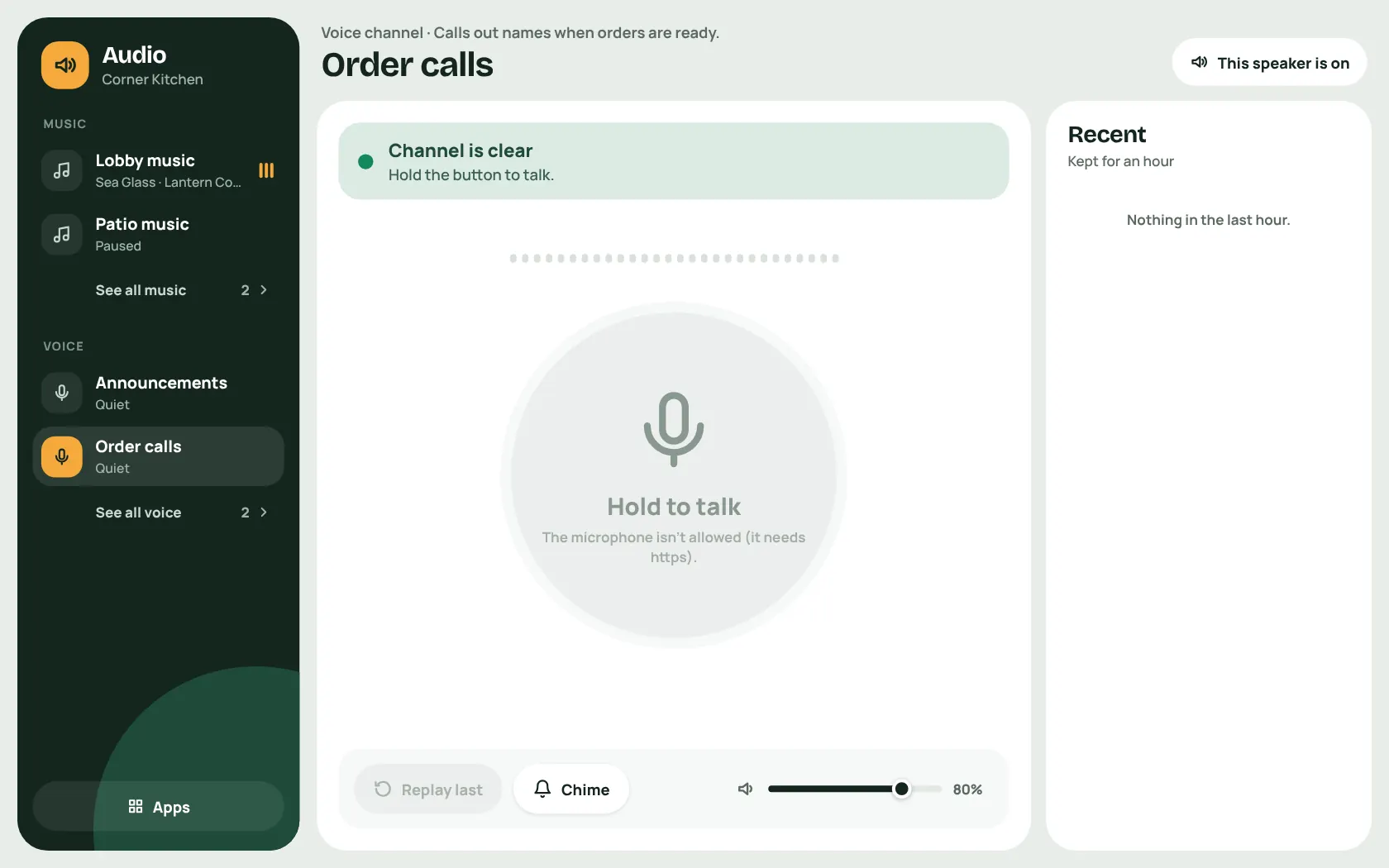
Push to talk
Voice channels work like walkie-talkies between screens. Hold the button and speak.
-
Order-ready calls
Spoken announcements call out names when orders are ready, and the music ducks quietly underneath.
The banquet room
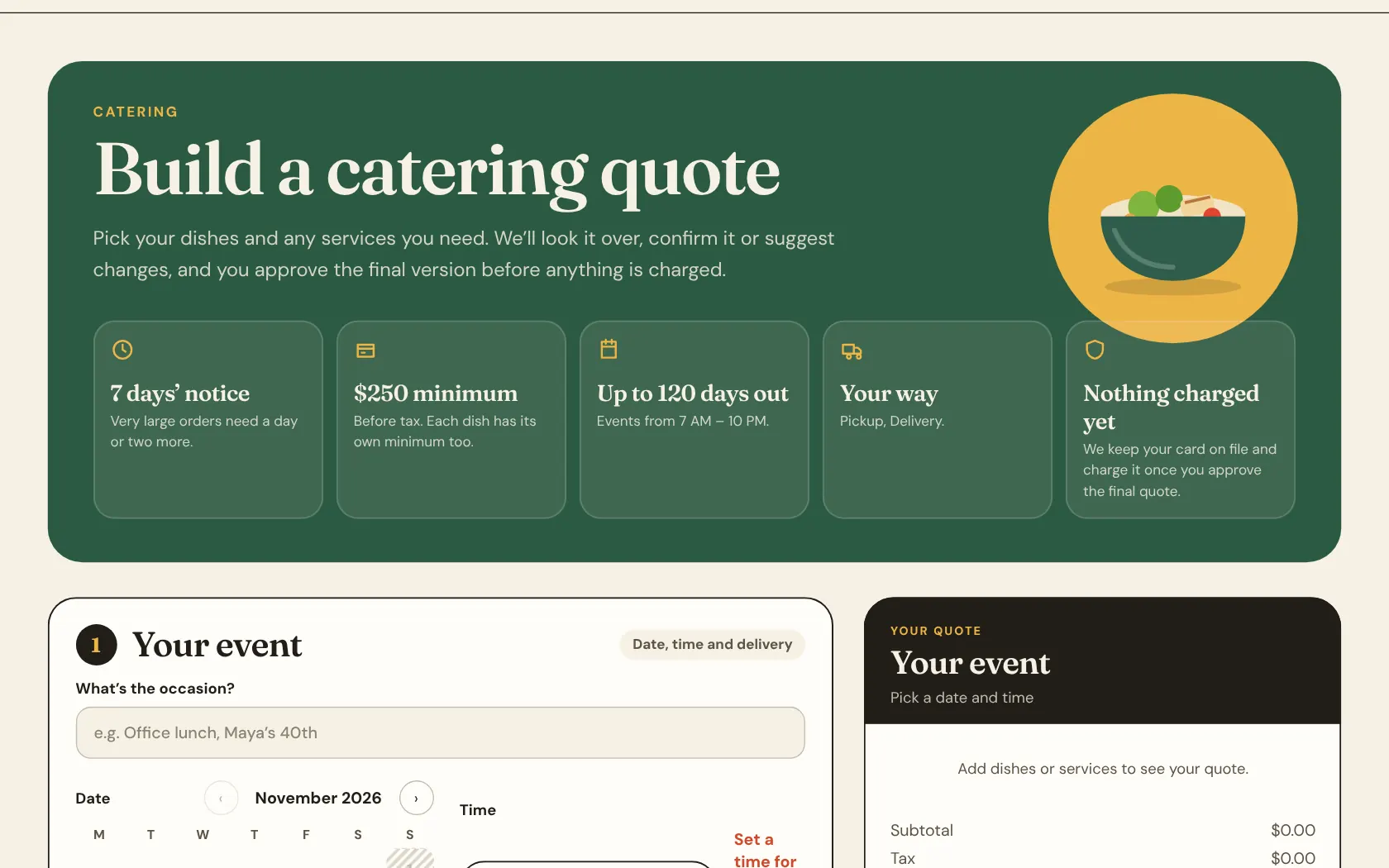
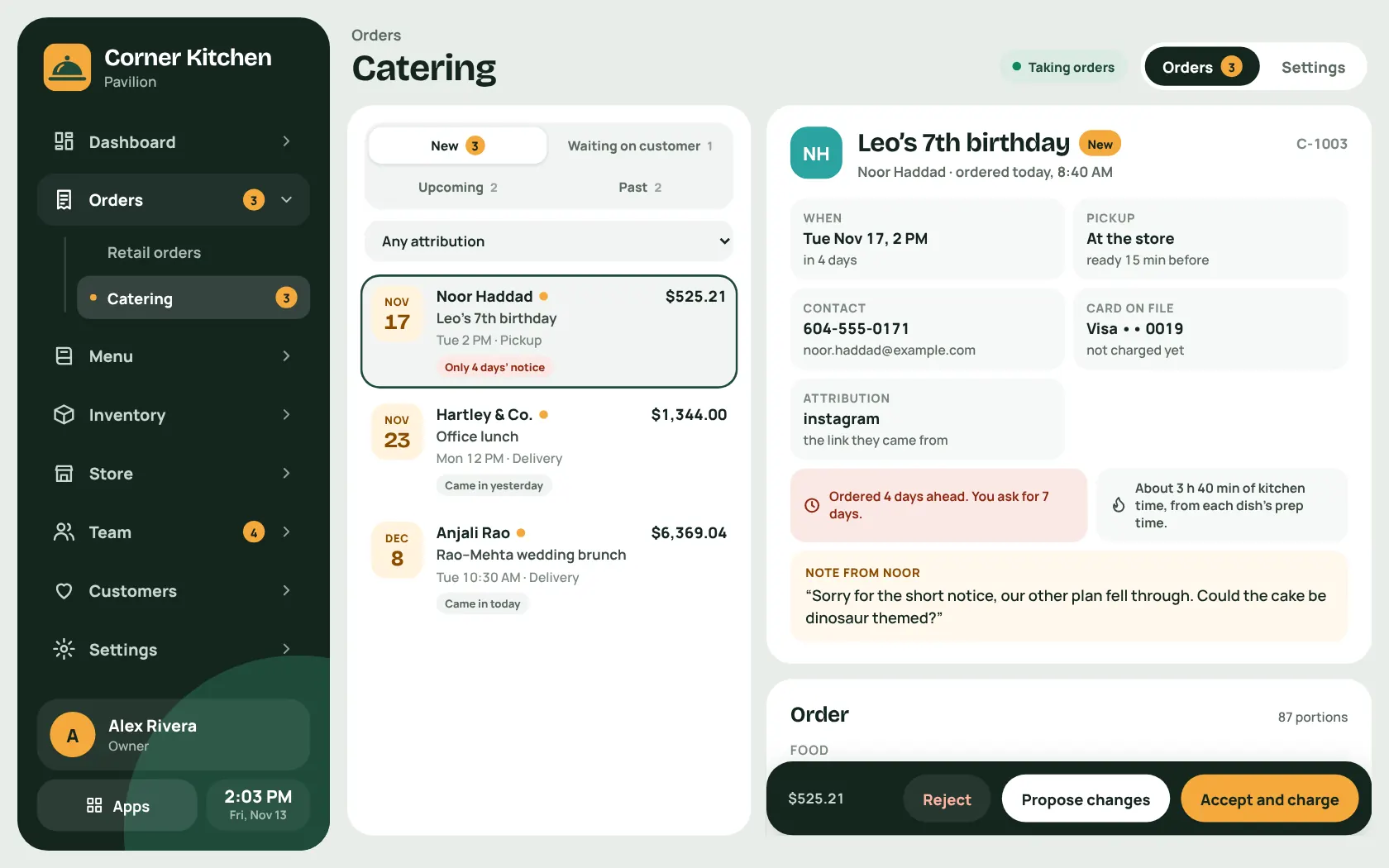
Catering, from the first quote to the last chafing dish.
-
The customer builds a quote
They pick dishes and services, a date, and pickup or delivery. Notice periods and minimums are checked as they go.
-
You answer
Accept it, or propose changes. The customer accepts or declines, and it can go back and forth.
-
Every version is kept
Nobody loses track of what was agreed. Both sides see the same history.
-
Charged on acceptance
The card on file is only charged once both sides agree.
-
Deposits for equipment
Holds for rented equipment are placed close to the event and released after.
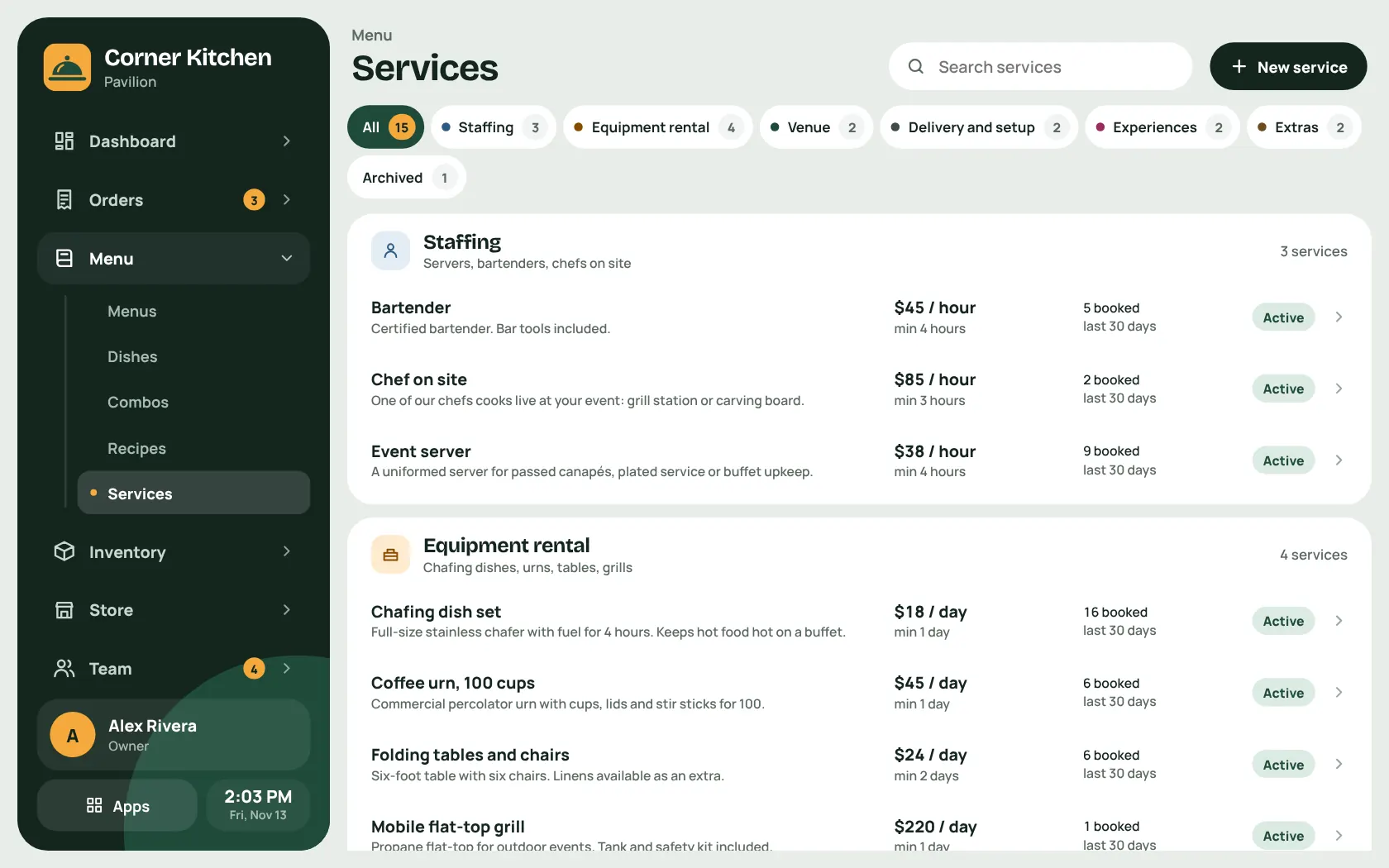
Catering prices per dish
Set a minimum order and price breaks by quantity on any dish, and see the food cost at each break.
Services, not just food
Sell staffing by the hour, equipment rental by the day, a room, or a class. Customers add them to a catering request.
The gift shelf
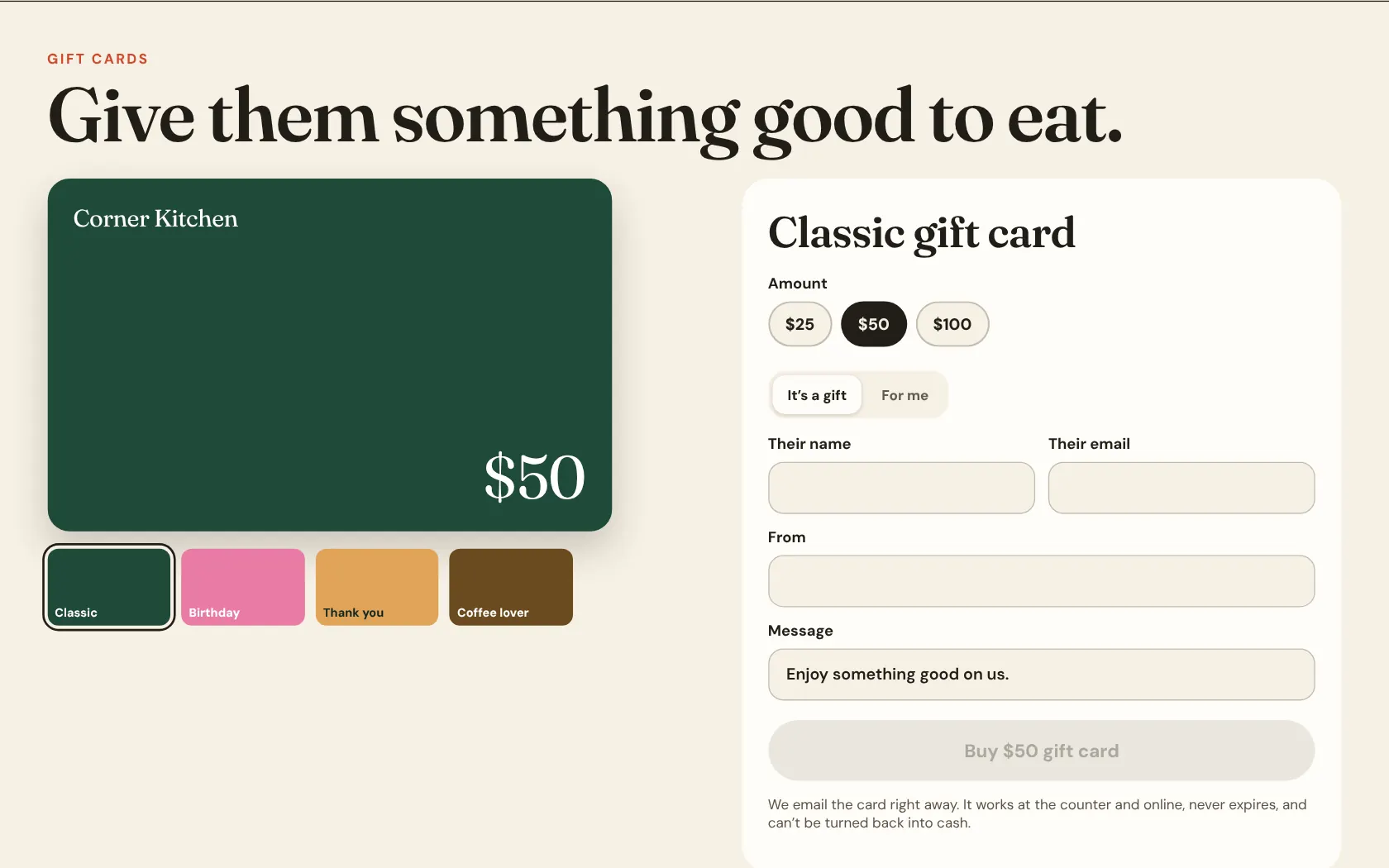
Gift cards, staff cards and discounts.
Gift cards
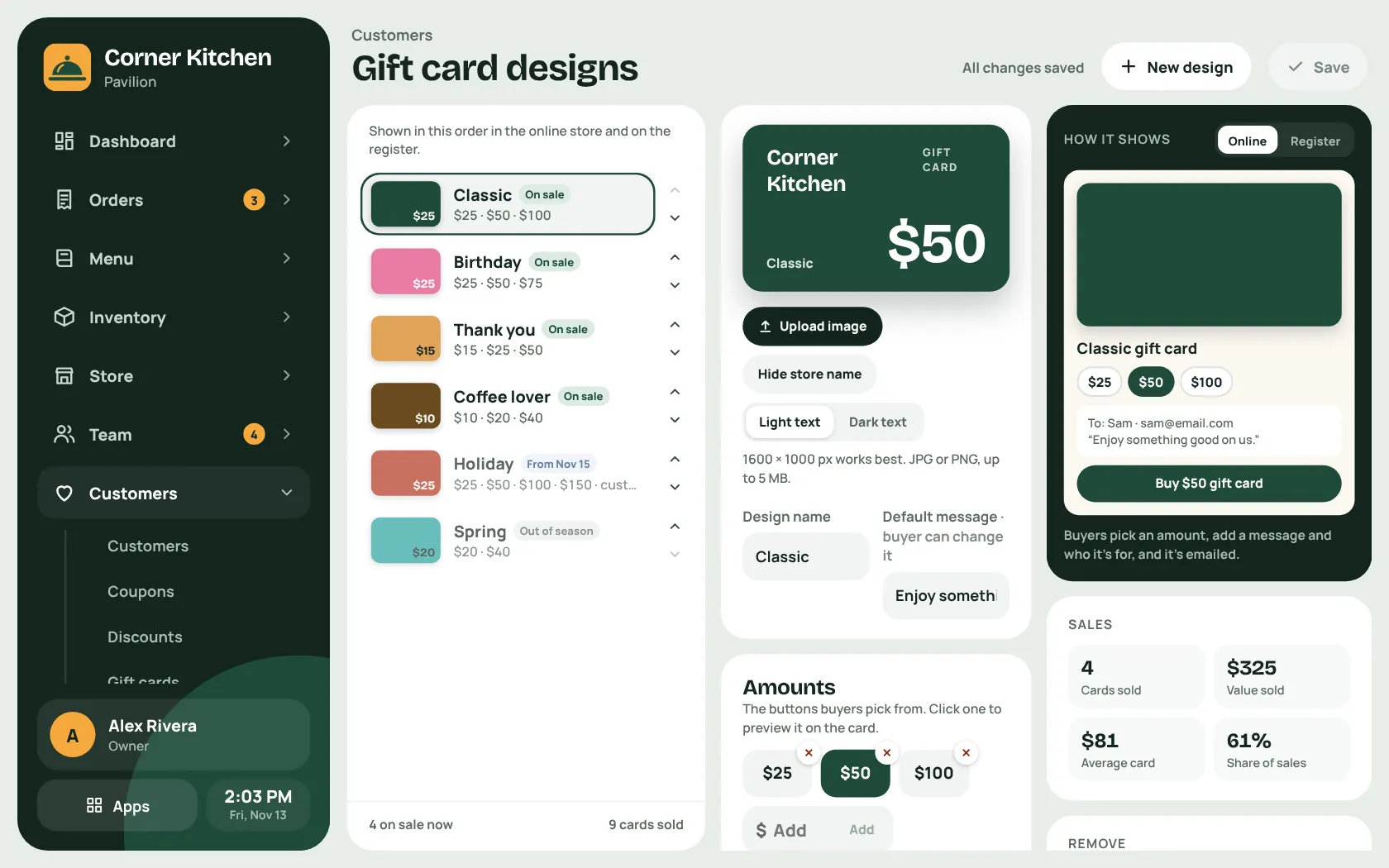
Sell them on the register or online, with designs that come and go by season. Card numbers are never stored, only a hash and the last four digits.
Staff cards
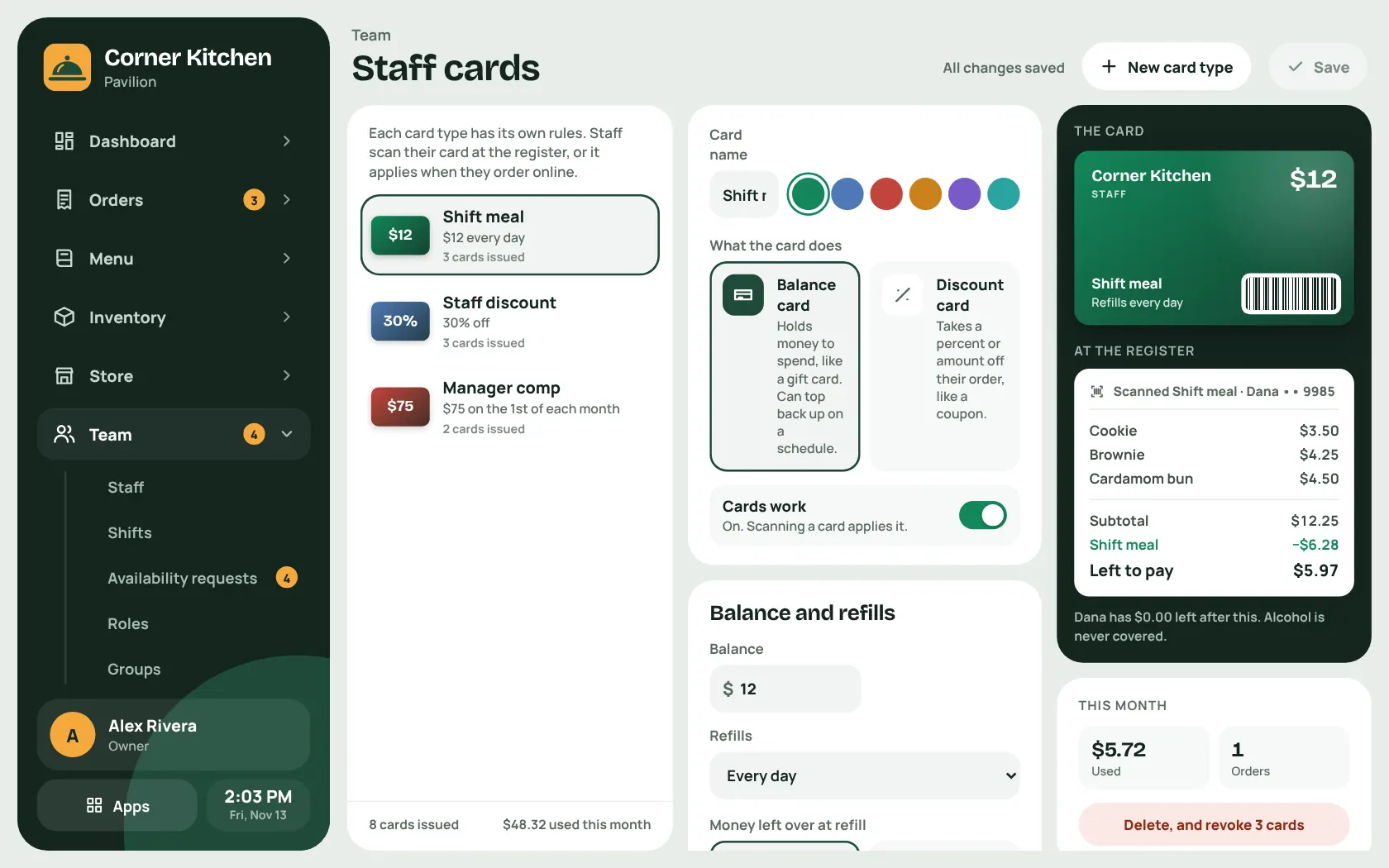
Give staff a card that refills itself on a schedule, like a shift meal, or one that takes a staff discount. They scan it at the register.
Offers and coupons
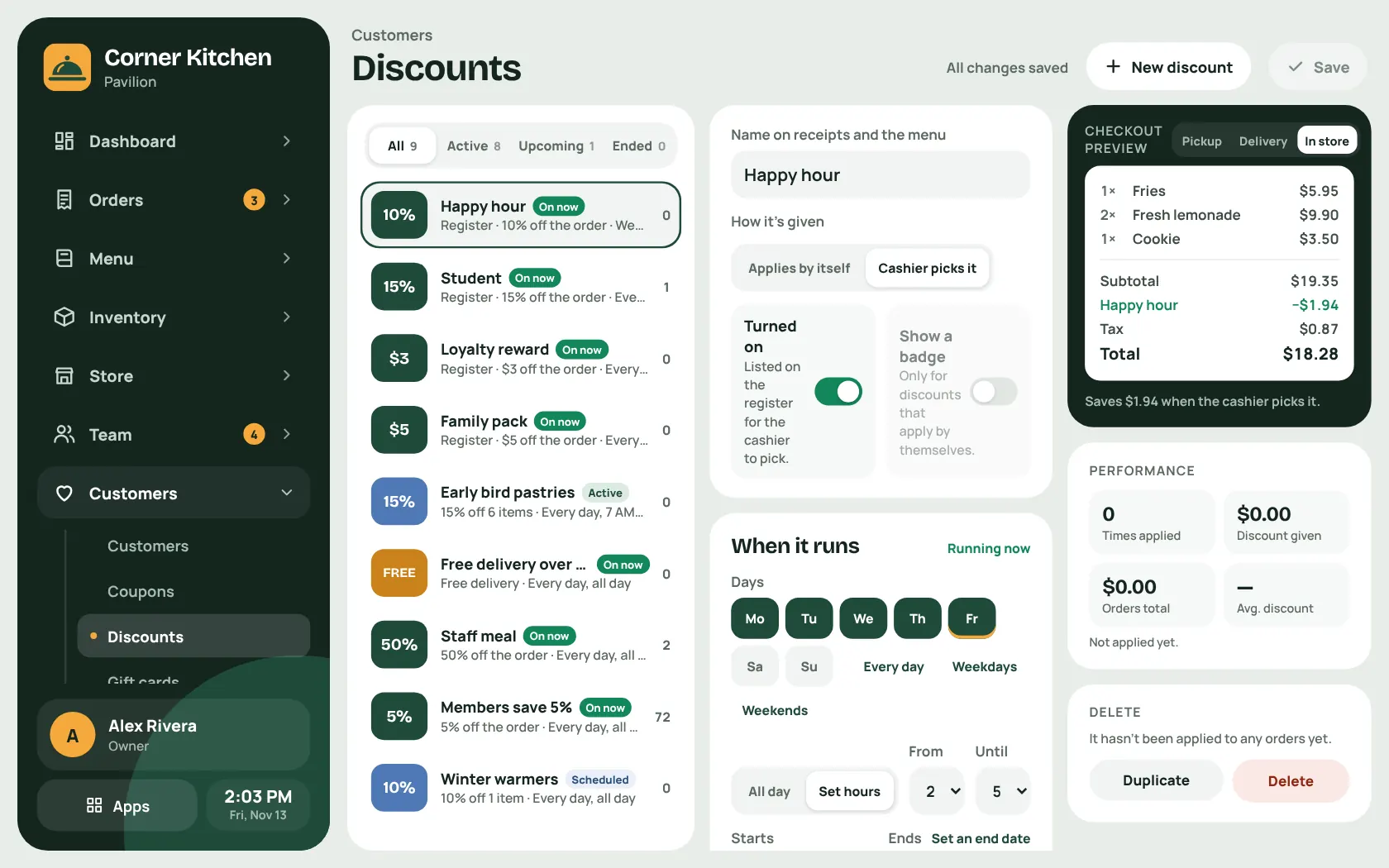
Automatic offers, coupon codes, happy-hour windows and first-order deals, each with its own days, times and limits.
Rules that make sense
Choose where a discount works: in store, pickup or delivery. Decide what stacks, and see how each one performed.
Know your regulars
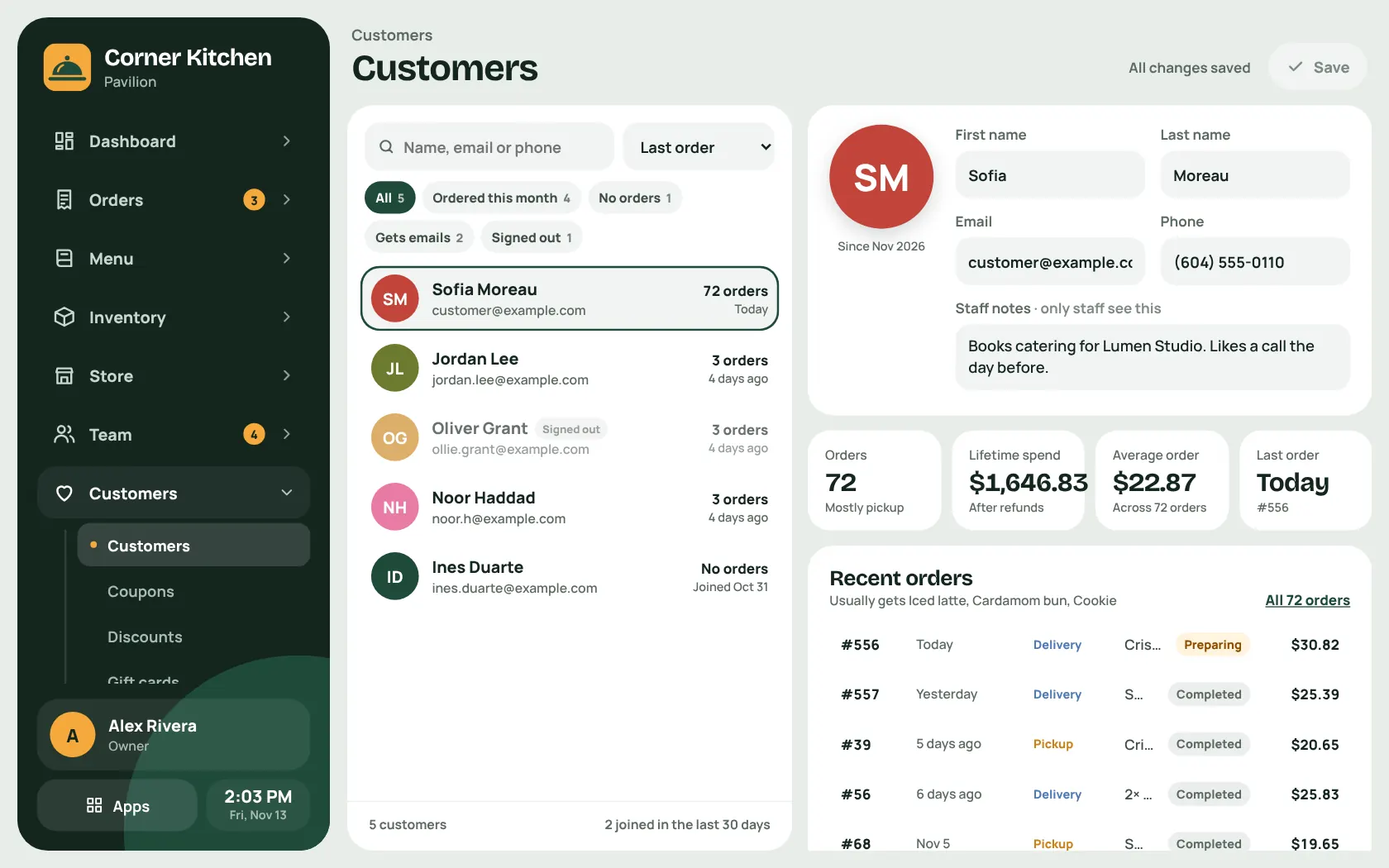
Customer profiles show lifetime spend, average order and what they usually get, with notes only staff see.
The staff room
Scheduling and a time clock for the whole team.
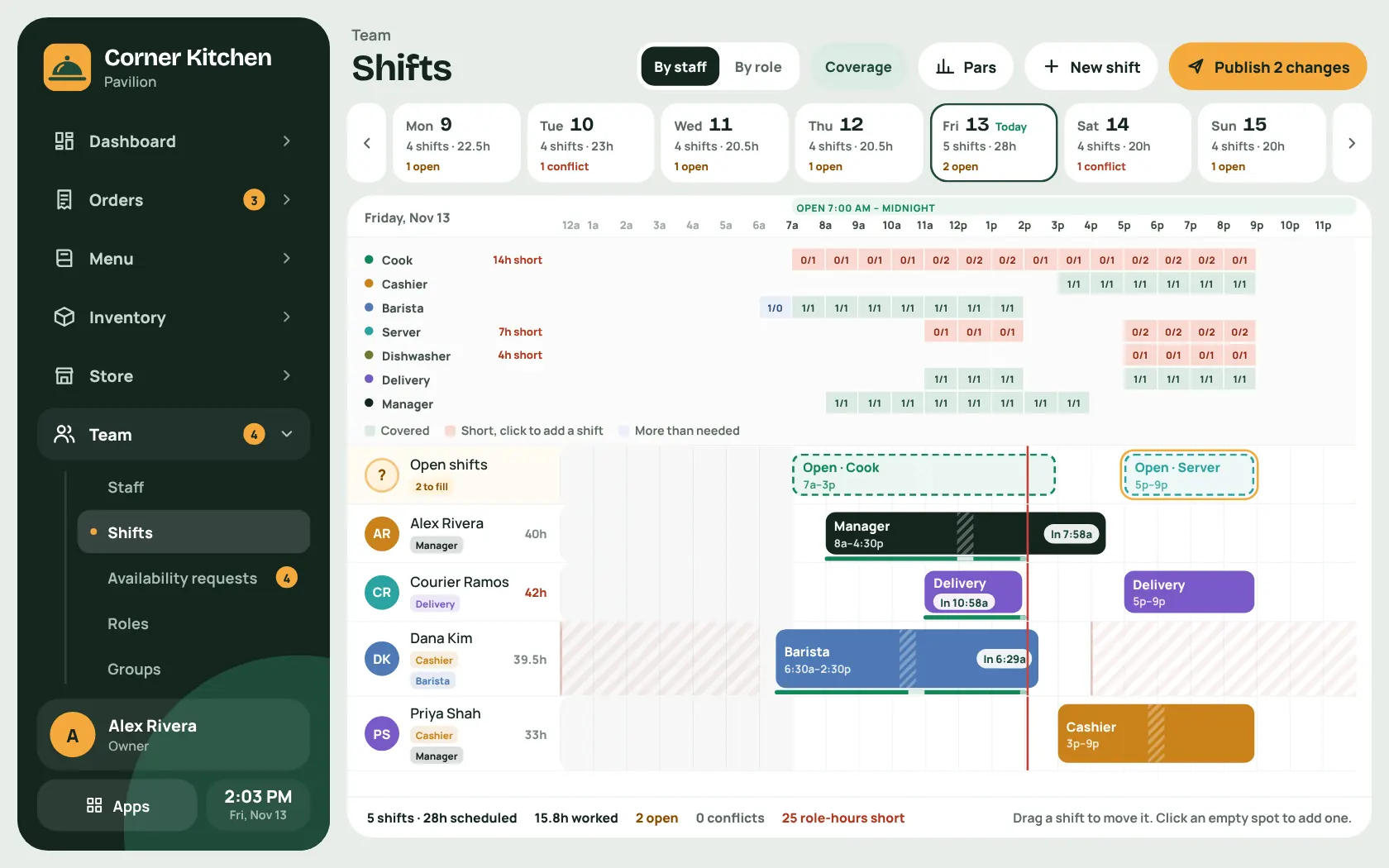
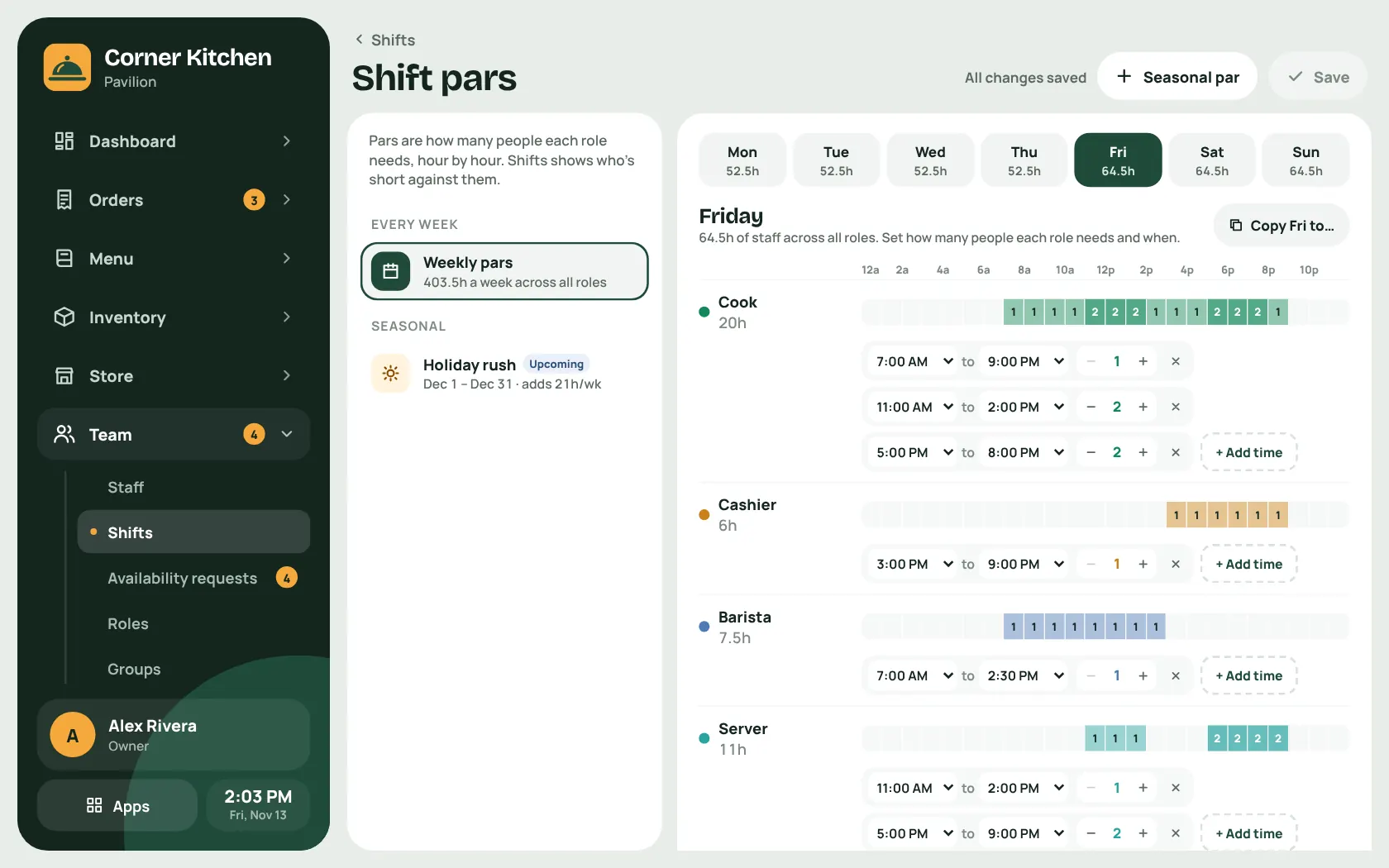
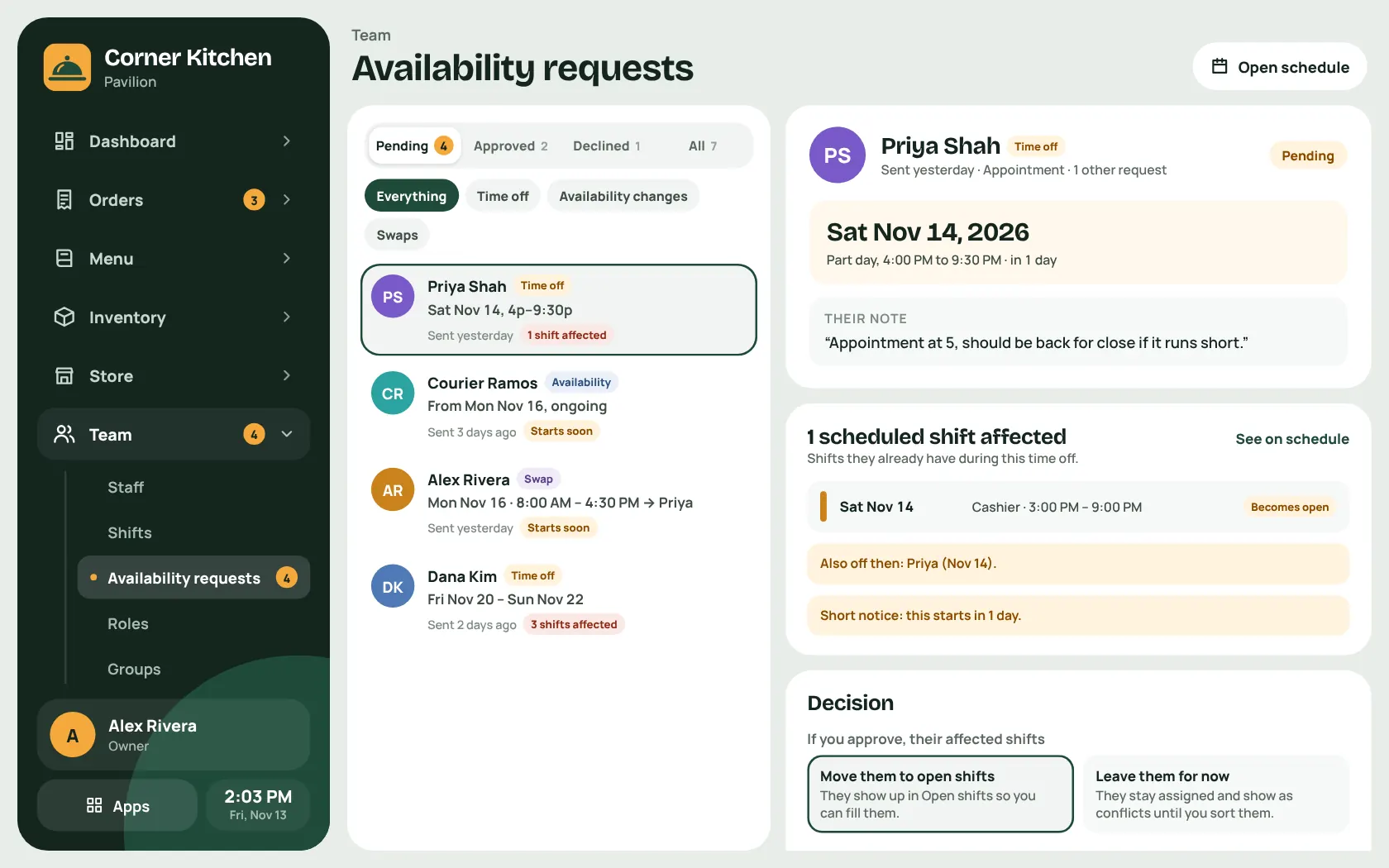
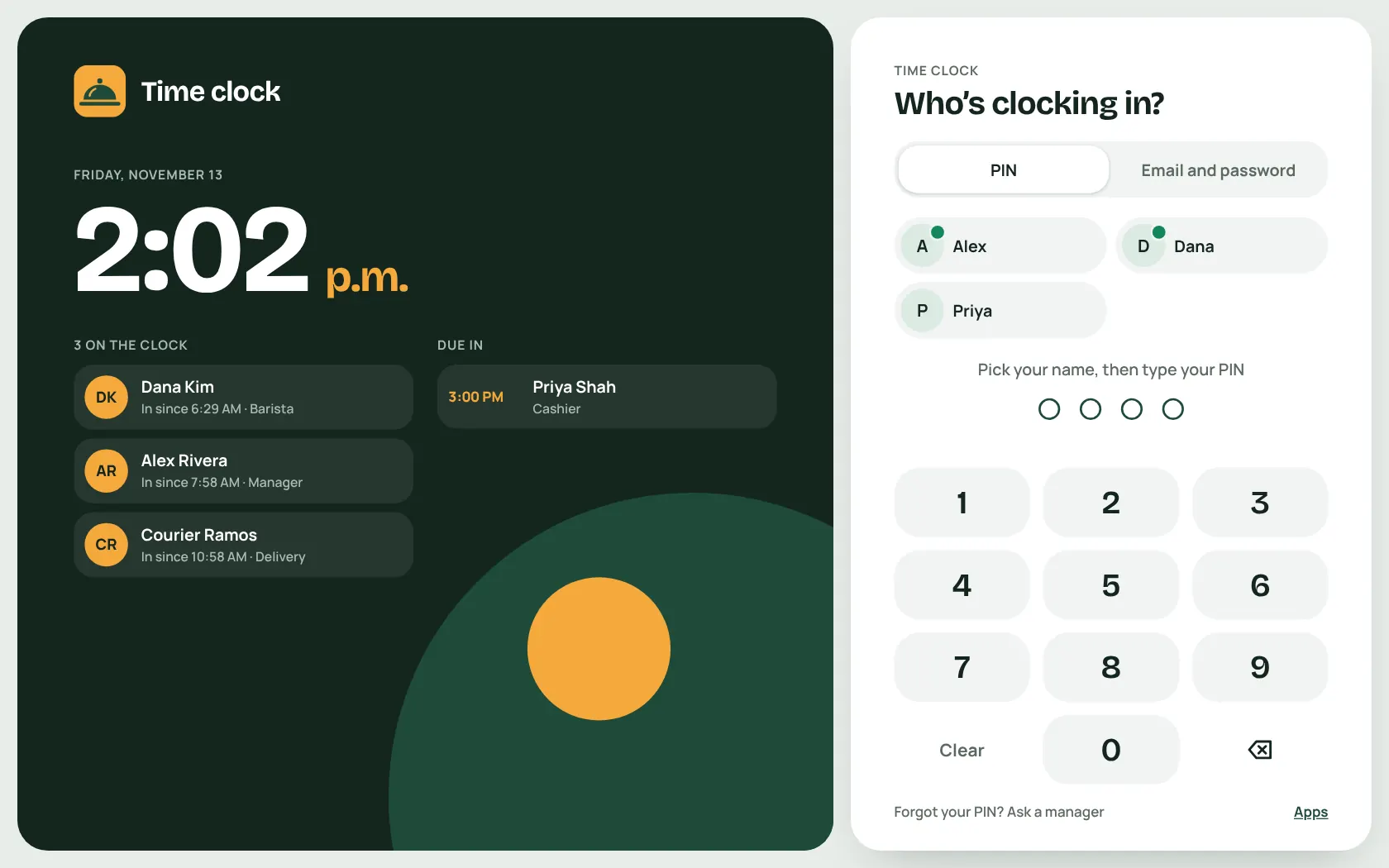
This week
- Build the week's schedule by dragging shifts
- Staffing pars say how many people each role needs, hour by hour
- Staff set their availability and ask for time off
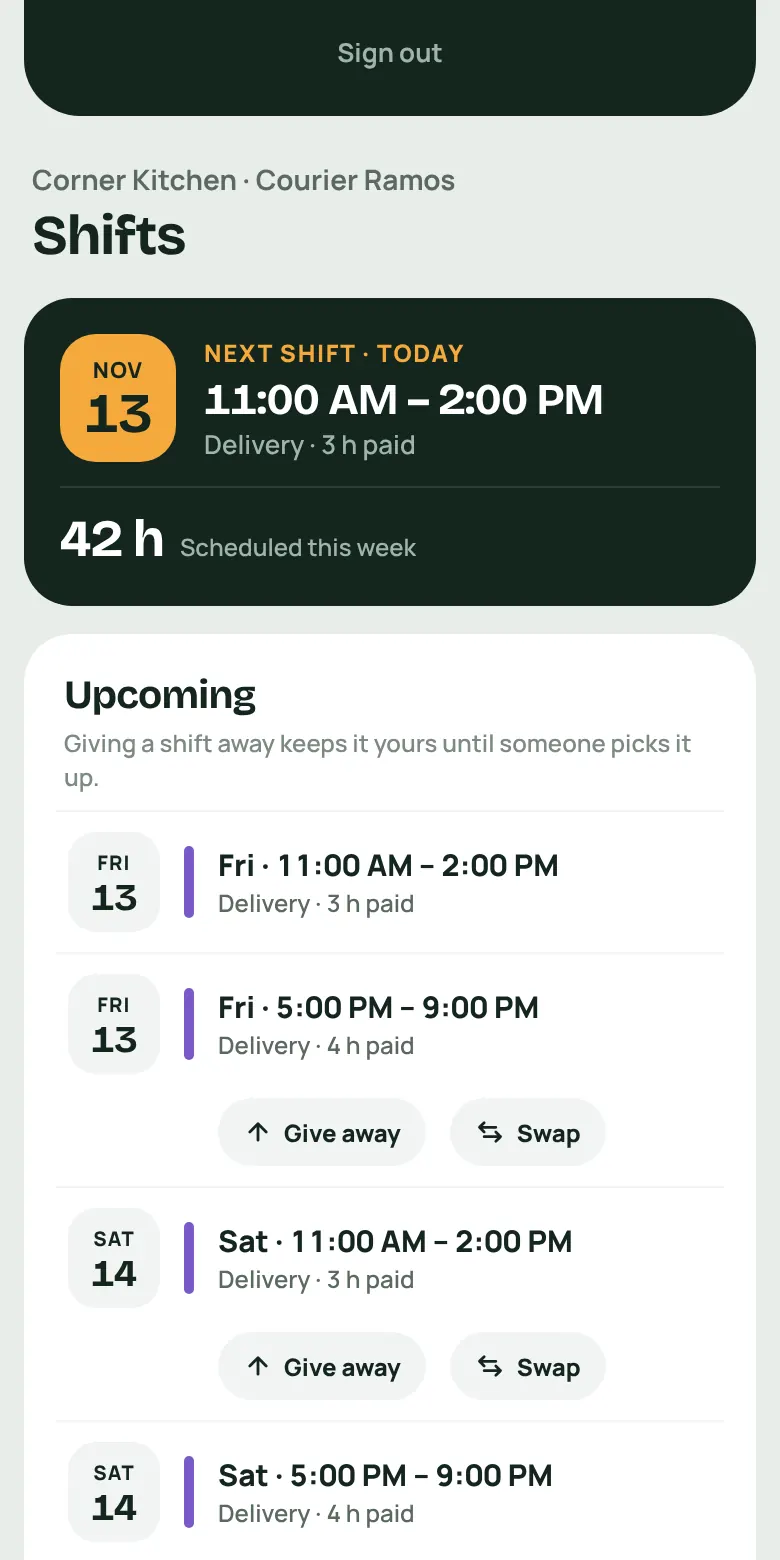
- Shift swaps and giveaways go up for grabs
- A PIN time clock runs on a shared tablet
- Clocking in early needs a manager's OK
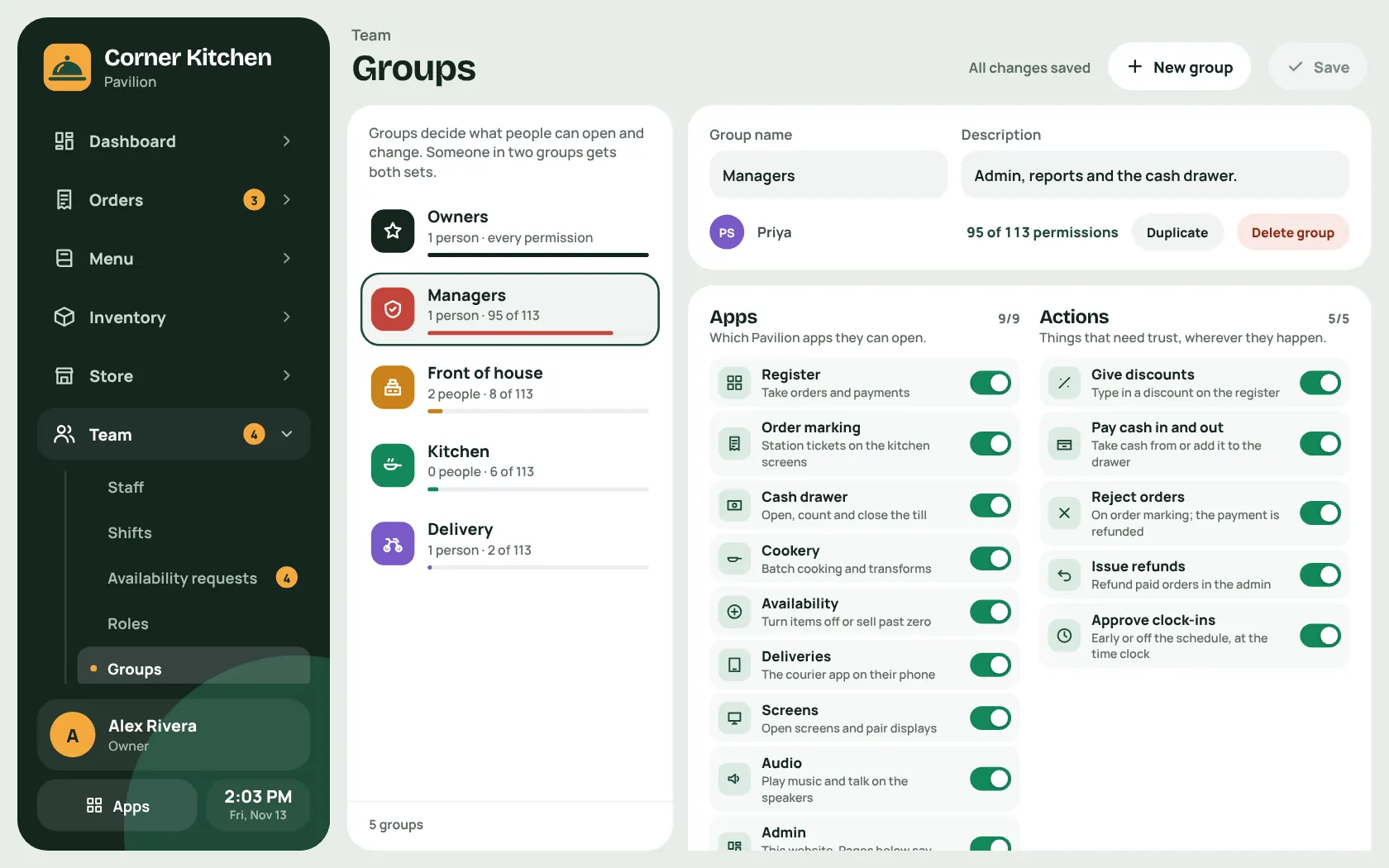
- Roles describe the jobs; groups decide what each person can open
The office
The back office: menus, money and everything you set once.
Dashboard and reports
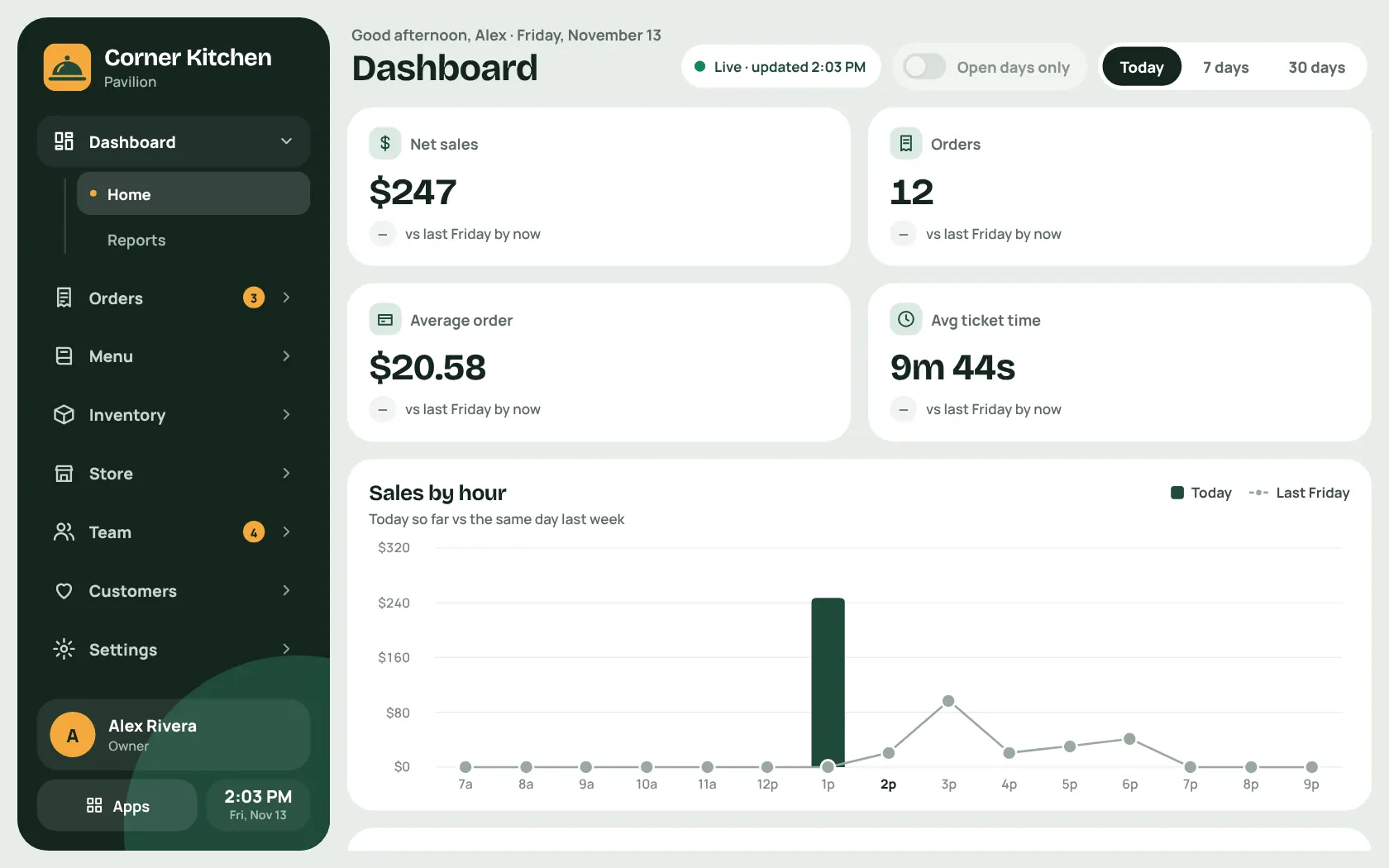
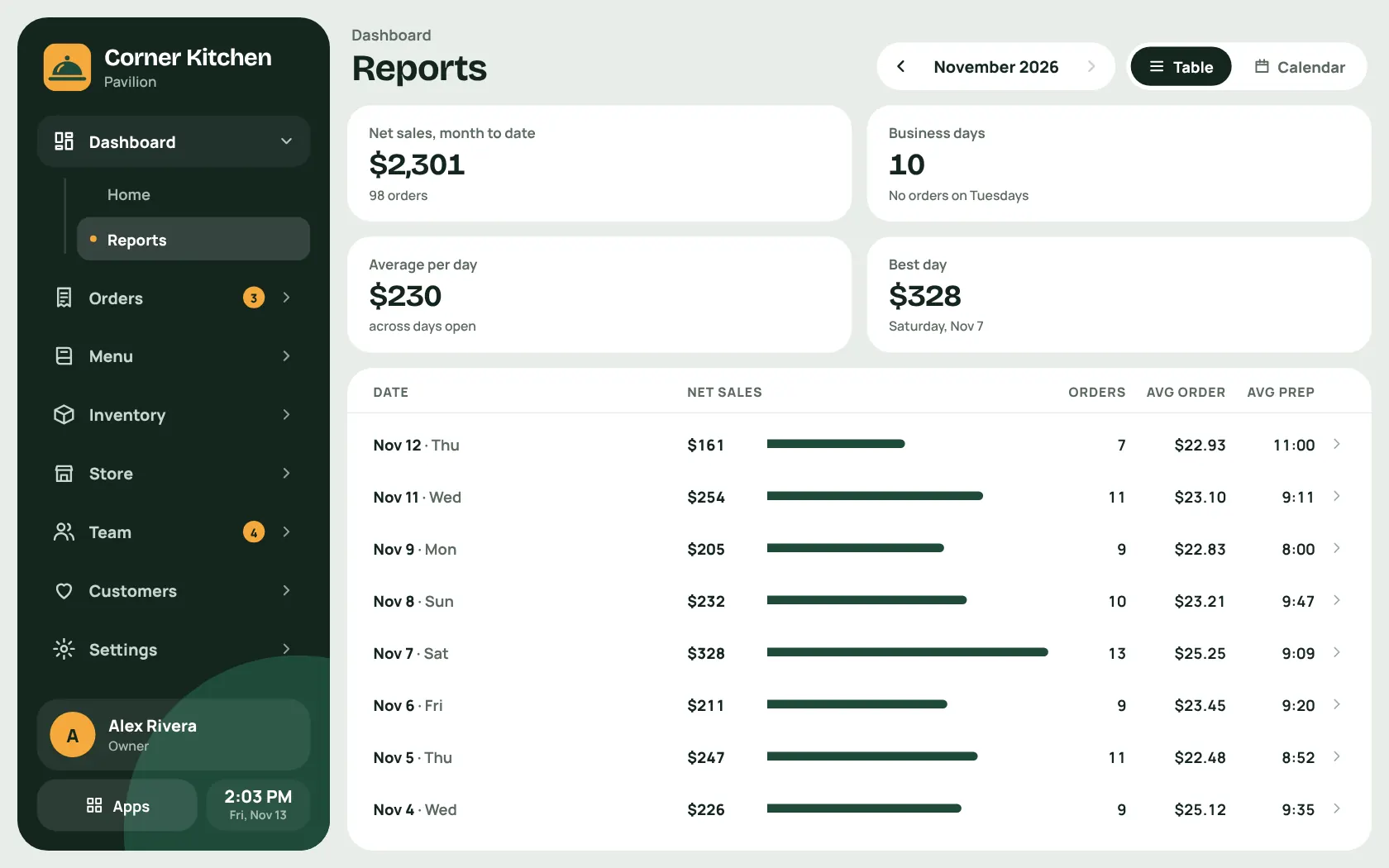
Net sales, orders, average order and ticket time, live. Reports by day, as a table, a calendar or a CSV.
Orders
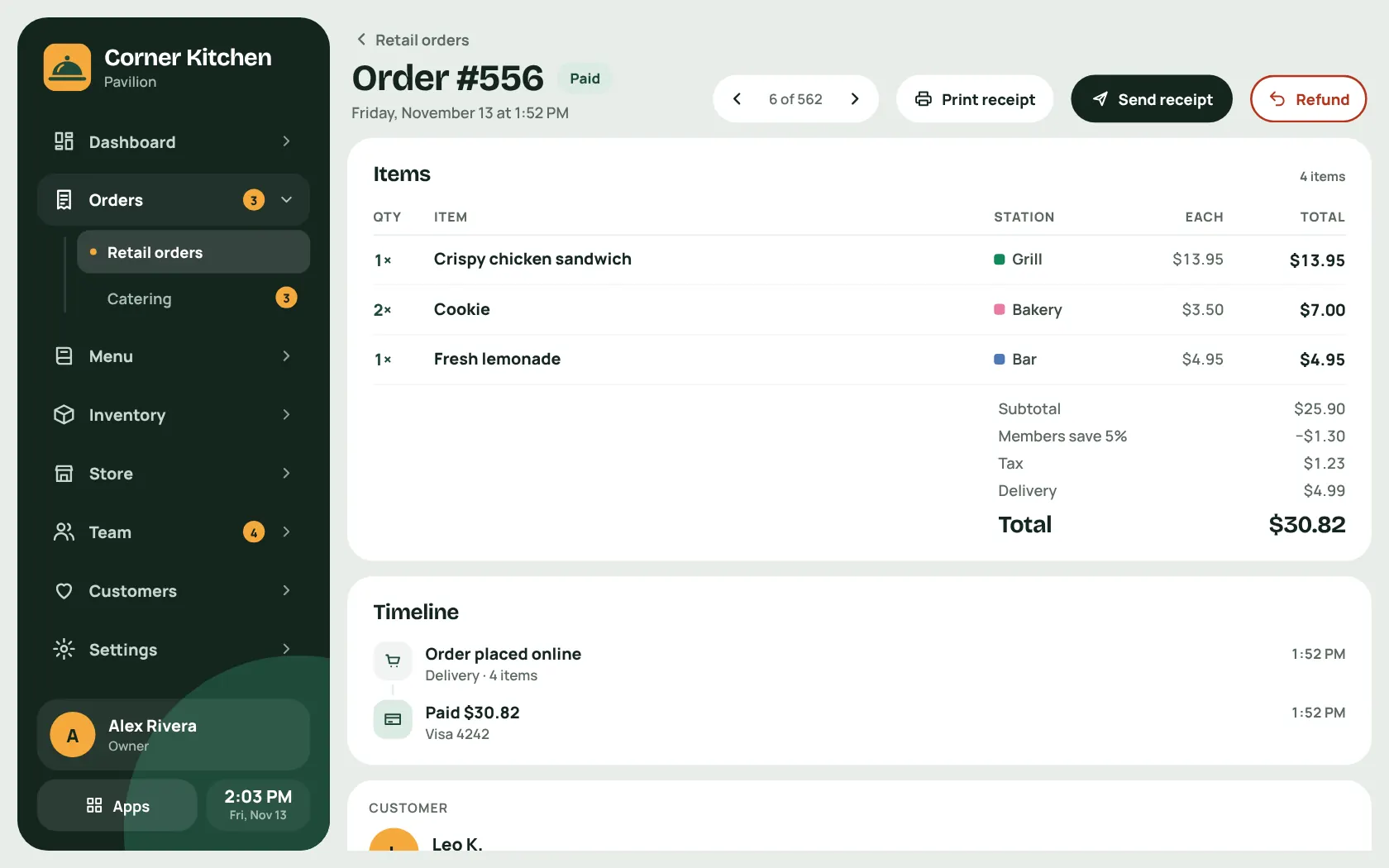
Every order with its timeline, payments and customer. Add a note, send a receipt, or refund.
Menus
Several menus with schedules and priorities: breakfast, lunch, happy hour, specials. Choose how each one looks on a menu board.
Dishes and combos
Prep time, the station it goes to, allergens, food cost against price, and what a combo saves the customer.
Store hours and events
Weekly hours with breaks, one-off events that open or close the store, and announcements to go with them.
Payments
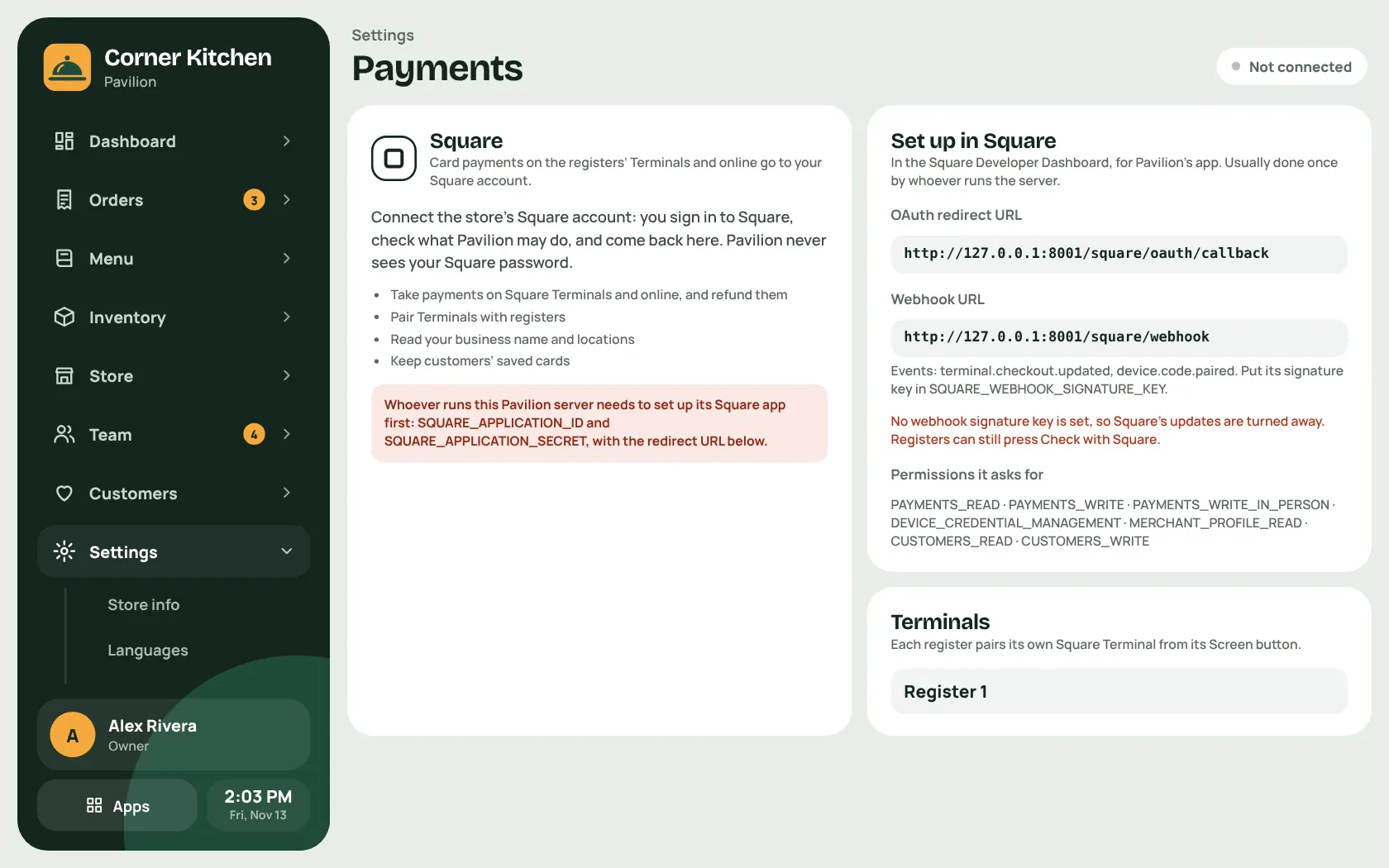
Connect your own Square account from the admin. Each register pairs its own Terminal.
Email and notifications
Receipts, order updates and gift cards go out through listmonk. Push notifications switch on or off by kind.
Devices
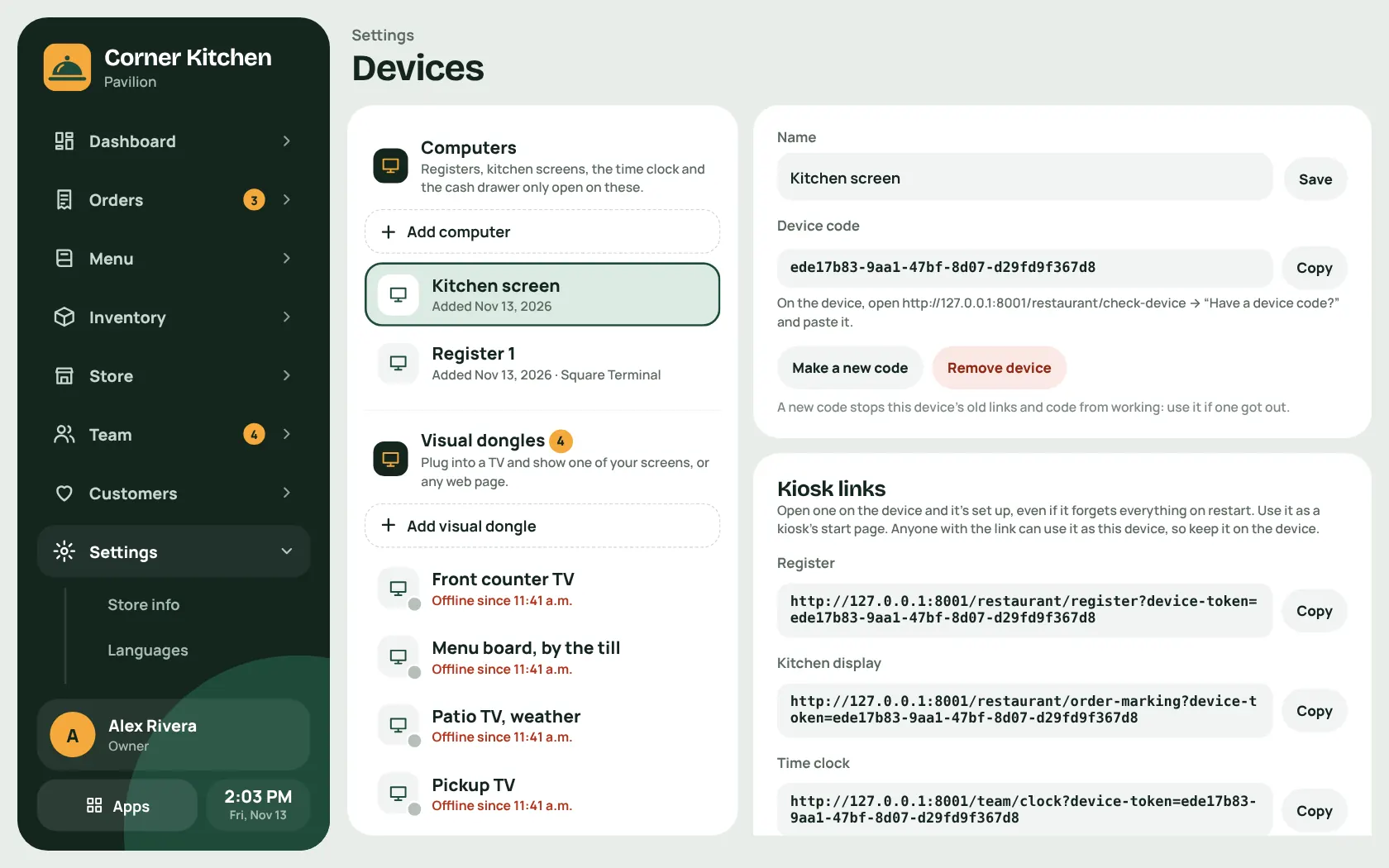
Only registered devices can open the register and kitchen screens. Kiosk links make a tablet remember what it is for.
The cellar
What it is built on, and how to move in.
-
Live everywhere
A new order, a dish selling out, a song skipping: every open screen hears about it at once over Server-Sent Events. Nothing polls.
-
Multilingual
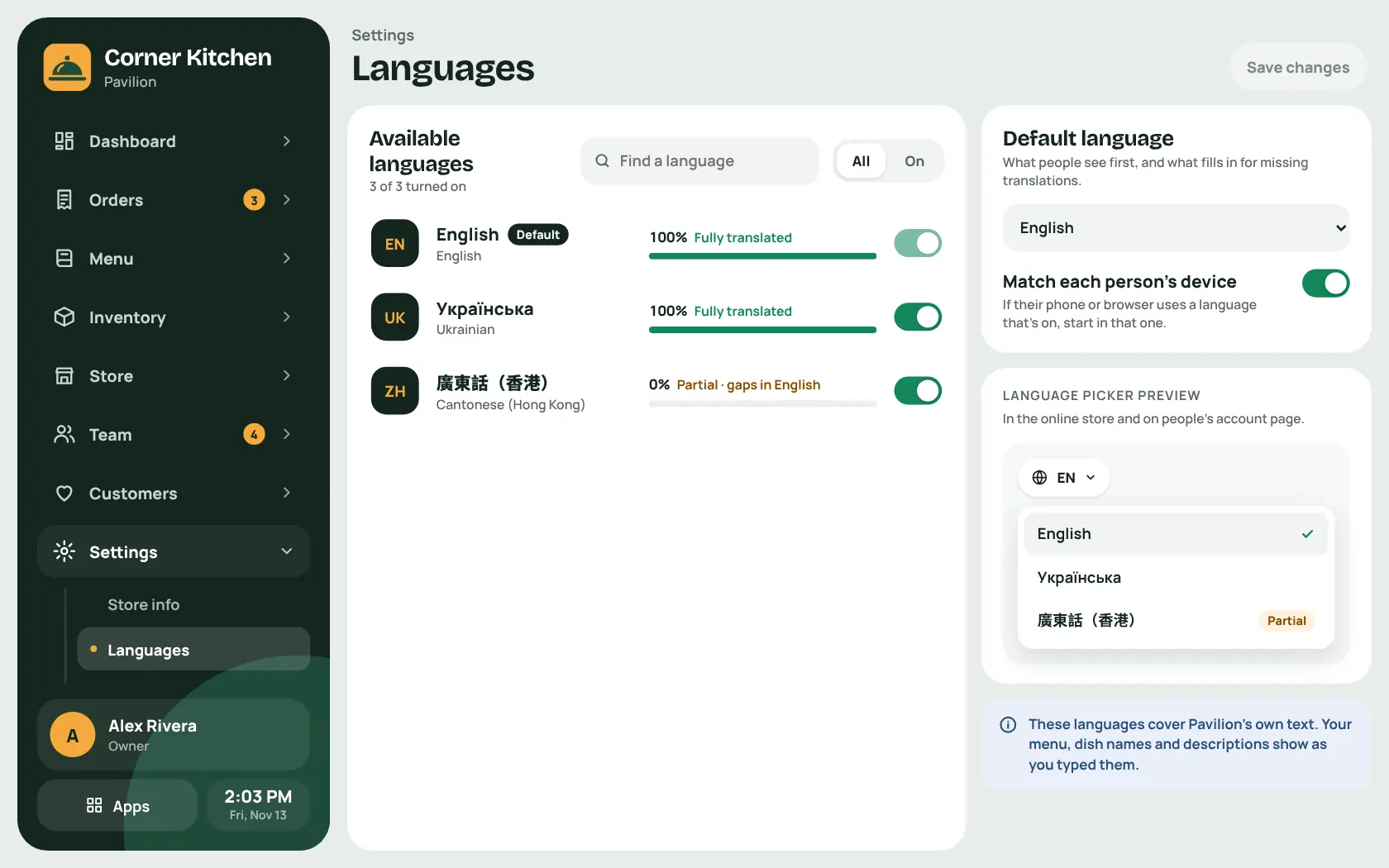
English and Ukrainian are complete, and Cantonese is under way. Each person's language follows them across the store, their emails and their notifications.
-
Locked down by default
Permissions go down to view, edit and delete on each admin page. Prices and totals are always worked out on the server, and only the server marks a payment paid.
Pavilion is Django 6.1 on Python 3.12 or newer, with plain templates and vanilla JavaScript. There is no npm and no build step. It runs on PostgreSQL and Redis in production and on SQLite while you try it out.
Try it locally
Then open /apps/ on your machine. seed_demo fills in the Corner Kitchen demo with menus, orders and staff. Skip it and Pavilion opens a first-time setup screen that asks for your store's name, address, tax rate and time zone.
Run it for real
The compose file brings the web app, Postgres, Redis, a scheduler for the daily jobs, routing and address lookup. Put a TLS proxy in front. Most settings live in the admin, not in environment variables.
What it plugs into
Square
PaymentsTerminals, online payments, saved cards and refunds, on your own account
listmonk
EmailTransactional email, newsletters and event announcements
Web Push
Built inOrder updates and courier alerts. The keys are generated for you
Valhalla and Nominatim
Self-hostedOpenStreetMap routing and address lookup for deliveries
weatherapi.com
OptionalThe weather widget on screens
Gotenberg
OptionalScreenshots for the store app's install sheet
Bugsink
OptionalError reporting
S3-compatible storage
ProductionPhotos and music in production